Explore health systems
When you choose a top-level HCO from the Hierarchy Explorer homepage, the hierarchy view displays.

At the top of the page, the following information displays for the root HCO:
-
Icon - Identifies the HCO type, the record owner (Veeva OpenData (orange), local (gray), third party (blue).
-
Country - The primary country of the record.
-
Name - The corporate name of the HCO.
-
Address - The HCO's most relevant address.
HCO records can have several addresses. The address that displays is the address with the most fields marked as primary. If the HCO does not have a primary address, the highest ranked address displays. Only active addresses display.
Breadcrumbs
Breadcrumbs detail the path you take through the hierarchy. Use the breadcrumb to navigate back through the hierarchy.
Hover over truncated breadcrumbs to view the accounts.

Available hierarchies
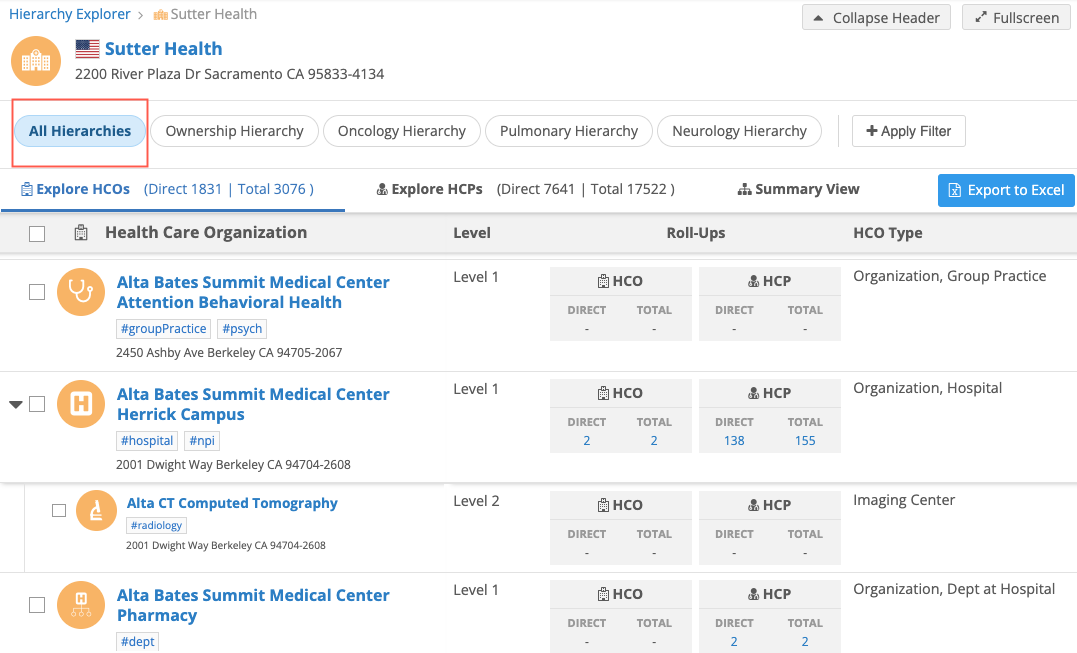
By default, the following hierarchies are available for the root HCO:
-
All Hierarchies - Displays all of the active HCO and HCP relationships.
-
Ownership Hierarchy - Filters the parenthco relationships so only Ownership and Affiliation relationship types display in the hierarchy.
Relationships of other types; for example, Business Partner/Affiliate, CMS Hospital Claims, GPO, and so on, are removed so you can focus on the HCOs and HCPs directly involved in therapeutic health care practices. The filter is applied to every level in the hierarchy.
Custom hierarchies
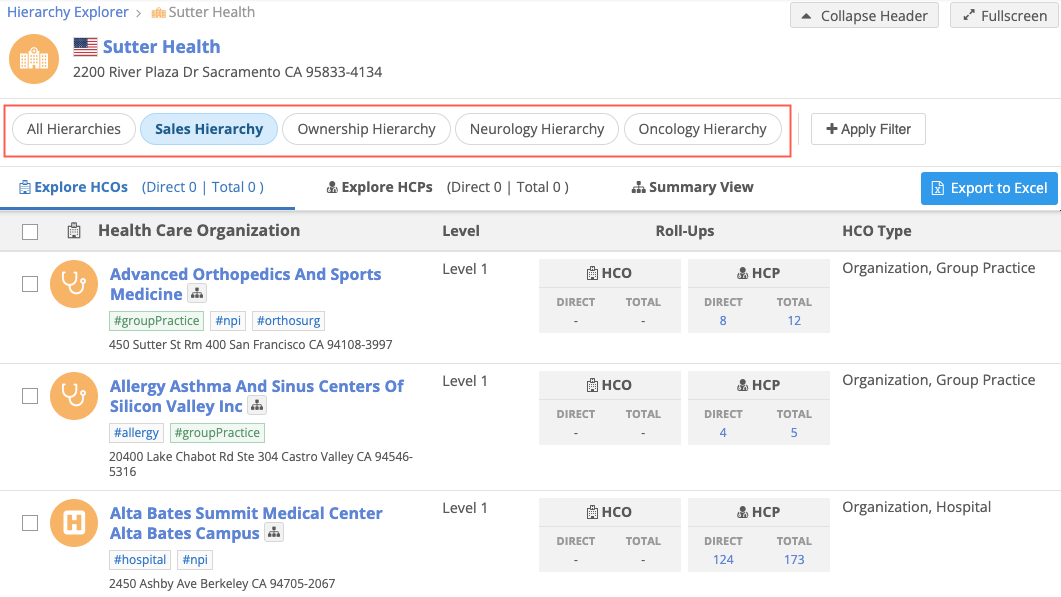
Use custom hierarchies to visualize primary relationships for specific business purposes. For example, filter the root HCO's hierarchy for sales roll-ups or for specific therapeutic areas (Neurology or Oncology). The HCO and HCP relationships that display will be filtered based on the criteria that you define for the custom hierarchy.
For details, see Define custom hierarchies.
Summary View
The summary view displays an HCO's hierarchy in a tree view so you can review the entire hierarchy on a single page.
For details, see Hierarchy Explorer Summary View.
Display the Summary View by default
Administrators can configure the widget to display the Summary View when users open an HCO so they can immediately understand the HCO's hierarchy.
For details, see Configure the Hierarchy Explorer widget.
HCO page actions

On the root HCO page, you can do the following:
| Action | Details |
|---|---|
| View profile | Click the root HCO name or any HCO or HCP in the hierarchy to open a panel containing the account profile. |
| Child HCOs tab |
This tab is open by default and displays all levels of HCOs associated to this top-level HCO. It displays the count of direct and total (direct and indirect) HCOs that are affiliated with the root HCO. |
| Ancestor HCOs tab | This tab displays all direct and indirect parents of the root HCO. |
| Child HCPs tab | Open this tab to view the HCPs that are directly or indirectly associated to the top-level HCO. The tab displays a count of direct and total HCPs that are affiliated to the HCO. |
| Summary View tab | Click to open a new tab that displays a visualization for all levels of the HCO hierarchy. See Summary View for more information. |
| Filter the hierarchy | Click Apply Filters to define criteria for finding HCOs and HCPs. All levels of the hierarchy are searched. The counts on the tabs update to display counts for the filtered results. |
| Export data | Select HCOs or HCPs and export them to a Microsoft® Excel® file. Click Actions > Export to Excel. For more information, see Export data from Hierarchy Explorer. |
| View different hierarchies | Switch between All Hierarchies and Ownership Hierarchy. Administrators can create custom hierarchies so you can visualize primary relationships for specific business purposes. |
| Create tabs | Segment the data so you can immediately access specific accounts in a hierarchy without filtering each time. See Create HCO and HCP tabs. |
| Add affiliations |
Add accounts to any level of the hierarchy. This can include accounts in your Network instance and accounts in Veeva OpenData (if the Search widget is integrated with your Hierarchy Explorer widget). |
Child HCOs
This tab displays all the child HCOs in the root HCO's hierarchy.
View details
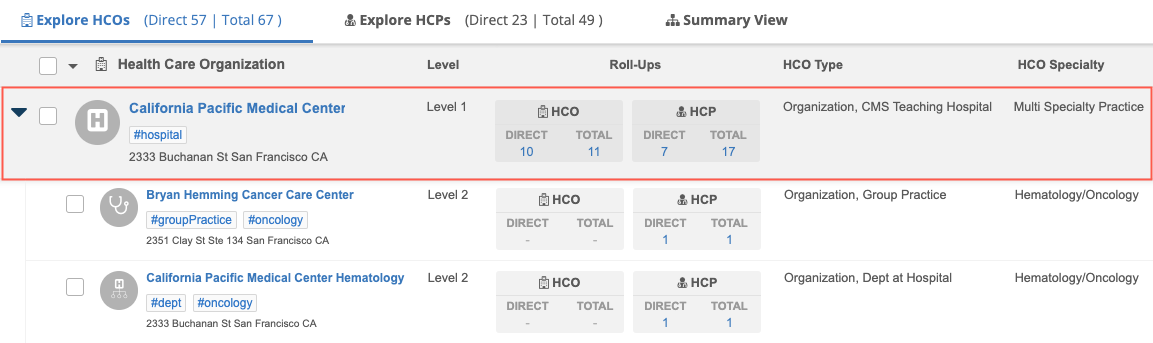
By default, the following details are available for each HCO in the list:
-
Icon - Based on the HCO type. Hover over the icon to view the type in the tooltip that displays.
-
HCO name and address
The address that displays is the address with the most primary fields that are true. If no addresses are marked as primary, the highest ranked address displays.
Tip: Click the name of the HCO to open the preview the profile. A pane will display.
-
Hashtags - Network hashtags are dynamically added below the HCO name so you can immediately identify key details about the record. Hover over the hashtag to view a tooltip for more information.
-
Level column - The level that the HCO is at within the health system.
-
HCO type column - The HCO type.
-
Roll-Ups - A count of HCOs and HCPs that are directly and indirectly connected to the HCO.
Click an HCO count to refocus the hierarchy on that HCO, or click an HCP count to open the Child HCPs tab with that HCO as the target.If you filter the results, the counts are updated to reflect the filtered results.
Tip: Administrators can rename the Direct and Total rollup count labels to make them meaningful to their users. For details, see Configure the Hierarchy Explorer widget.
-
Associated HCOs - A caret displays beside HCOs that have their own hierarchy. Click the caret to expand the HCO section to quickly view associated HCOs. A maximum of 50 HCOs can display in the expanded section.
Note: Additional fields can be added in the widget configuration. In the example above, an administrator has included the HCO Specialty field.
Filter HCOs
Click Apply Filter to limit the HCOs and the HCPs included in the roll-up counts for specific criteria.
In the filter dialog, use the settings to determine your filter criteria. The lists contain values that apply to the root HCO's primary country.
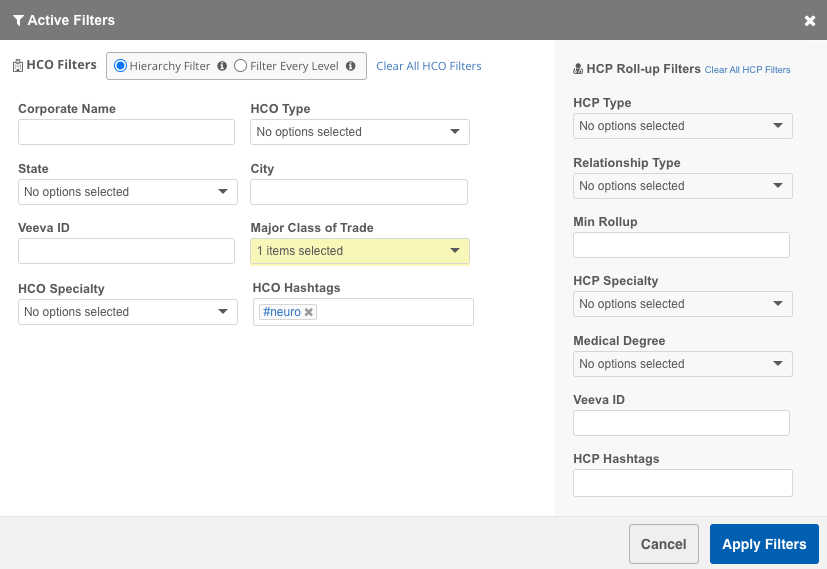
Tip: Use hashtags instead of looking for values in each filter field. For example, use the #neuro hashtag instead of finding the neurology-related values in the HCO Speciality list.
Considerations for filtered HCOs and HCPs:
-
Only active HCOs and HCPs display.
-
Valid and Under Review records display.
-
Candidate records and opted out HCP records do not display.
-
Data visibility profiles are not applied to the search. You can see any HCPs and HCOs that match the criteria.
The Active Filters dialog contains the following filtering options:
-
Hierarchy filter (default option) - Filter on the first level of the hierarchy and display all HCOs in their hierarchy.
-
Apply filters to all level - Filter on all levels of the hierarchy and display the filtered HCO only.
Click the tooltip  to view an example for each filter option.
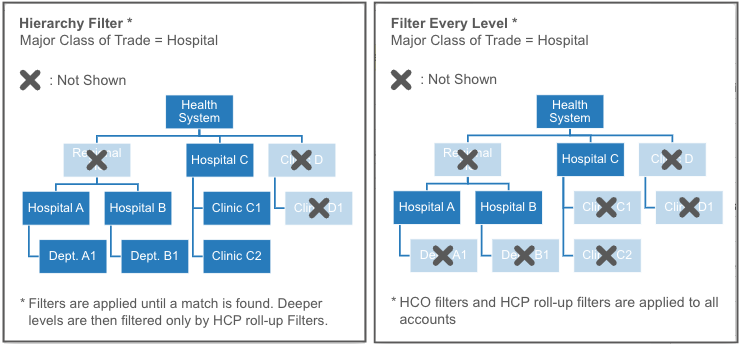
Example
Filter a health system to view the hospitals within its hierarchy. In the Active Filters dialog, we'll select Hospitals as the Major Class of Trade.
-
Results with hierarchy filter
Using the hierarchy filter, the first level of the health system hierarchy is filtered for hospitals and we can view all of the child HCOs in each hospital's hierarchy. In the example below, we can see departments and group practices in the HCO's hierarchy.
Counts display for the HCO roll-ups so we have an immediate sense of the size of the HCO.
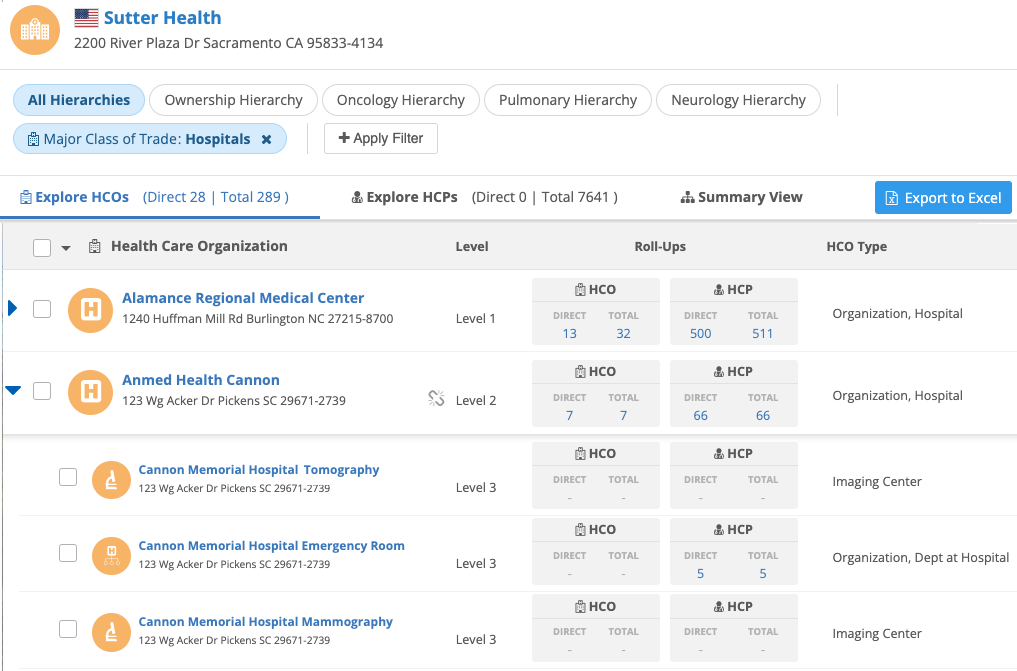
If an HCO is not directly connected to the parent HCO, an indicator
 displays. This typically occurs when a filter is applied; for example, find Group Practices only.
 -
Apply filters to all levels
When we filter every level, Hierarchy Explorer displays hospitals in all levels of hierarchy. The hierarchy does not display child HCOs that are not hospitals.
Note that they are no HCO rollup counts because only the hospital displays. The HCP roll up counts are the same because child HCO data is not included.
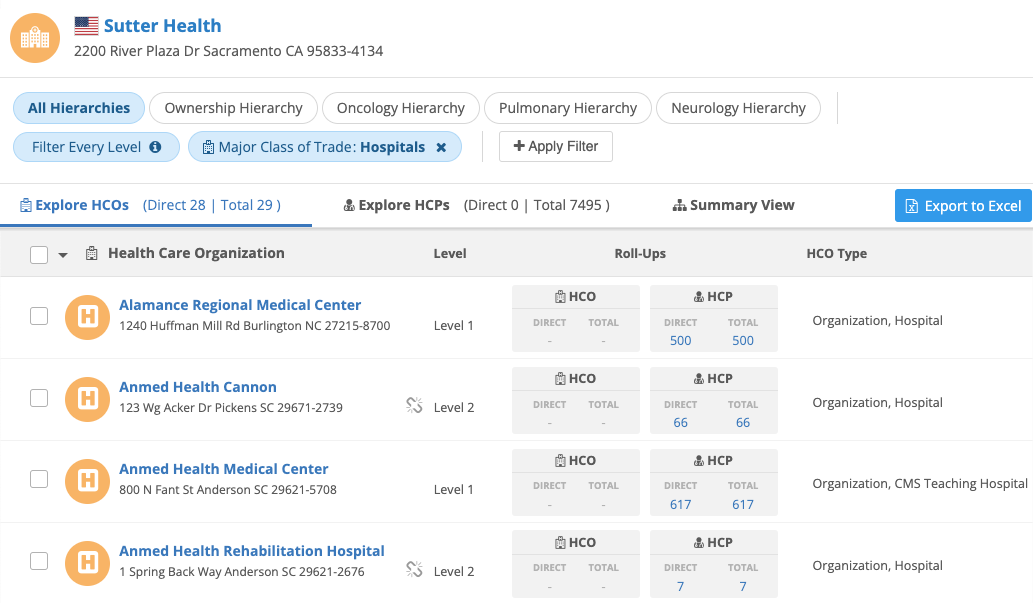
Navigating with filters applied
If hierarchy filtering is applied to a hierarchy, the filters will be removed when you click HCO or HCP rollup counts. If you return to the original hierarchy, the hierarchy filtering is restored. The filtering remains if you are filtering all levels.
Note: To remove the selected filters, click the X icon beside the filter. You can also click Clear All Filters in the HCO and HCP sections on the Apply Filters dialog.
Ancestor HCOs
The Ancestor HCOs displays the root HCO and its ancestors. The tab displays a count of the direct parents and total ancestors.
For top-level HCOs that do not have an ancestor, the count is 0.
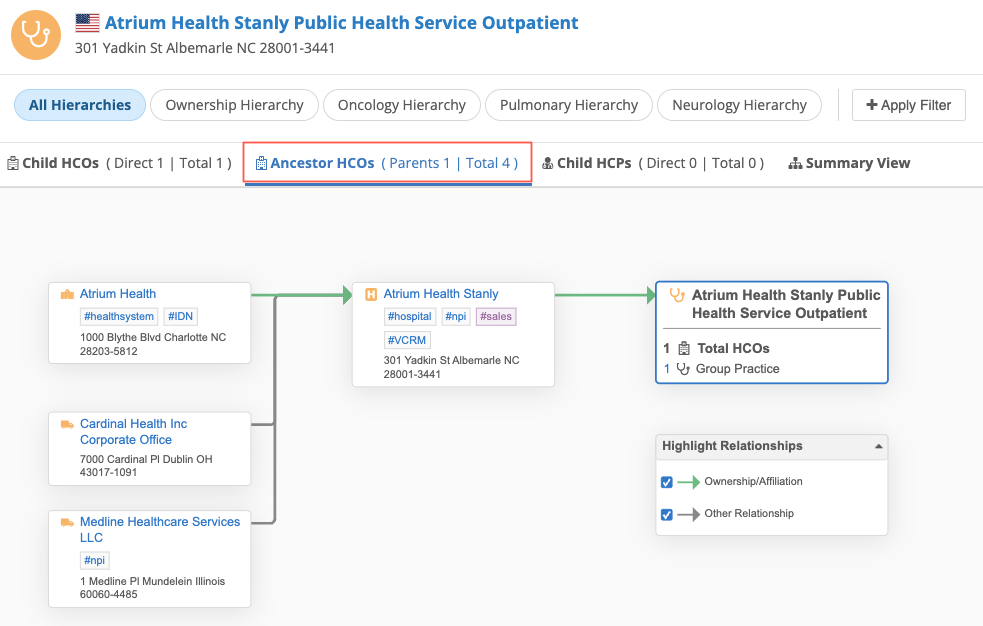
Child HCPs
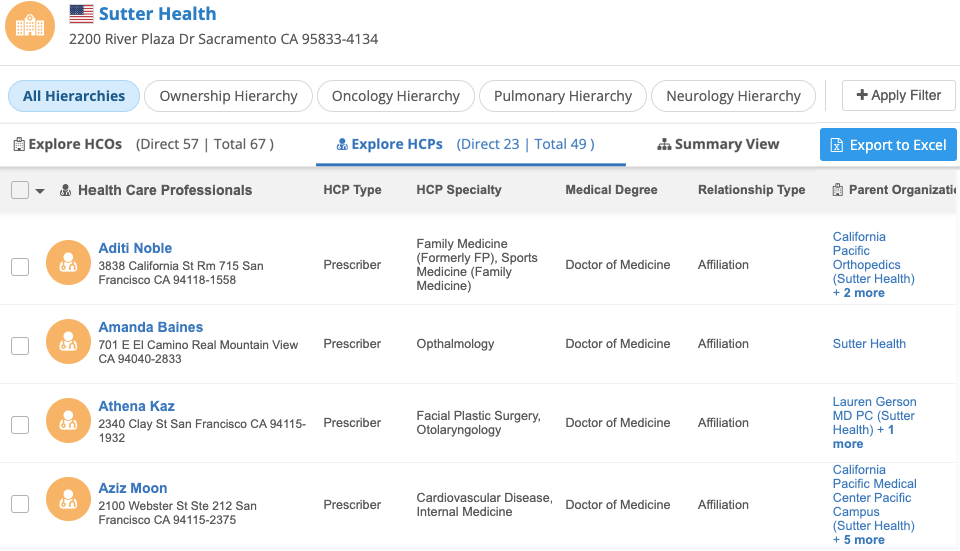
This tab displays all the HCPs in the targeted HCO's hierarchy.
A count identifies the number of HCPs that are directly connected and the total number of HCPs that are directly and indirectly connected to the HCO.
Tip: Administrators can rename the Direct and Total rollup count labels to make them meaningful to their users. For details, see Configure the Hierarchy Explorer widget.
View details
In the widget configuration, administrators can include additional fields to display.
By default, the following details are available for each HCP:
-
HCP name and address
The address that displays is the address with the most primary fields that are true. If no addresses are marked as primary, the highest ranked address displays.
-
Hashtags - Network hashtags are dynamically added below the HCP name so you can immediately identify key details about the record.
- View profile - Click the name of the HCP to preview the profile. A pane displays.
-
HCP type - The type of HCP.
-
Relationship Type - The relationship type from the HCP to the root HCO.
If the HCP does not have a direct relationship, No Relationship displays.
-
Parent Organizations - All affiliated HCOs for the HCP. You can use this information to see other HCPs that work for the affiliated organization and the health system the HCO is affiliated with.
If an HCP has more than one affiliated HCO, click the + more link to view the Parent Organization section in more detail.
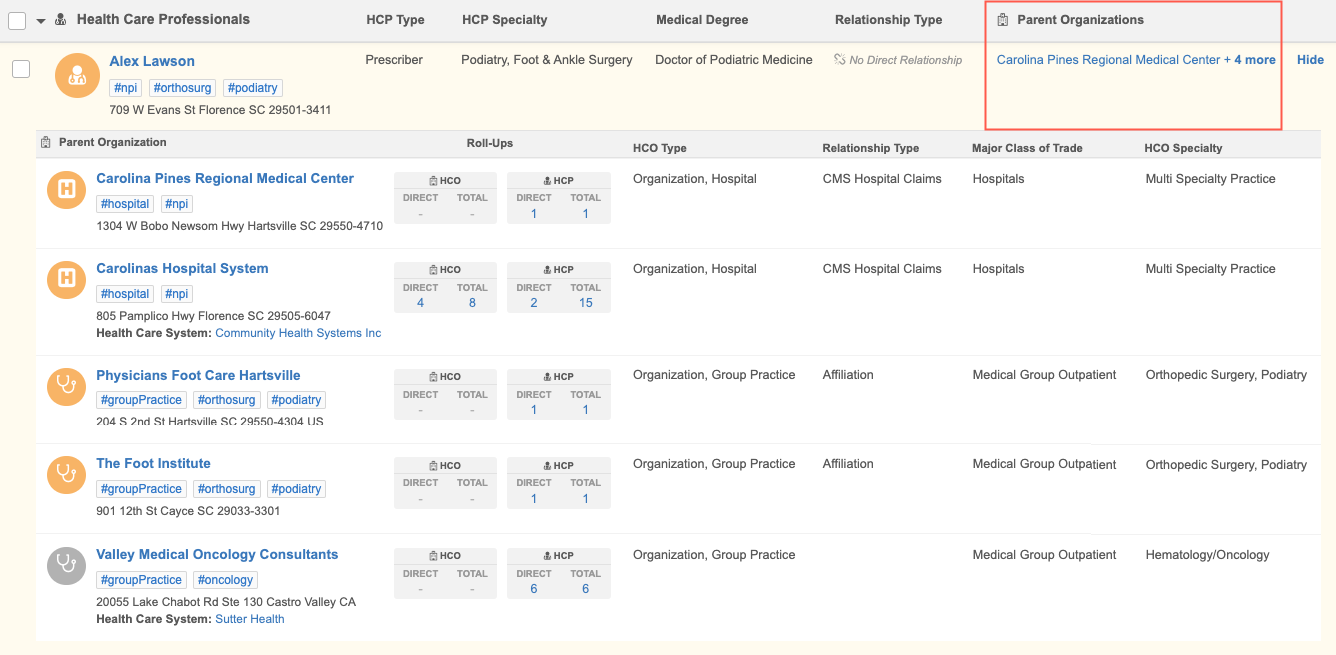
Use the Parent Organization section to explore the following details:
-
Health system - Each parent organization displays the related health care systems so you can see if the HCO rolls up to a different health system.
-
Relationship type - Use this column to see how the HCP is related to the HCO. For example, an HCP might be affiliated with a several HCOs, but they submit their claims through a specific HCO.
-
Roll-Ups - A count of the HCOs and HCPs that are affiliated with the parent organization. Click the HCP count to view other HCPs that work with the targeted HCP at that parent organization.
If you filter the Child HCPs tab, it also filters the Roll-Up counts in the Parent Organization table. For example, you could filter the tab so you could see the HCPs that have a Doctor of Medicine (Medical Degree) in Neurology (HCP Specialty) for a specific HCO.
-
Filter HCPs
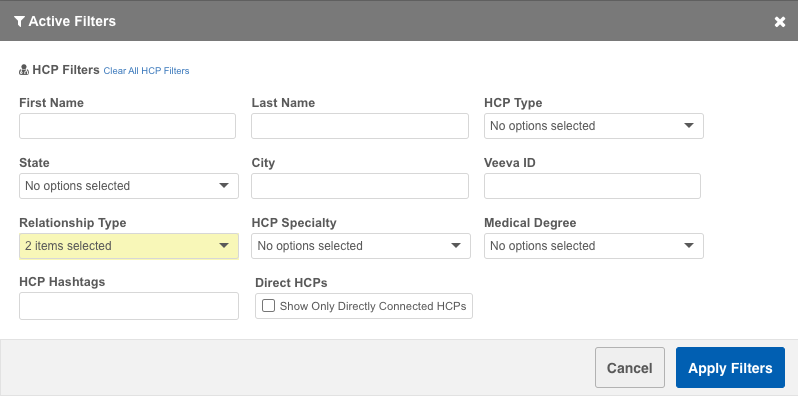
Click Apply Filter to limit the HCPs for specific criteria.
In the filter dialog, use the settings to determine your filter criteria.
Tip: Click Show Only Directly Connected HCPs to filter out the HCPs that do not have a relationship with the root HCO.
Considerations for filtered HCOs and HCPs
-
Only active HCOs and HCPs display.
-
Valid and Under Review records display.
-
Candidate records and opted out HCP records do not display.
-
Data visibility profiles are not applied to the search, so users can see any HCPs and HCOs that match the criteria.