Create HCO and HCP tabs
Hierarchy Explorer widget users can create tabs to organize HCOs and HCPs on key networks. This enables users to see the segments of data without filtering the hierarchy each time they visit the widget. For example, you can create tabs to organize hospitals, 340B Accounts, Records with Sales Tied to it, and oncologists.
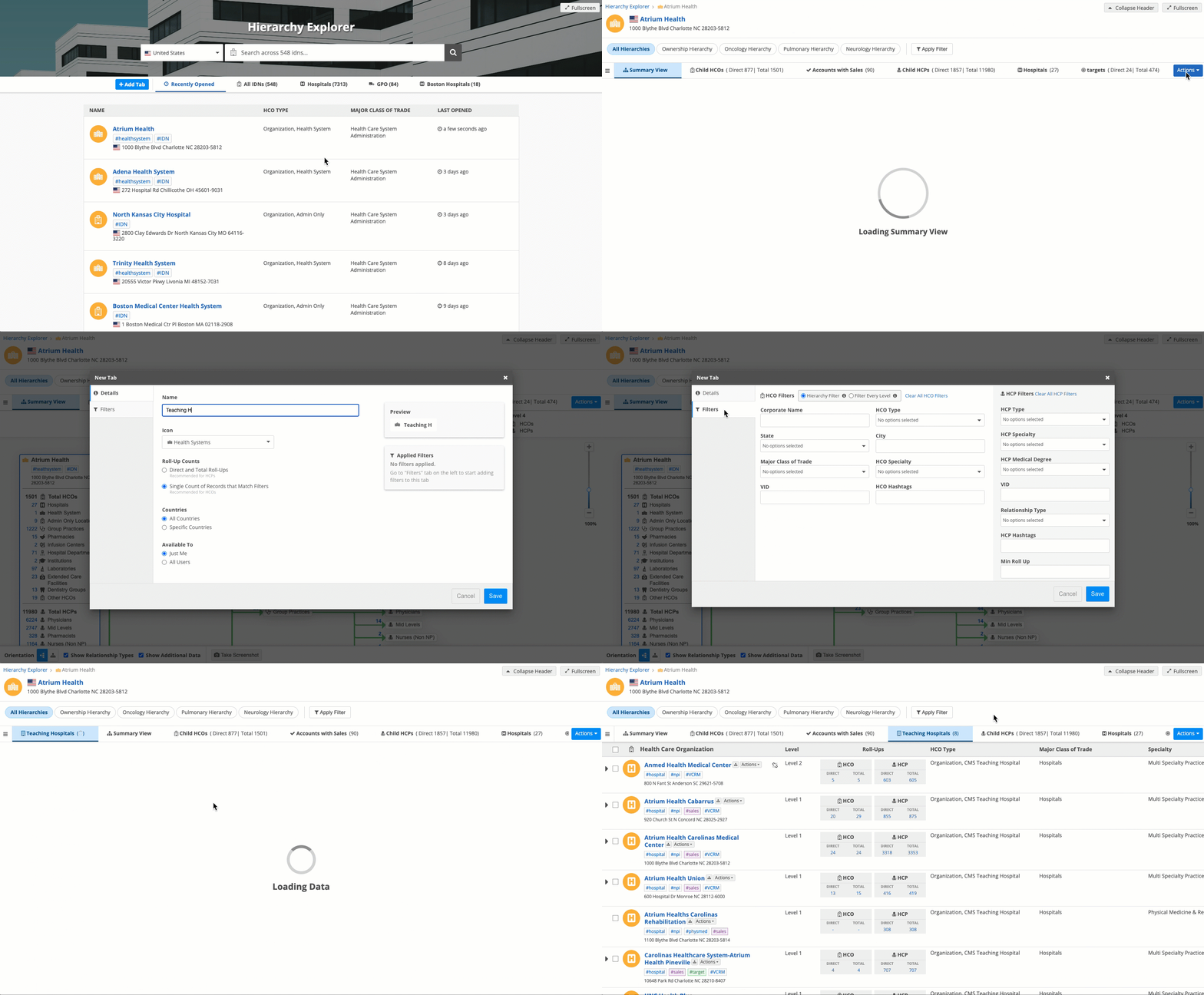
Tabs can also be created on the widget homepage to organize your health systems. See Create health system tabs.
About tabs
The following system tabs always display for a health system:
-
Child HCOs
-
Ancestor HCOs
-
Child HCPs
-
Summary View
Users can now create their own tabs and access any shared tabs created by a widget admin.
Important: Tabs are applied to all hierarchies and health systems in the widget. They display if they are relevant to the country of the root HCO.
Supported users
All widget users can create tabs in the widget.
| User Type | Create Private Tab | Create Public Tab |
|---|---|---|
| Portal User |

|
|
| Standard User |
|
|
| Data Steward |
|
|
| Data Manager |
|
|
| System Administrator |
|
|
| System and Data Admin |
|
|
| Vault CRM users |
|
Vault CRM considerations
When Hierarchy Explorer is embedded in Vault CRM, field users can create private tabs for their own use. For example, Mary, a KAM, can create a tab called Boston Hospitals. This tab will be available only for Mary in the embedded widget.
Network MDM Admins and Data Managers can create public tabs and make it available to all users accessing the widget. Public tabs should be created in the Network Portal.
Create a tab
-
On the health system, click Actions > Add Tab.
-
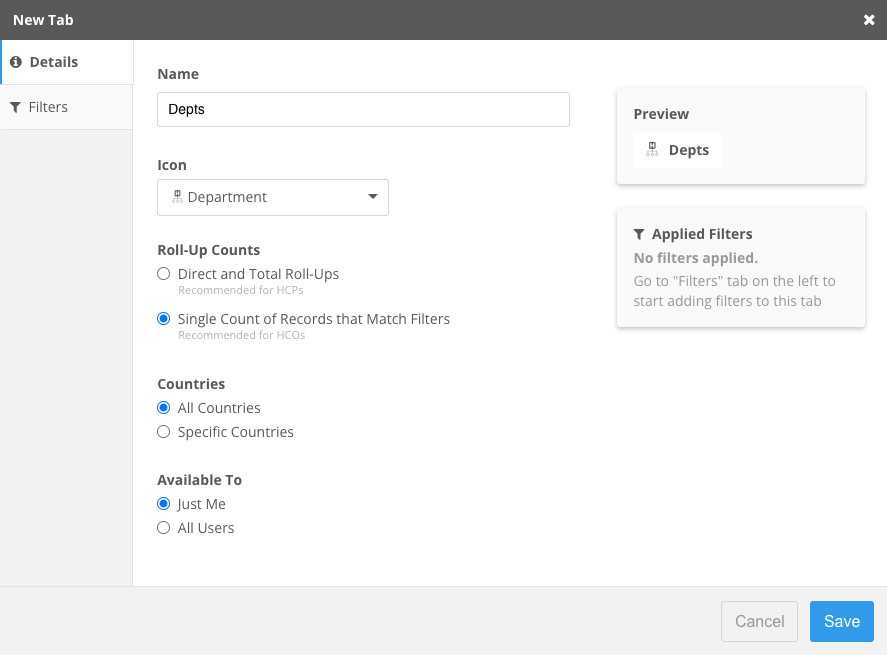
On the New Tab dialog, define a meaningful Name. The name will display to all users that can access the tab.
Names can contain a maximum of 25 characters.
-
Icon - Expand the list and choose an appropriate icon.
-
Roll-Up Counts - Define the counts to display for the tab.
-
Direct and Total Roll-Ups - Recommended for HCPs.
-
Single Count of Records that Match Filters - Recommended for HCOs.
-
-
Countries - Define the countries for the tab. Users can access the tab if they have a data visibility profile for that country.
-
All Countries
-
Specific Countries - Select the countries.
The list displays countries that are defined for the widget and that you have access to through your data visibility profiles.
-
-
Available to me - Define who can access the tab.
-
Just Me - The tab is private. No other users can access the tab.
-
All Users - The tab is public. All widget users can access the tab.
Displays only for Administrators and Data Managers.
-
-
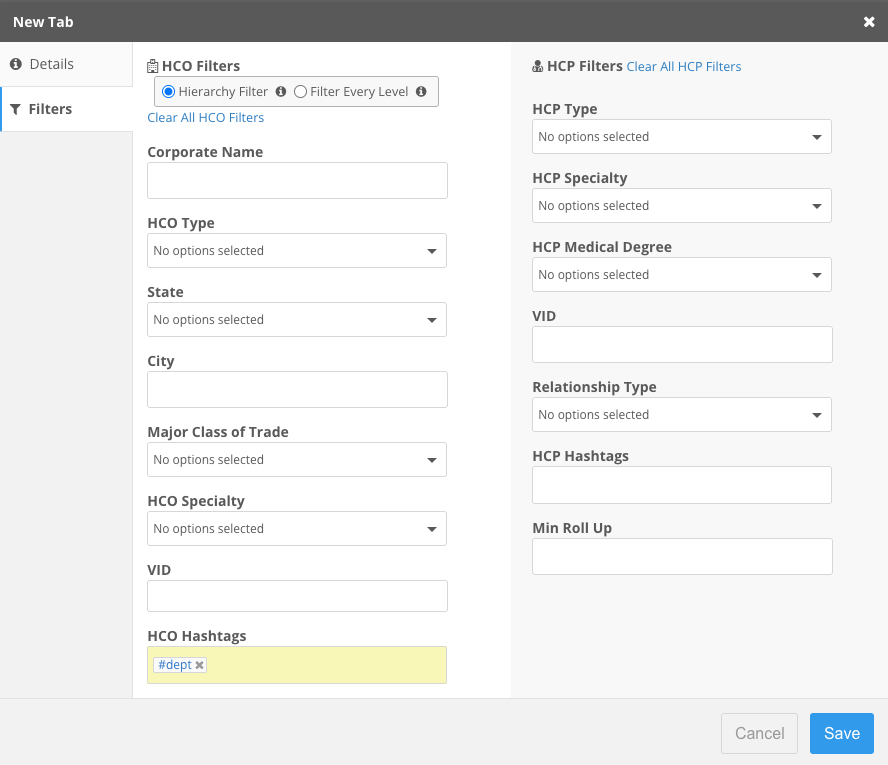
Click Filters - Define the field and value to use to segment the accounts.
Filters are limited to the fields in the Hierarchy Index file. HCO fields and Address fields are supported.
-
Save your changes.
The tab displays on the health system's hierarchy and contains the records defined by the filters. The count of records displays beside the tab name.
Choose HCO Tab or HCP Tab.
Manage tabs
Hover over the tab name and click the More (...) icon to open the tab options.
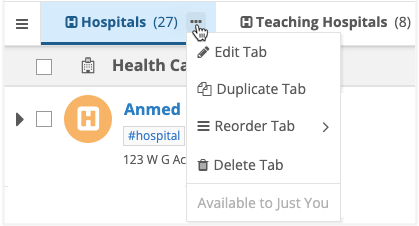
Available actions
The actions that display depend on the type of tab (public or private) and your user type.
Some actions are also available for system tabs.
| Action | Description | Key Details |
|---|---|---|
| Edit tab | Edit any of the details on the tab. |
|
| Duplicate tab | Make a clone of the tab to include all of the copied settings. |
|
| Reorder tab |
Move the tab to a different position.
- Move Right - Move Left - Move First - Move Last Tip: You can drag and drop a tab to any position. |
|
| Delete tab | Remove the tab from the widget. |
A message at the bottom of the menu identifies if the tab is private (Available to just you) or public (Available to Everyone).
Export data
Click Actions > Export to Excel to download a file containing only the data on the current tab.
The file is exported with the following naming convention: <tab name> in <health system name> <date and time>.xlsx. For example, Hospitals in Atrium Health 2025-11-11T21_23_35.xlsx.
Tab list
If the hierarchy contains many tabs, you can scroll through the tabs.
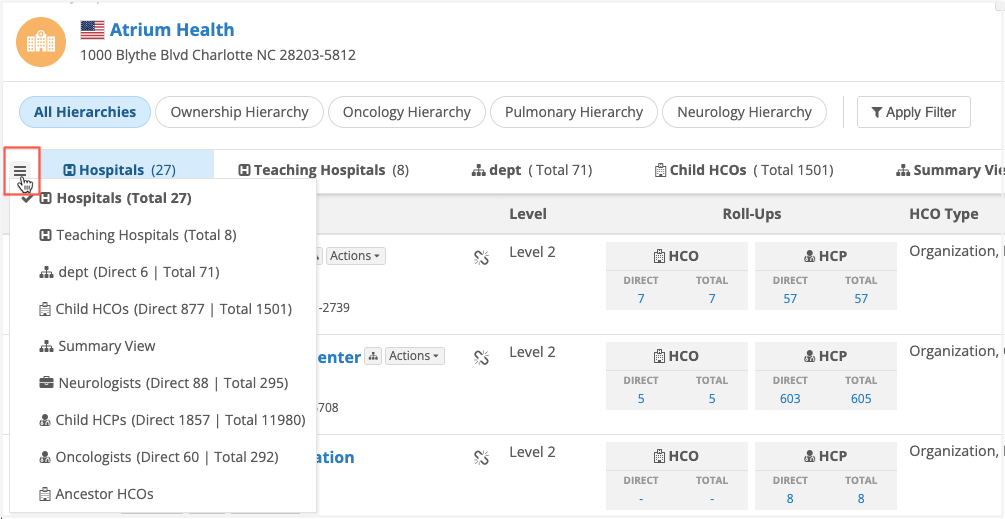
To quickly open a tab, click the Menu icon to display a list of all tabs for the health system.
The tab that is currently open is highlighted in bolded font and displays a Checkmark beside the tab name.
Click a tab to open it.