Data model
Cluster management
Administrators can now upload mapping files from their brick provider to create custom cluster versions on demand, rather than waiting for the next Network MDM release cycle.
Custom cluster versions are exclusive to your Network MDM instance and are not accessible to other customers.
This feature is enabled by default if the Cluster Management feature is enabled in your Network MDM instance.
Supported cluster providers and countries
Custom cluster versions are supported for providers that have brick mappings based on postal codes. These mappings can be uploaded as .csv files to create a new version.
The following existing country/cluster provider configurations are supported.
| Country | Cluster Provider |
|---|---|
| Australia (AU) | IQVIA |
| Belgium (BE) | IQVIA |
| Canada (CA) | IQVIA |
| Czechia (CZ) | IQVIA |
| Denmark (DK) | Signum |
| Germany (DE) | IQVIA, Insight Health |
| Finland (FI) | IQVIA, Signum |
| Greece (GR) | IQVIA |
| Hungary (HU) | IQVIA |
| Mexico (MX) | IQVIA |
| Netherlands (NL) | FarmInform, IQVIA |
| Norway (NO) | FarmaStat, IQVIA, Signum |
| Poland (PO) | IQVIA |
| Portugal (PT) | HMR |
| Romania (RO) | IQVIA |
| Russia (RU) | IQVIA |
| Slovakia (SK) | IQVIA |
| Sweden (SE) | IQVIA, Signum |
| Switzerland (CH) | IQVIA SM Service Marketing |
| United Kingdom (UK) | IQVIA |
Not supported
-
All country/provider configurations with brick mappings that are not based on postal codes (for example, brick mappings based on geolocation).
Custom cluster versions are not yet available for country/provider configurations where brick mappings are not based on postal codes. For these configurations, new cluster versions must still be created and released by Network MDM.
-
South Korea (KR) - IQVIA and Spain (ES) - IQVIA
If you require a country/provider cluster configuration that is currently not supported, contact Veeva Support.
View cluster versions
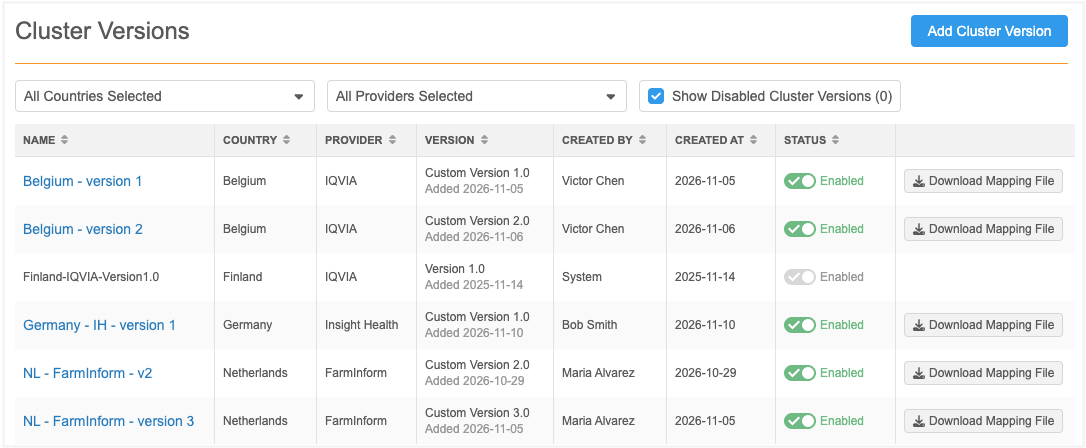
If you use cluster management in your Network MDM instance, the existing cluster versions currently in use are listed on the new Cluster Version page (Data Model).
Note: Cluster Management is not enabled by default. It must be enabled by Veeva Support after your third-party agreement (TPA) with the cluster provider is verified.
All Veeva-managed versions currently in use and custom versions display.
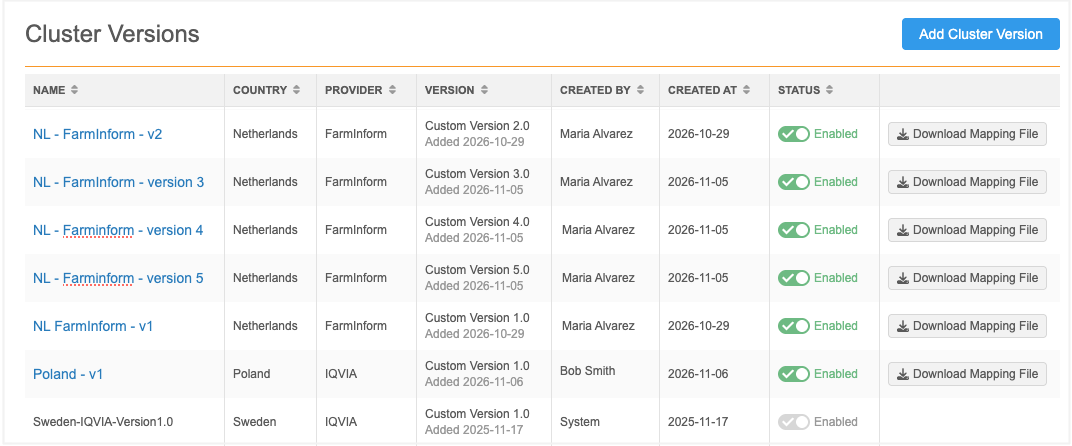
For each cluster version, the following details are available:
| Column Name | Details | Veeva-Managed Versions | Custom Versions |
|---|---|---|---|
| Name | The cluster version name. |
Naming convention: <country>-<provider>-<version number>. Example: Belgium-IQVIA-Version1.0. |
<custom_name> |
| Provider | Cluster provider. | ||
| Version |
The version number for the cluster versions in your Network MDM instance. Includes the date that the version was added. |
Example: Version 1.0 | Example: Custom Version 1.0 |
| Created By | The user that added the version. | System | <user name> |
| Created At | The date the version was added. | Created date | Created date |
| Status | Enabled or Disabled | Enabled by default and cannot be disabled | Enabled by default |
| (Downloads) | Download the mapping file that created the version so you can view the original brick mapping. . | Not available | Download Mapping File button displays |
Sort the list
By default, the versions are sorted alphabetically by the cluster version name.
You can filter the list by the Country and Provider.
About Veeva-managed cluster versions
-
Read-only - Cannot be edited or deleted.
-
Disabling - Cannot be disabled. However, when you add a custom version for the country/provider, the Veeva-managed version is removed automatically. When the Veeva-managed versions are removed, they no longer display in the list and cannot be used in your Network MDM instance.
-
Availability - Only Veeva-managed versions currently in use are available after Network MDM 26R3.0. Versions that are not in use will be removed from the cluster configuration and will not display on the Cluster Versions page.
Prerequisites
To create a cluster version, the following actions are required:
-
Obtain a valid third-party agreement with the cluster provider that allows you to upload the mapping file to Veeva Network MDM.
-
Receive the mapping file from the cluster provider.
-
Convert the original mapping file from the provider into an uploadable .csv format.
-
Ensure that the formatting and data requirements are met.
General requirements
Format - .csv
Header - none
Encoding - Unicode (UTF-8)
Delimiter - comma (,)
Text qualifier - enclose all values with a text qualifier (for example, double quote ("))
Country requirements
Each country/provider configuration has a specific format. The format is set with the initial version of the cluster version.
Review the Help Guide for each country/provider combination.
Add a custom cluster version
New cluster versions should be created in your Network MDM Sandbox instance so you can test them before adding them to your Production instance.
To add a cluster version:
-
In the Admin console, click Data Model > Cluster Versions.
-
Click Add Cluster Version.
-
Details section:
-
Name - Create a meaningful name that, for example, includes the cluster provider, country, and a version number or the year for which the brick structure is valid.
-
Description - Add details.
- Provider - Expand the list and choose the cluster data provider/country combination.
The list displays all cluster provider/country combinations that are enabled for your instance and that support the creation of custom cluster versions.
-
Status - The version is enabled by default.
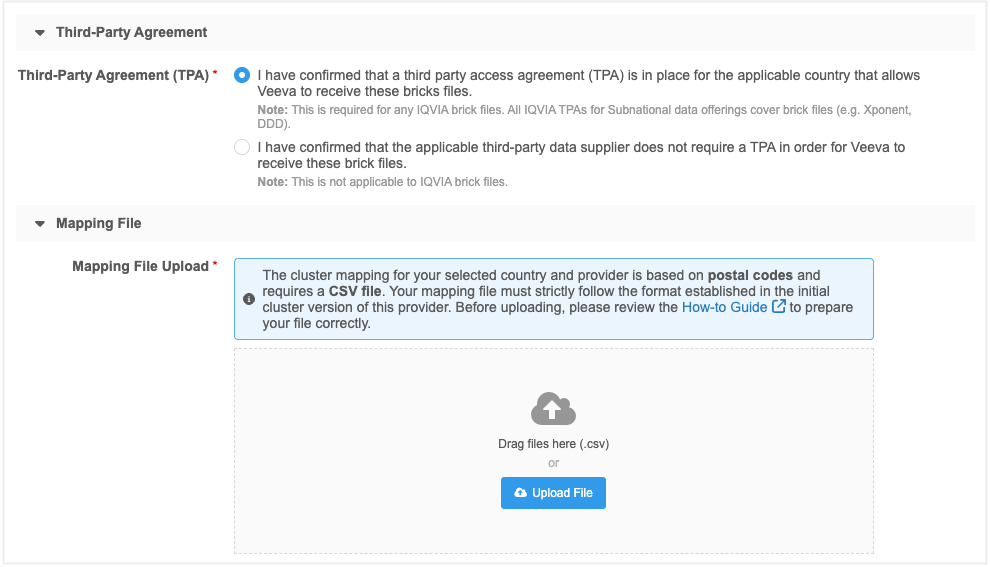
- Third-Party Agreement section - Confirm that you are allowed to share the cluster provider's brick mappings with Veeva.
Options:
I have confirmed that a third-party access agreement (TPA) is in place for the applicable country that allows Veeva to receive these brick files.
Important: This is required for any IQVIA brick files. All IQVIA TPAs for Subnational data offerings cover brick files, for example Xponent and DDD.
I have confirmed that the applicable third-party data supplier does not require a TPA in order for Veeva to receive these brick files.
-
Mapping File section - Upload a .csv file of the brick mappings.
File requirements
-
The mappings must be based on postal codes.
-
The file must strictly follow the format established in the initial version for this provider/country. For details, see the Cluster Version Help Guide.
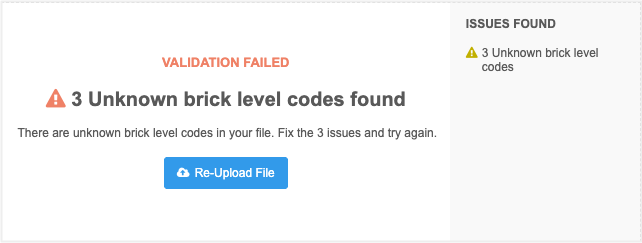
The file will be validated. If validation errors occur, the upload fails. Fix the issues and upload the file again.
-
-
When the file uploads successfully, you can save the version.
Note: The brick mapping file cannot be changed after the version is saved.
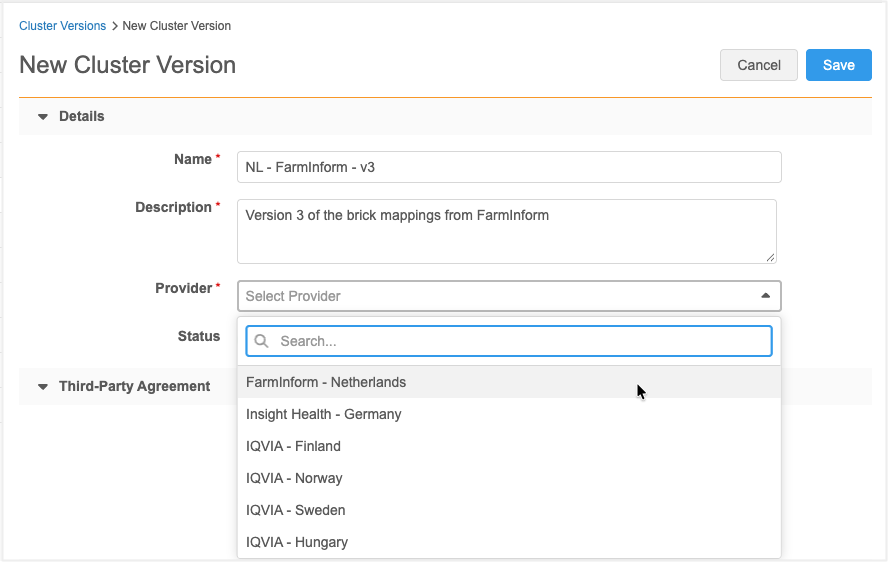
The new cluster version will be available for the country in the cluster management configuration (Data Model > Cluster Management).
If you choose the new version for the country, addresses will be updated with any changes whenever the cluster code calculation is triggered. For details, see Managing clusters data in the Veeva Network MDM Online Help.
Mapping file validation issues
Mapping files are validated for the expected format and data.
| Error Message | Details |
|---|---|
| The uploaded file includes <n> malformed rows. |
The .csv file is malformed in the following cases:
|
| The uploaded file includes <n> duplicate rows. | All values in a row are identical with another row. |
| The values in the uploaded file are not comma separated. | All columns must be comma-delimited. |
| The values in the uploaded file are not closed by a text qualifier ("). | All values must be enclosed by a text qualifier. This is especially true for the brick label since it can contain commas. |
| The uploaded file is not encoded as "Unicode (UTF-8)". | Ensure the file encoding is "Unicode UTF-8" - without "Byte Order Marks" (BOM). |
| The uploaded file includes unknown brick levels. |
The allowed brick level codes depend on the country/provider configuration. Examples of allowed codes for countries
|
Edit the cluster version
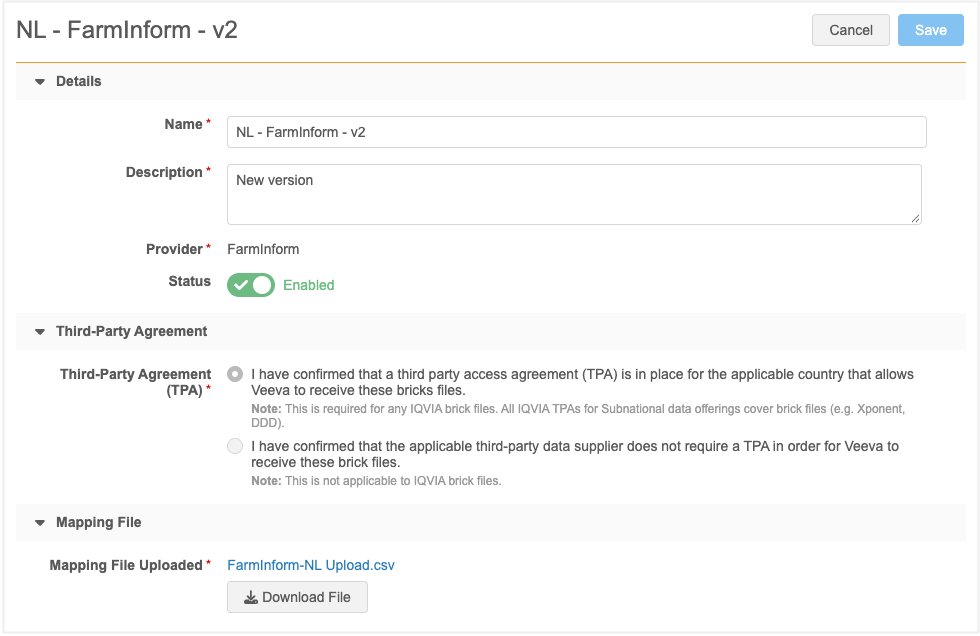
Custom cluster versions can be updated. Only the following details can be changed:
-
Name
-
Description
-
Status
To make changes to a mapping file, add a new version and disable the previous version if applicable.
Testing cluster versions
Test the file in your Network MDM Sandbox instance using Network Reporting.
Compare addresses (Optional)
To check the changes made by the new cluster version, use a custom table to snapshot a country's address data under the older cluster version, then compare it to addresses using the new custom cluster version.
If testing reveals issues, disable the new custom cluster version and create another one.
Create the custom cluster version in production
Once you're satisfied that the cluster version applies the correct updates to the country's addresses, manually add the custom version to your Production instance.
Version numbers
Cluster version numbers are automatically incremented each time a custom cluster version is created. If testing in Sandbox revealed issues and you disabled a version, the version numbers incremented in Sandbox and Production might not match. To avoid confusion, use a meaningful name and description to clearly identify each cluster version.
Disable cluster versions
When you no longer require a version or a version contains errors and cannot be used, you can disable it in your Network MDM instance.
To disable a version:
-
On the Cluster Version list page, toggle the Status button to Disabled.
-
In the dialog, confirm your choice.
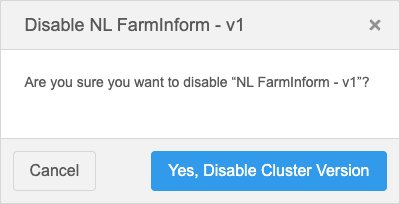
The cluster version is now disabled and cannot be selected as a version in the cluster configuration for that country.
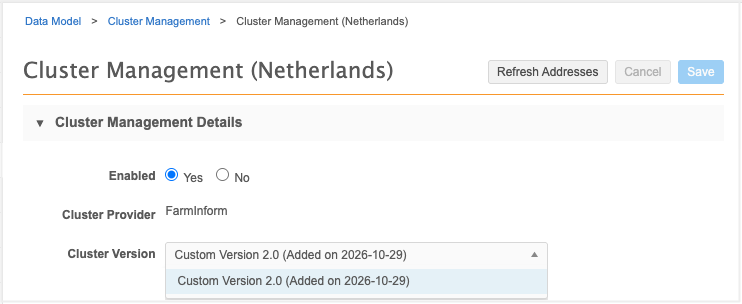
Note: Veeva-managed cluster versions are read-only. They will automatically become disabled and disappear from your Network MDM instance when you create a custom cluster version for that country/provider.
Logs
Updates to cluster versions are tracked in the System Audit Log.
Administrators can trace the following information:
-
Cluster version details - Country, provider, cluster version, and created date.
-
User details - The user that created the cluster version.
-
TPA details - The user's choice for the TPA confirmation question.
Cluster codes on inherited addresses
Inherited addresses can include cluster codes. Administrators can add cluster fields to the Network Address Inheritance configuration so inherited addresses include codes.
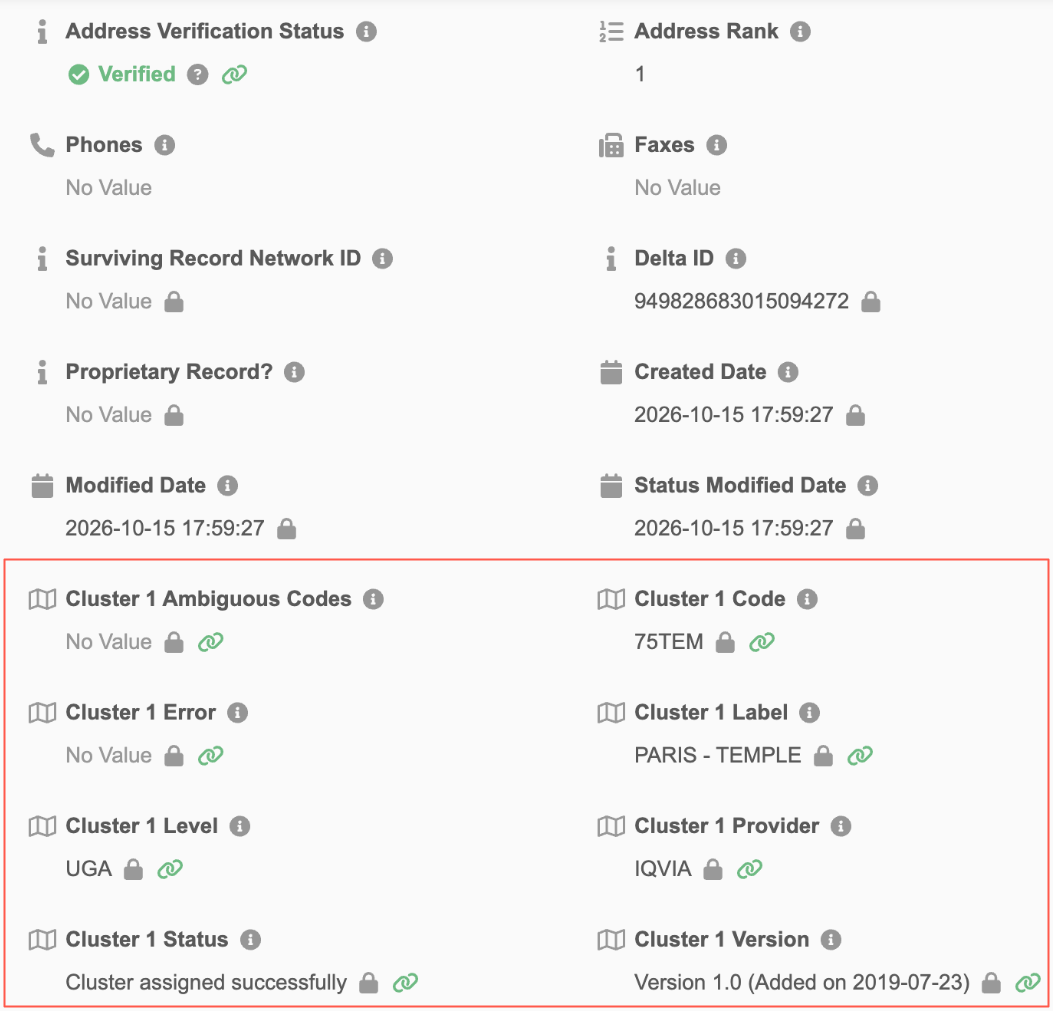
This enhancement is available by default.
Prerequisites
The following features must be enabled in your Network MDM instance:
-
Network Address Inheritance
-
Cluster Management - At least one country/cluster provider combination must be enabled.
To enable these features, contact Veeva Support.
Supported fields
All cluster code fields can be added to your Network Address Inheritance configuration.
-
cluster_1_ambiguous_codes__c
-
cluster_1_code__c
-
cluster_1_error__c
-
cluster_1_label__c
-
cluster_1_level__c
-
cluster_1_provider__c
-
cluster_1_status__c
-
cluster_1_version__c
-
cluster_2_ambiguous_codes__c
-
cluster_2_code__c
-
cluster_2_error__c
-
cluster_2_label__c
-
cluster_2_level__c
-
cluster_2_provider__c
-
cluster_2_status__c
Including the fields
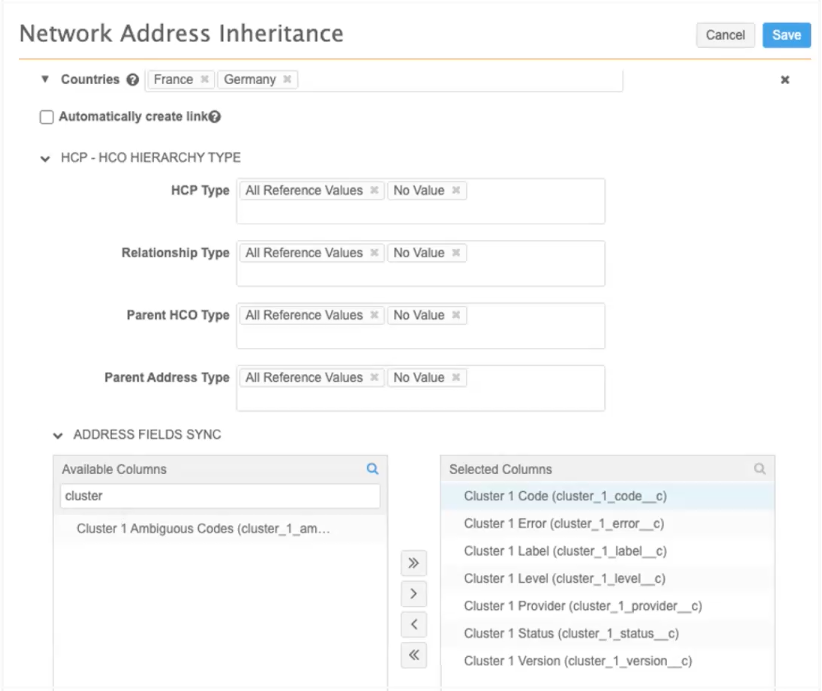
Add the cluster fields to your Network Address Inheritance country configuration.
-
In the Admin console, click Data Model > Network Address Inheritance.
-
In the Country Groups section, expand the country group.
-
In the Address Fields Sync section, move the cluster code fields from the Available Columns to the Selected Columns pane using the arrow icons.
-
Save your changes.
Now that the cluster field is configured as a Network Address Inheritance sync field, its value will be pushed to any synced addresses on child entities.