Embed Hierarchy Explorer in Vault CRM
The Hierarchy Explorer widget can be seamlessly integrated into Vault CRM Online so users can explore HCO and HCP hierarchies without leaving Vault CRM.
Vault CRM support
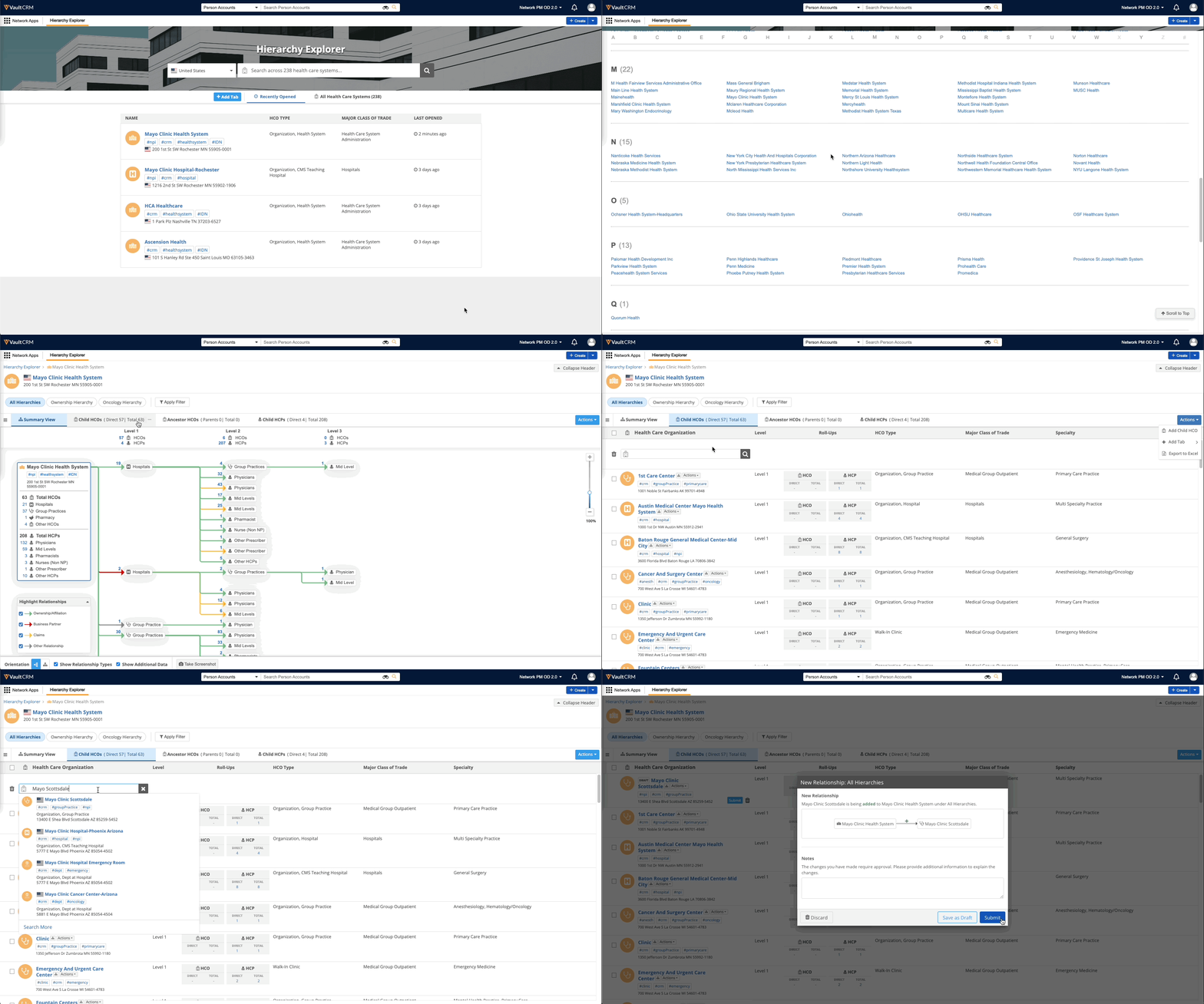
Hierarchy Explorer can be embedded in Vault CRM Online.
Key points
-
Personalized experience - The widget is tailored to your Vault CRM profile (for example, language and country access) and your widget customizations.
-
Expanded visibility - View a broader range of HCOs and HCPs beyond your assigned territory in Vault CRM.
-
Streamlined hierarchy updates - Update hierarchies and submit DCRs directly from the widget without having to navigate between individual account records.
-
Simple setup - Administrators can quickly configure the widget integration by completing a few tasks in both Network and Vault CRM without any development effort.
Configure Hierarchy Explorer to display in Vault CRM
Some configuration steps are required in Network and Vault CRM.
Network configuration
Network Administrators must complete the following tasks:
-
Create a Hierarchy Explorer widget or use an existing widget.
-
Retrieve the widget settings to provide to Vault CRM.
-
Create a Portal user.
Create a Hierarchy Explorer widget
Existing Hierarchy Explorer widgets can be accessed from Vault CRM.
If you do not yet have a Hierarchy Explorer widget, see Configure the Hierarchy Explorer widget.
Retrieve the widget settings
After the widget is configured, provide the required settings so Vault CRM can connect to the Hierarchy Explorer.
To obtain the values:
-
In the Network Admin console, click Widgets & Portal > Network Widgets.
-
Open the Hierarchy Explorer widget configuration that will be embedded in Vault CRM.
-
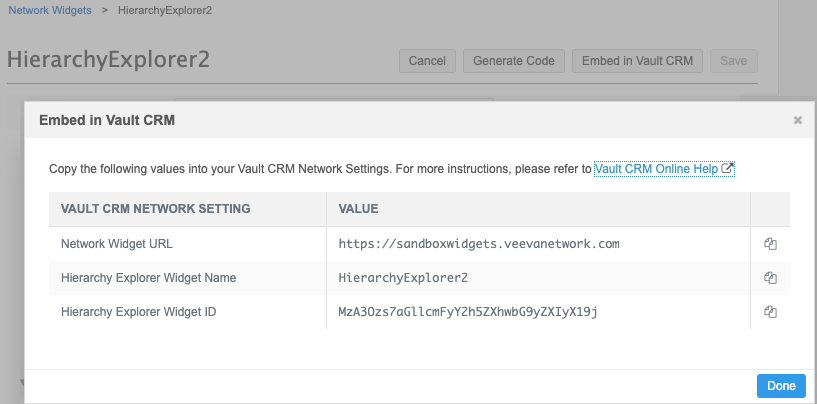
Click the Embed in Vault CRM button.
-
A dialog opens with the settings values. Copy each value and provide them to the Vault administrator so they can add the value into the Global Network Settings.
-
Network Widget URL
-
Hierarchy Explorer Widget Name
-
Hierarchy Explorer Widget ID
-
Create a Portal user
A Network Portal User account is used to authenticate all Vault CRM users to the Hierarchy Explorer widget. Single sign-on is not used for this integration.
To create the user:
-
In the Admin console, click Users & Permissions > Users.
-
Click Add New User.
-
Primary Information section - Define the following details:
-
Username - The Network username used to log into Hierarchy Explorer and manage the Vault CRM integration.
-
Email - The email address of the user that will manage the Portal user.
-
User Type - Choose Portal User.
-
Portal Username - The username for the integration administrator.
Tip: For simplicity make the Portal Username and Network Username the same.
-
-
Contact Information - Define the First Name and Last Name of the integration administrator.
-
Password - Select Generate temporary password and notify user.
-
Data Visibility Profile - Add the profiles for countries that Vault CRM users will need to access in the widget.
For example, if users have access to the US, France, and Germany in Vault CRM, add DVPs for those countries so Vault CRM users have access to the same countries in the widget. If a DVP is added only for the US, users will not have access to France and Germany accounts in the widget.
Tip: The DVPs assigned to the Integration user for the Vault CRM Bridge should be assigned to this Portal User.
-
Settings - Accept the default values or update them as required.
These settings are not applied to the users that access the widget from Vault CRM.
The individual settings for each Vault CRM user will be used for the widget. For example, if the user's language is French in Vault CRM, the widget data displays in French. If the user's locale is not supported in the widget, the widget data displays in English (EN).
-
Save your changes.
-
A Welcome email will be sent to the integration administrator. Change the temporary password.
-
Provide the Portal User Network credentials (username and password) to the Vault CRM administrator. They will be used in Vault CRM to authenticate to Hierarchy Explorer.
Vault CRM configuration
Vault administrators must complete some tasks in Vault CRM.
For details, see Vault CRM Help: Network Hierarchy Explorer.
Access Hierarchy Explorer in Vault CRM
The integration is included in your Network license.
When Hierarchy Explorer is embedded in Vault CRM, Vault CRM users can access the widget when they are logged in using their Vault credentials. Separate credentials for end users to access Hierarchy Explorer is not required.
Vault CRM Online users can open and access the widget in the following ways:
-
Network Apps tab collection Click Hierarchy Explorer.
-
HCO Account Details - Click the More Actions menu and select Network Hierarchy Explorer.
-
HCP Account Details - Click More Actions and select Network Hierarchy Explorer.
For more details, see Vault CRM Help: Viewing the Network Hierarchy Explorer.
Using Hierarchy Explorer within Vault CRM
The Hierarchy Explorer widget is personalized for each user that logs in through Vault CRM.
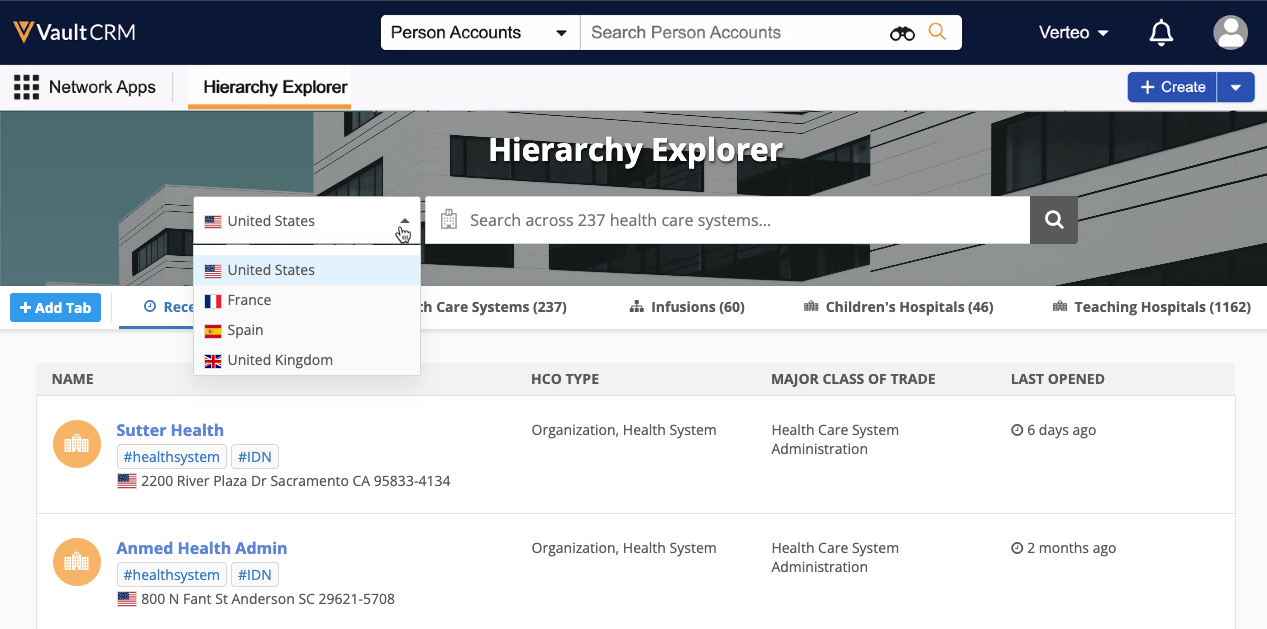
When you access the widget, the following items are personalized for your session.
| Language |
The widget displays in the language defined for your Vault CRM account. If the language is not supported by Network, the widget displays in English (EN). |
| Access to countries |
Access to country data is determined by your assigned countries in Vault CRM. |
| Recently Opened tab | The tab displays health systems that you have explored in previous widget sessions. |
| Home Page tabs | The widget homepage displays private custom tabs that you have created and tabs that have been shared with you. |
| HCO and HCP tabs | On the hierarchy view, you will see any custom tabs that you have created and tabs that have been shared with you. |
| Data change requests | Add and change requests can be submitted directly from the widget. The DCR will include your Vault CRM username as the user that submitted the change. |
For information about using the widget, see the Hierarchy Explorer topics.
Search widget integration
Vault CRM users can access a Search widget from Hierarchy Explorer so they can search for and download records directly from Veeva OpenData.
Note: Downloading a record in the widget does not add the records to the user's territory in Vault CRM.
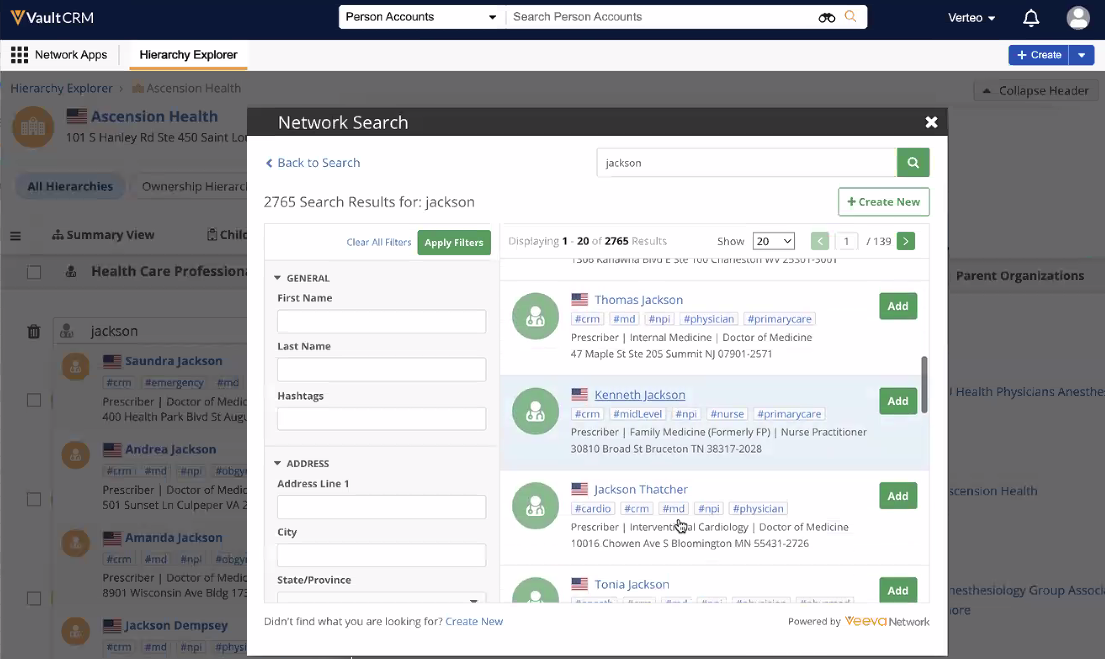
Note: A Search widget must be defined in the Hierarchy Explorer widget configuration.
Access the Search widget
When you are an account to a hierarchy, click the Search More link in the search results if you can't find the account.
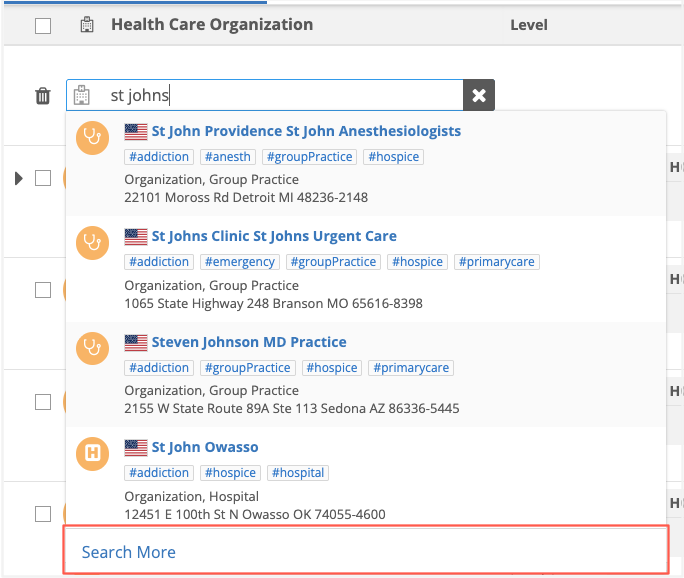
The Search widget displays accounts in your Network instance and accounts that have not yet been downloaded from Veeva OpenData. If the account is not found, users can also create an add request from the Search widget.
Note: Accounts downloaded from OpenData are added to your Network instance.
Data change requests
End users can submit add and change requests from Hierarchy Explorer in Vault CRM.
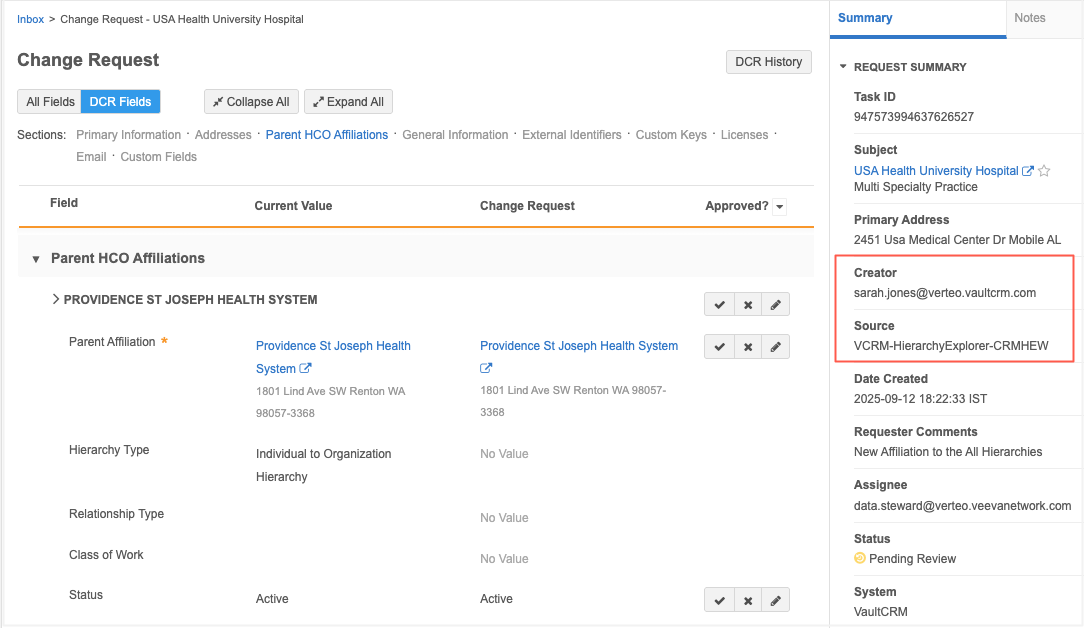
When Data Stewards review the request, they can easily identify that it originated from the Hierarchy Explorer widget in Vault CRM.
-
Creator field - Displays the specific Vault CRM user who submitted the request
-
Source field - Tagged as VCRM-HierarchyExplorer-<widget_name>.
Network logs
When Hierarchy Explorer is accessed through Vault CRM Online, the Portal user authenticates all users but widget actions are tracked for each individual user. This helps Administrators to understand usage and to troubleshoot issues.
Network administrators can view the actions for each Vault CRM user accessing Hierarchy Explorer from Vault CRM Online.
-
System Audit History - Home page and HCO/HCP tabs that are created by Vault CRM users.
-
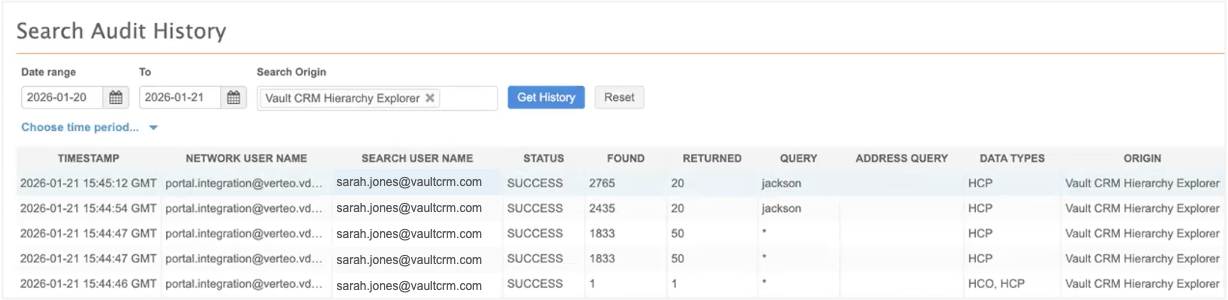
Search Audit History - Use the Vault CRM Hierarchy Explorer origin to filter the log to display the searches performed by Vault CRM users in the widget.
The Search User Name identifies the CRM user. The Network User Name is the Integration User for the Vault CRM Network Bridge.
-
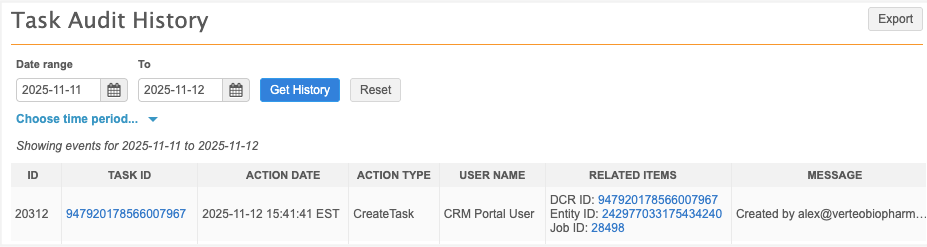
Task Audit History - DCRs submitted by Vault CRM Users.
The User Name identifies the CRM Portal User. The Message defines the Vault CRM user that created the task.
Troubleshooting the integration
If you see the Hierarchy Explorer Unavailable error when you try to access the widget, it could mean one of the following issues:
-
Incorrect user type - The user authenticating to the widget is not a Portal User.
Ensure that the user defined in the veeva_network_apps__v record in Vault CRM is a Portal User.
-
Missing Network Settings - The required properties are not available in the widget code.