Integrations
Vault CRM Bridge field mapping
A new field in Vault CRM, Data Source, helps users identify the source for Account, Address, and Child Account records.
When the Vault CRM Bridge runs, the Data Source field will be populated with the value from the mapped field from Network MDM. Support for NAS (Network Account Search) and DCR account import will be in a future Vault CRM release.
Data Source field mapping
The Third Party System Owner field has only one value: IQVIA. If the field value is null, the Record Owner Type field value is populated for Data Source instead.
|
Network MDM Field
record_owner_type__v |
Network MDM Field
third_party_system_owner__v |
Vault CRM Field
data_source__v |
|---|---|---|
| VOD | veeva__v | |
| LOCAL | self_managed__v | |
| TPP | other_third_party__v | |
| TPP | IQVIA | iqvia__v |
The fields are automatically mapped for the Vault CRM Bridge.
The fields will not be mapped in the following situations:
-
The field is not enabled for all object types in Vault.
-
Both the
third_party_system_owner__vorrecord_owner_type__vfields are not included in the exported file from the target subscription.
For more details about the field, see Record Data Sources for Account, Child Account, and Address in the Veeva Vault CRM Online Help.
Concur Connector support
Organizations with a global SAP Concur environment can now connect seamlessly to multiple regional or business-specific Network MDM instances.
Administrators can share the Concur credential between Network MDM instances using different Concur attendee types. This centralizes your expense management system but allows users to search and download HCP data from their specific Network MDM instance.
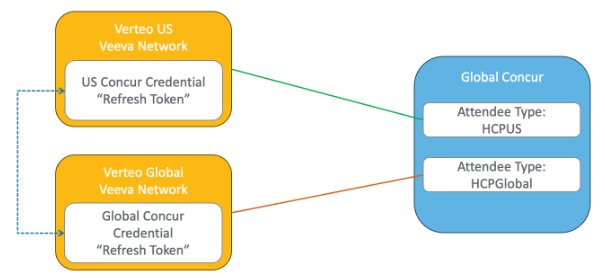
This feature is enabled by default if you purchased the Concur Connector for your Network MDM instance.
Process
Configure the Concur Connector on each Network MDM instance.
For detailed information, see the Network Concur Connector topics in the Veeva Network MDM Online Help.
Important: On the new instance, create the Concur credential and share the Authorization Code with the Network MDM instance that is already connected to Concur. When you create the new Concur credential, complete only steps 1-5 in the SAP Concur credentials topic. Do not log into the SAP Concur App Center (steps 6-14).
Share Concur credentials
After you establish one Concur connection, you can share the credentials to a Concur connection on another Network MDM instance.
New Concur credential
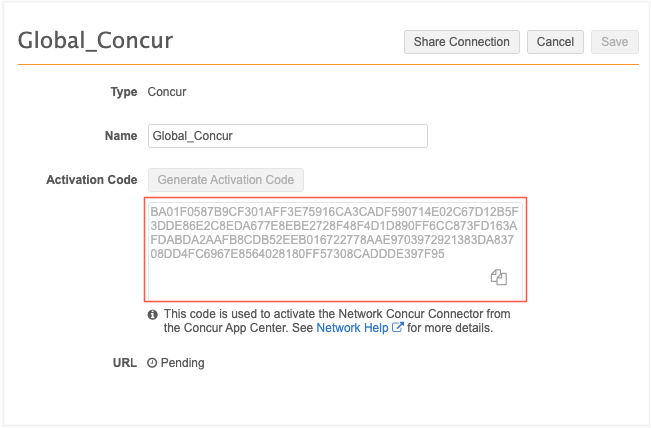
On the instance with the new Concur connection, copy the activation code.
-
In the Admin console, click Settings > External Credentials.
-
Open the Concur credential and copy the Activation Code.
-
Provide the copied activation code to the Network MDM Admin with the existing Concur connection.
Existing Concur connection
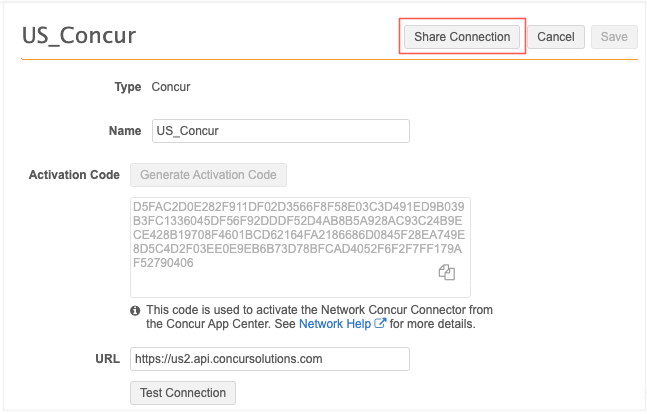
Add the shared activation code to the Concur credential on the second instance.
-
Open the Concur credential and click Share Connection.
-
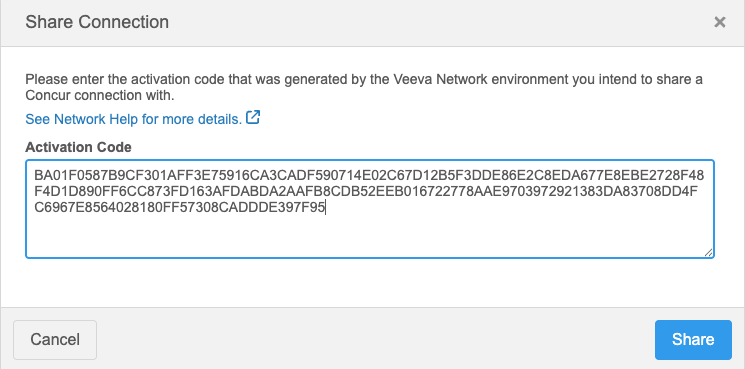
In the Share Connection dialog, add the activation code from the Concur credential on the first Network MDM instance.
-
Click Share.
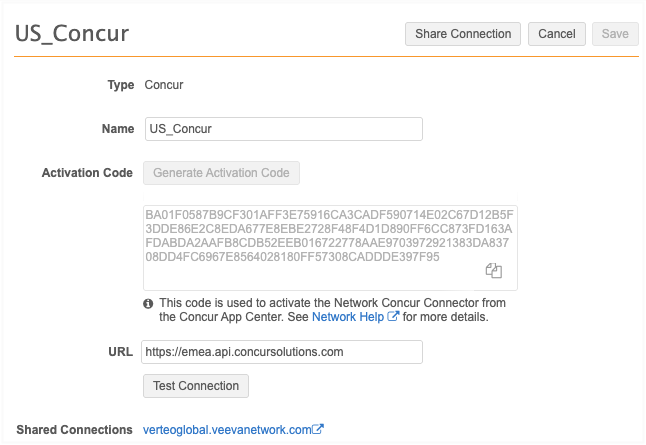
A confirmation message displays that the connection is shared with the SAP Concur URL from the first Network MDM instance.
The URL field is now populated.
-
Click Test Connection to ensure the connection is valid.
The Concur credential is updated on both instances. The Shared Connection field displays and links to the URL of each other's Network MDM instance.
Logs
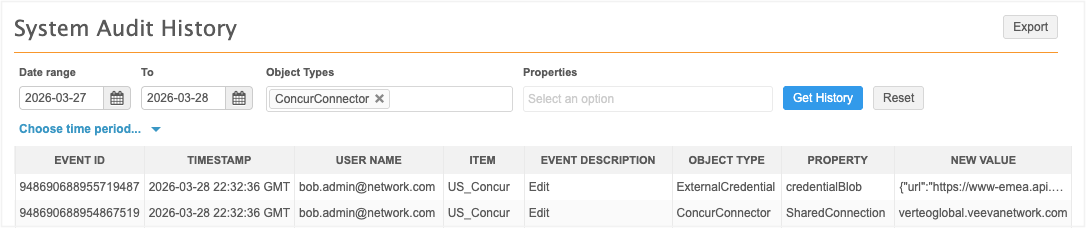
Administrators can track the sharing of Concur credentials from the System Audit Log. To quickly find the Concur events, filter the log using the ConcurConnector object type.
The following events are tracked for each instance.
Instance that shared the credential
-
Successful share connection
-
Property: AuthorizeShareConnection
-
NewValue: Yes
-
-
Credential is updated with the shared instance
-
Property: SharedConnection
-
NewValue: <instance DNS> (<instance number>)
-

Instance that received the shared credential
-
Credential is updated with the shared instance
-
Property: SharedConnection
-
NewValue: <instance DNS> (<instance number>)
-