Use NEX rules for workflow settings
Administrators can use Network Expression (NEX) rules to identify specific conditions for auto-approvals and review rejections in the workflow settings.
Examples
-
Review rejections on addresses based on the HCP or HCO value.
-
Auto-approve specific sub-objects on HCPs, but not HCOs.
-
Auto-approve add requests submitted by specific users.
-
Auto-approve add requests for HCPs based on the HCP type.
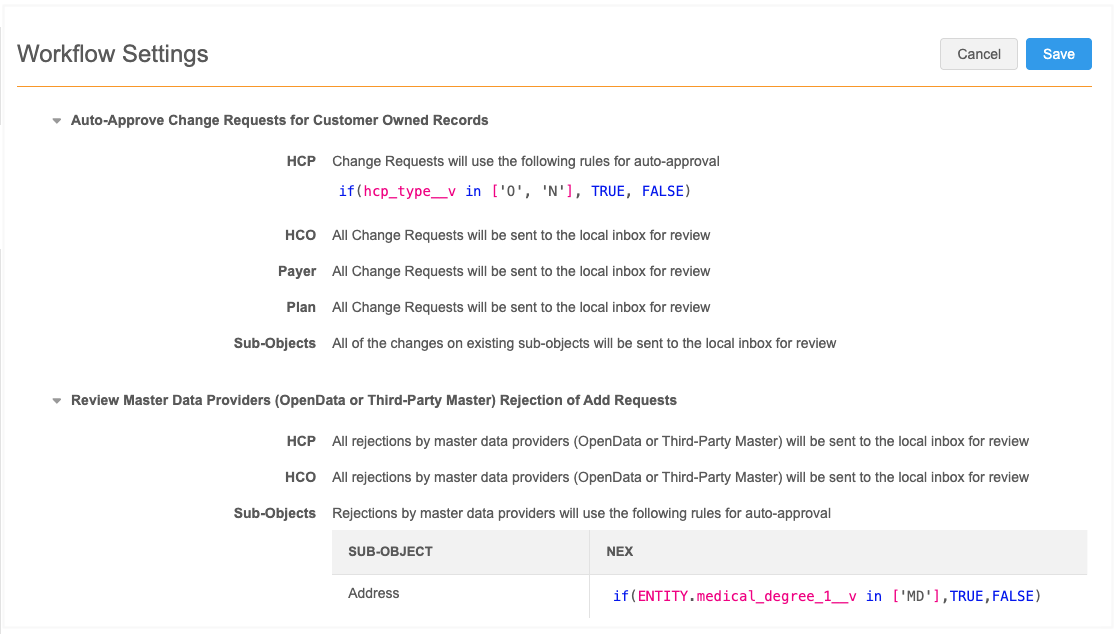
Supported workflow settings
-
Auto-Approve Add Requests for New Customer Owned Records
-
Auto-Approve Change Requests for New Customer Owned Records
-
Review Master Data Providers (OpenData or Third-Party Master) Rejection of Add Requests
Support for NEX rules
For help creating Network expressions, see the reference topics for NEX functions, NEX operators, and NEX variables.
Support for workflow settings
To support the ability to define specific conditions, these NEX rule features are available only for workflow settings.
-
Workflow metadata - The following three fields can be used to in Network expressions:
-
creator
-
system
-
source
Example: Auto-approve Add Requests for HCPs
if(DCR.creator == 'bob.smith@verteo.veevanetwork.com', TRUE, FALSE)
-
-
Use entity level fields in sub-object rules - Create a condition for a sub-object based on a field value for the related entity.
Example - Review rejections for addresses if the HCP is an MD
ENTITY.medical_degree_1__v in ['MD']
Define NEX rules
-
In the Admin console, click Settings > Workflow Settings.
-
Hover over the setting that you want to change to display the Edit button.

-
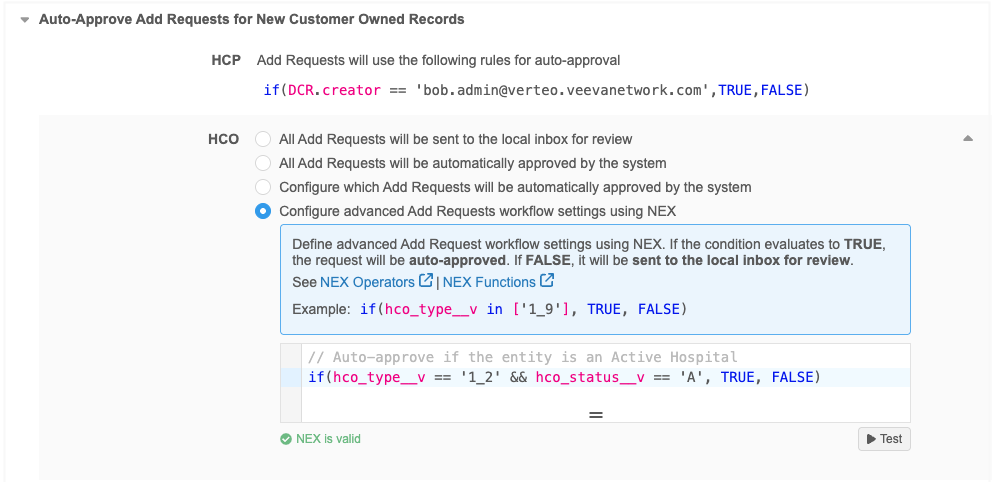
Click Edit to display the available options for the setting. Select the option to use NEX.
-
Enter the Network Expression in the field.
Tip: Comments can be added to explain the expression or add details for other users.
-
The NEX rule validates as you type the expression.
-
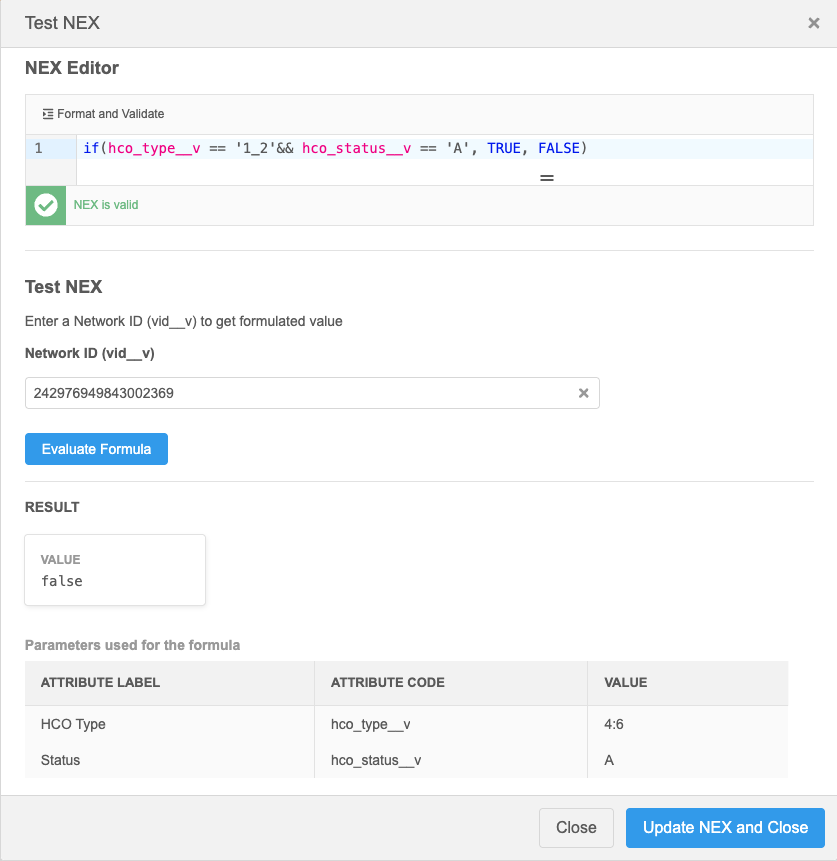
Click Test to try the rule on a record.
In the Test NEX dialog, add a Network ID and click Evaluate Formula.
The Result section displays the value of the rule and the fields and values for that Network ID.
If the results are not what you expected, you can edit the NEX in the dialog.
-
Save your changes.
The workflow setting is now to use the NEX rule for that object.