OpenData subscriptions
Advanced filters
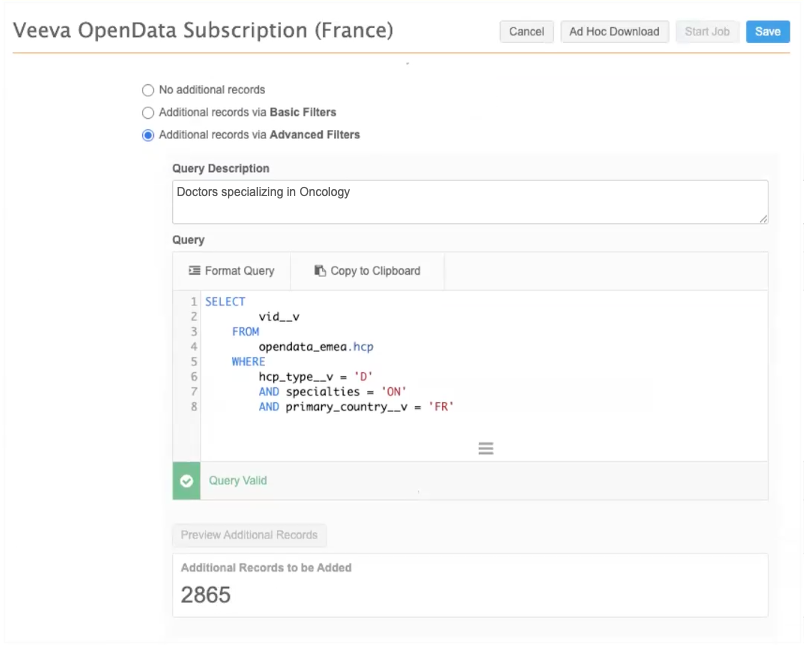
Administrators and Data Managers now have greater flexibility for defining which records to include in a country subscription. Using SQL queries, you can create advanced filters to specify additional records for download.
You can also now view any Veeva-managed filters currently applied to your instance directly within the subscription settings.
This enhancement is enabled by default in your Network MDM instance.
Filter options
When your OpenData country subscription runs, it downloads and updates records defined in your working set file. Previously, you could filter by Specialty and Type in the UI or submit a Veeva Support ticket for custom filtering.
With this release, you can now build advanced filters using SQL queries directly in the UI, giving you greater control over which HCP and HCO records are downloaded.
The HCP and HCO section in country subscriptions now have the following filter options.
| Filter Option | Details |
|---|---|
| No additional records |
Subscribe to records in the Working Set file only. (default) |
| Additional records via Basic Filters | Filter records by Specialty or Type. |
| Additional records via Advanced Filters |
Use SQL queries to subscribe to additional records. These queries are defined and tested in the SQL Query Editor using the OpenData reporting tables and then copied and used in your OpenData country subscriptions. Queries run in your instance against OpenData reporting tables. |
| Additional records via Managed filters |
Queries are created and managed by Veeva. The queries display as read-only so you can easily understand what is currently in place. In some cases, you can convert a Managed filter to an Advanced Filter that you can self-manage. |
Create an advanced filter
Prerequisite
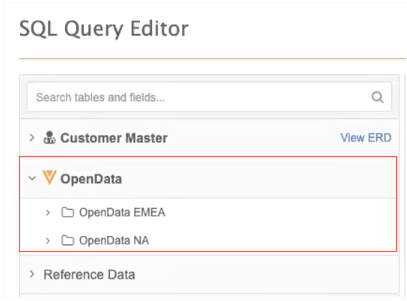
The Reporting on OpenData feature must be enabled in your Network MDM instance. The queries are created using fields from the OpenData tables.
If the feature is enabled, the OpenData category displays in the SQL Query Editor.
For more information about this feature, see Reporting on OpenData in the Veeva Network MDM Online Help.
Process
-
Write and test query in the SQL Query Editor.
- Copy and paste the query to the country subscription and preview the count of additional records that will be subscribed to using the filter.
Add an advanced filter:
-
Open the SQL Query editor (Reports) and define a query using the OpenData reporting tables.
Queries must filter on a primary country and include a SELECT statement, a WHERE clause, and reference the OpenData master instance tables.
See the Query validation section for additional requirements and restrictions.
Example query
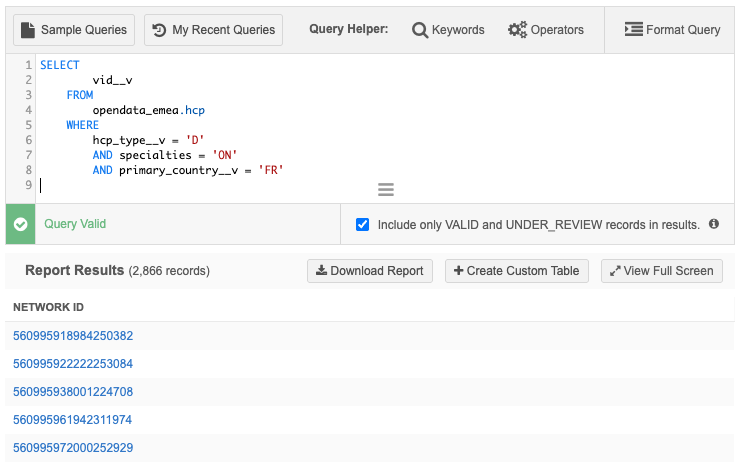
Use this HCP query to subscribe doctors in France that specialize in Oncology.
SELECT
        vid__v
    FROM
        opendata_emea.hcp
    WHERE
        hcp_type__v = 'D'
        AND specialties = 'ON'
        AND primary_country__v = 'FR'
The query will validate as you create it.
-
Click Run Query to test the query and get a count of all OpenData records that meet your filter criteria.
- Open the OpenData country subscription (System Interfaces > OpenData Subscriptions).
- In the HCP or HCO section, click Additional records via Advanced Filters.
- Type a Query Description.
-
Paste the validated query into the Query box.
The query will validate again.
-
Click Preview Additional Records. A count displays the number of additional records that will be added to your subscription. This is calculated by taking the records in OpenData that match the filter and subtracting any you already have in your instance.
-
Save your query.
-
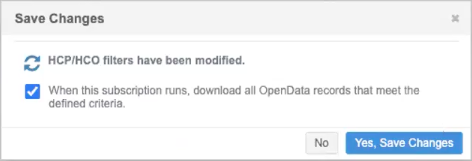
In the Save Changes dialog, the option When this subscription runs, download all OpenData records that meet the defined criteria is selected by default. Click Yes, Save Changes.
Query validation
All queries must include a SELECT statement and be complete and valid.
In addition, the following rules are applied to ensure the queries are valid.
| Validation Rule | Validation Message | Details |
|---|---|---|
| Network ID (vid__v) must be from the HCP or HCO OpenData table that you are querying | Invalid Selection: The query must select only the vid__v field from the HCP or HCO table. Please remove any additional fields or aliases. |
Only Network IDs are added to subscriptions. |
| Use available reporting tables | Unknown Table: Only OpenData tables as well as custom or lookup tables can be queried. |
Any referenced tables must be one of the following:
|
| Include a WHERE clause | Missing Filter Criteria: A WHERE clause is required. Please add specific filter criteria to your query. | - |
| Cannot include a DISTINCT keyword | Unsupported Clause: The DISTINCT keyword is not allowed. Records are unique by default within the OpenData subscription. | - |
| Cannot include a LIMIT clause | Unsupported Clause: The LIMIT clause is not allowed in this context. Please use the WHERE clause to manage the scope of your results. | - |
| Cannot include a MIN, MAX, COUNT, and so on | - | Aggregate functions are not supported. The query supports only the vid__v field from the HCP or HCO table. |
Managed filters
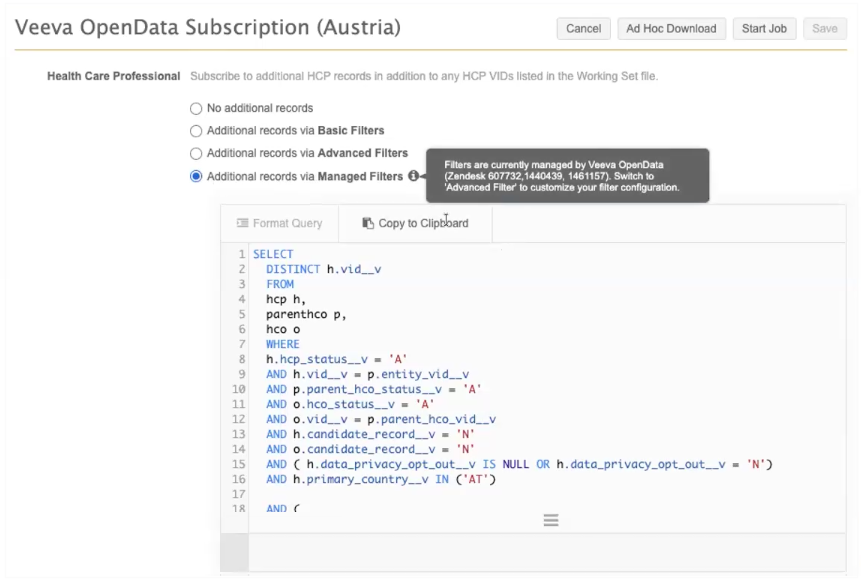
If you have existing filters that were requested through Veeva Support tickets, the Additional records via Managed Filters option displays. The query created and managed by Veeva displays as read-only so you can see what is currently in place to subscribe to additional records.
Switch to an advanced filter
You can remove the Managed filter and create an Advanced filter so you can manage it for your instance.
Options
-
Write a new query
-
Copy the Managed filter and use it as starting point for your Advanced filter.
Important considerations
Because Advanced filters run against OpenData reporting tables in your Network MDM instance—rather than on the OpenData instance—existing Veeva-managed queries cannot simply be copied; they must be adjusted or rewritten.
Example issues
-
Custom tables and custom fields - If the Managed filter uses Veeva custom tables or custom fields, the filter behavior must be changed because you cannot access those Veeva artifacts.
Contact your OpenData representative before converting a Managed filter that uses Veeva tables or custom fields.
-
Candidate record fields - References to candidate record fields must be removed. They are not included in OpenData reporting tables.
-
Include the OpenData tables - The FROM statement must include the OpenData instance table for the entity; for example, opendata_emea.hcp.
-
The query must be fully tested in the SQL Query Editor before being added as an Advanced filter.
Create the advanced filter
Important: The switch from a Managed filter to an Advanced filter cannot be reversed.
To switch from using a Managed filter to an Advanced filter:
-
If you are copying the Managed filter, click Copy to Clipboard.
-
Open the SQL Query Editor (Reports) and either paste the copied Managed filter query and make the required changes or create a new query.
Ensure that the query validates and then run it to view the results.
-
Copy the query and open the OpenData country subscription.
-
Select Additional Records via Advanced Filters.
-
In the dialog, confirm that you want to switch to using an advanced filter. Click Yes, Proceed.
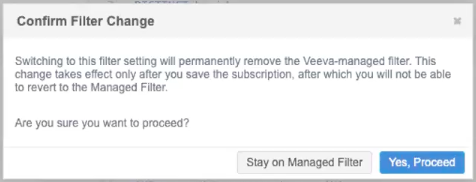
The Additional records via Managed Filters option is removed.
-
In the Additional records via Advanced Filters option, type a Query Description.
-
Paste your tested query. When the query validates, click Preview Additional Records to test the query against the OpenData reporting tables. A count displays the records that will be added to your country subscription.
-
Save your changes.
Updates for field management
OpenData country subscription settings are updated with clearer field labels, making it easier for Administrators and Data Managers to understand and select which fields are managed by OpenData.
The following improvements have been made to the Fields section:
-
Labels - The labels for each pane are updated to indicate field management.
Previous Label New Label Available Fields Managed by Customer Selected Fields Managed by OpenData -
Field names - The field name now displays beside each field label, for example, # of Beds (count_beds__v).
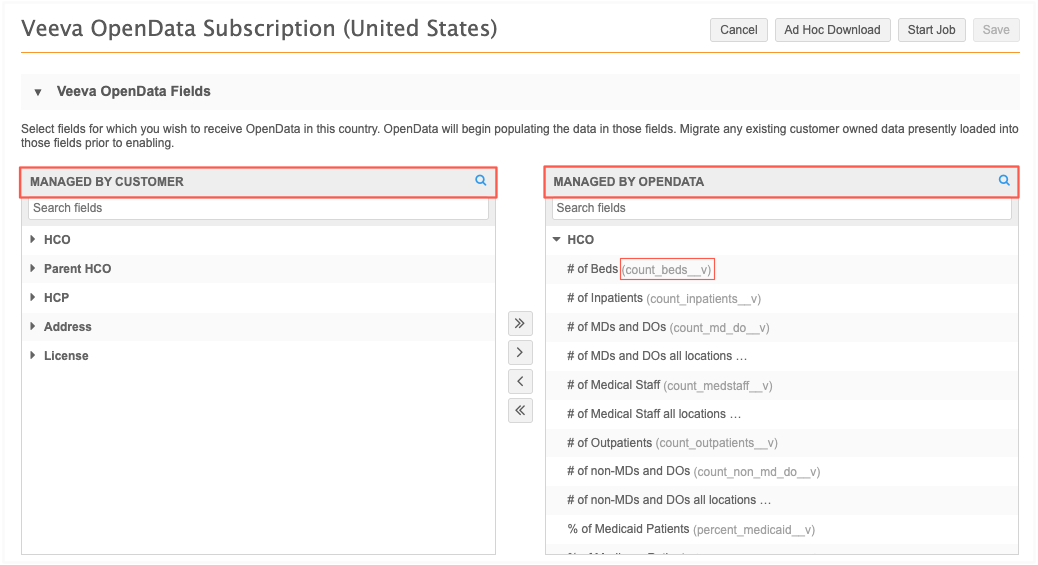
These enhancements are enabled by default.
Enhanced job details
The Job Result Summary now includes a new column called Processed to display the total count of processed records. Previously, this data was available only in the Job History section on the country configuration.
This update provides immediate clarity on the full scope of a job, making it easy to see exactly how many records the job evaluated compared to how many actually resulted in a change.
In addition to the new column, a header clearly separates the count of records processed during the job versus the updates that were made.
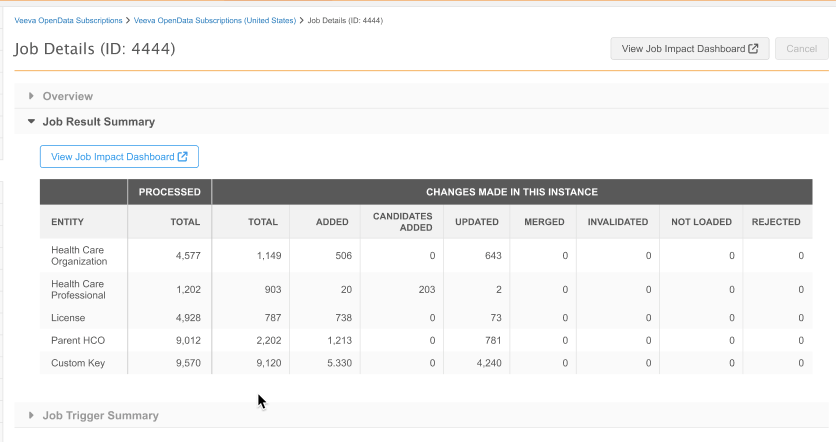
This enhancement is enabled by default.
Processed records
Processed records are the records included in the exported files when the OpenData subscription ran. This could be a full export (scheduled to run every Sunday from each OpenData instance) or a delta export (scheduled to run at least once a day from each OpenData instance) which contains records that were updated since the last export.
The columns in the Changes Made in This Instance section display counts for any record that meets one of these three criteria when a job runs:
-
If there are updates for a record that has already been downloaded, it makes those updates.
-
If there are records that meet any filters for a particular country, those records are downloaded.
-
If new Network IDs were added to the Working Set file and those ID are in the exported files from OpenData, those records are downloaded.
Primary CDA address field
The Primary CDA field (primary_cda__v) for the Address object can now be managed by Veeva OpenData. Previously, the field could be locally managed only.
This change is available by default. Administrators can change the field ownership within their OpenData country subscriptions.
Data impact
Leave as locally managed (default behavior)
There is no data impact if the primary_cda__v field remains locally managed.
Change to OpenData managed
If you choose to make the field managed by OpenData for a country, the following behavior occurs:
-
Data change requests will be routed to OpenData data stewards for processing
-
Updates to the field will be provided through your OpenData country subscription.
-
Locally managed data in the field will be overwritten by OpenData data.
Tip: Backup existing data in the field before receiving updates from OpenData. See Tips for preserving local data in the Veeva Network MDM Online Help.
Update the field
To change the field to be mastered by Veeva OpenData:
-
In the Admin console, click System Interfaces > Veeva OpenData Subscriptions.
-
Open a country subscription.
-
In the Veeva OpenData Fields section, expand the Address section in the Managed By Customer pane.
-
Select the Primary (CDA) (
primary_cda__v) field and use the Right-Arrow icon to move it to the Managed by OpenData pane.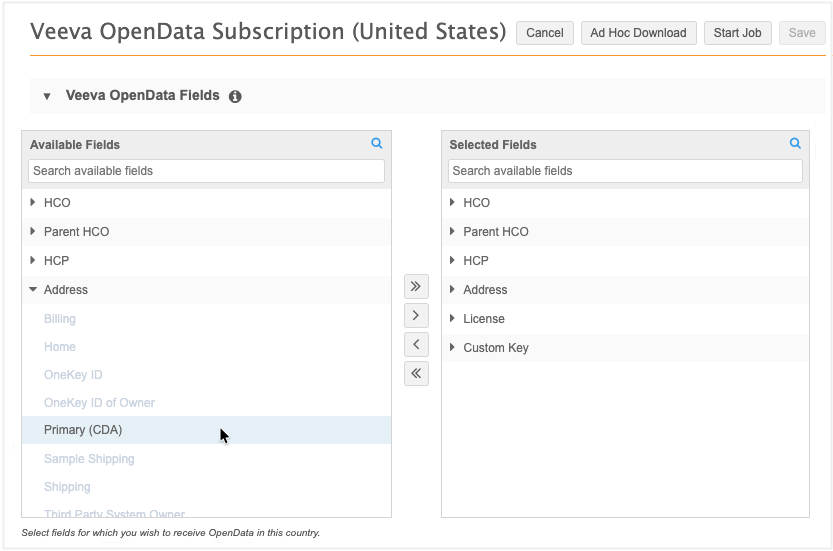
-
Save your changes.
The field will now be managed by OpenData for that country.
-
Repeat these steps for each country where OpenData will manage the field.