Hierarchy Explorer widget
Hierarchy Explorer is a Network widget that you can use to see all levels of an HCO's structure, making it easy to visualize their hierarchy and find new targets.
To enable Hierarchy Explorer in your Network MDM instance, contact Veeva Support.
The following enhancement has been added for the Hierarchy Explorer widget in this release.
Access from HCP accounts in Vault CRM
When the Hierarchy Explorer widget is embedded in Vault CRM, end users can now access the widget directly from an HCP account. Previously, Hierarchy Explorer could be accessed from HCO accounts.
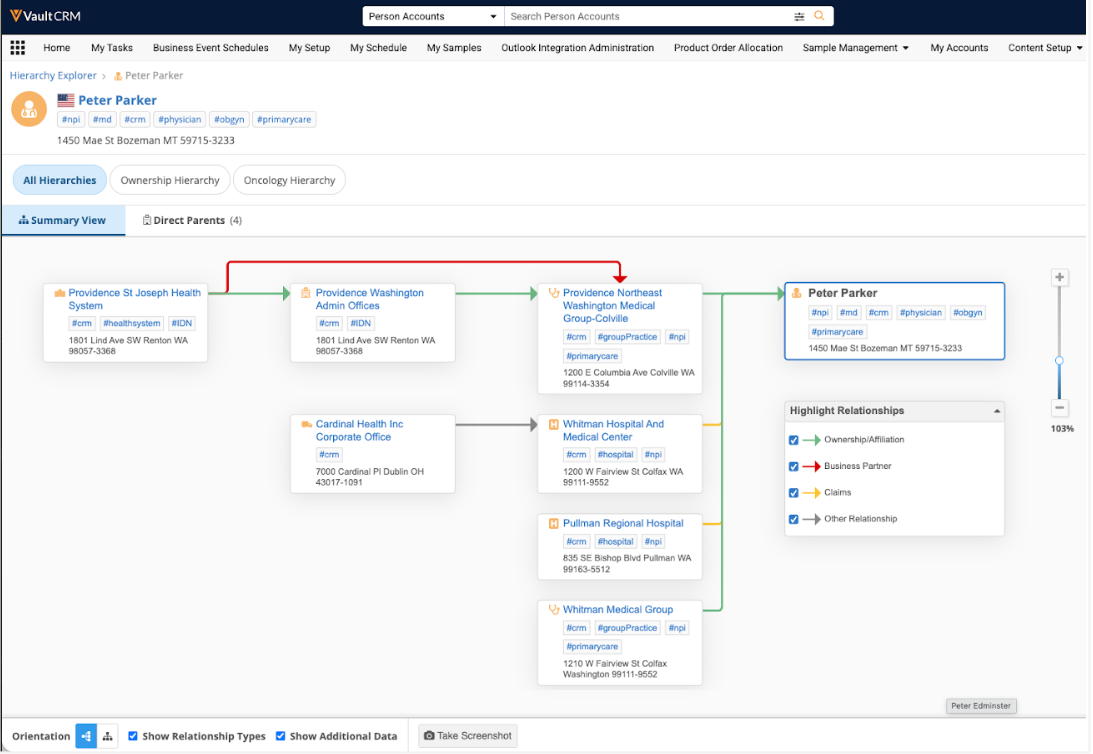
This enhancement is available by default if the widget is embedded in Vault CRM. For details, see the Network Hierarchy Explorer topic in the Vault CRM Online Help.
Widget access
Vault CRM users can access the widget when they are logged in using their Vault credentials. On an HCP Account page, click More Actions and select Network Hierarchy Explorer.
The HCP's hierarchy opens so users can immediately explore it. Users can also submit data change requests through the widget.
For information about configuring the widget for Vault CRM, see Embed Hierarchy Explorer in Vault CRM in the Veeva Network MDM Online Help.
Exporting hierarchies
The option to export the hierarchy to a Microsoft Excel file is available from the Child HCPs, Child HCOs, and custom tabs. For compliance, it might be necessary to prevent users from exporting HCP and HCO details from the widget. Administrators can now configure the widget to hide the Export to Excel option from the Actions menu on these tabs.
This can be applied to Hierarchy Explorer embedded in Vault CRM.
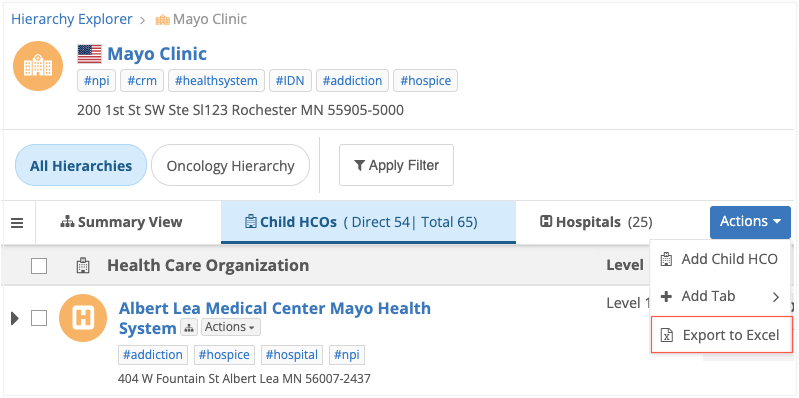
This enhancement is available by default in your Hierarchy Explorer configuration. The Export to Excel option displays by default for widgets.
Hide Export to Excel
-
Open a Hierarchy Explorer widget configuration (Widgets & Portal > Network Widgets).
-
In the General Settings section, a new heading, Export to Excel Settings displays.
-
Clear the Display Export to Excel option setting. It is enabled by default.
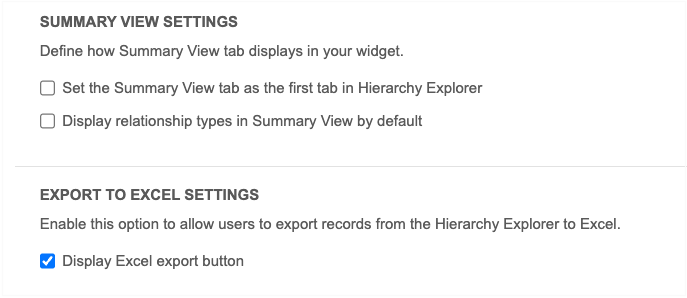
-
Save your changes.
Existing property
Previously, the Export to Excel option could be hidden using a widget property in your internal application or through a setting in the Network Portal.
If you are already using the property in your widget code (hide-export-button="true") or the setting in the Network Portal, the Export to Excel option will not display in the widget.