Add a third-party master system
Create a system for loading and exporting data mastered by a third-party data provider. The data loaded by this system will be externally managed and stewarded.
About third-party systems
Defining a system as a third-party master is important because it is used in the following processes:
-
Data ownership - The system identifies the countries, records (HCP/HCO types), and fields that are mastered by the third-party data provider.
-
Data loading - Records loaded using the system are identified as third-party records.
In the Network MDM UI, third-party master data is identified by blue icons and fields.
-
DCR routing - Add and change requests on the defined fields are routed to the data provider for processing. DCRs must be exported to the third party using the API or a target subscription.
Changes are never routed to Veeva OpenData or to local data stewards for processing.
-
Source key tracking - The third-party data provider includes the system in the DCR Response file so their source keys are applied to changes.
For more information about the behavior of third-party mastered data, see Integrating with third-party systems.
Best practices
-
System - Create one third-party system for each data provider. It should include all countries for which the provider sends data.
-
Country configuration criteria - This defines the fields that are locally managed (Managed by Customers pane) and the fields that are managed by the third-party system (Managed by Third-Party pane) for HCPs and HCOs.
After data is loaded for this system, carefully consider any changes to this section. For example, if you move a field from the Managed by Customers pane to the Managed by Third-Party pane, you are changing the field from being locally managed to being externally mastered. These changes can impact existing data and must be carefully assessed.
Create the system
- In the Admin console, click System Interfaces > Systems.
- Click Add System.
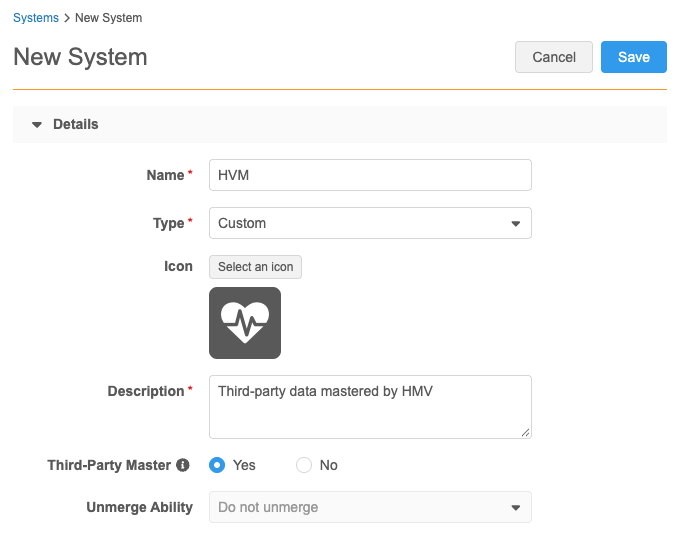
System details
Define the following details:
- Name and Description - Type a meaningful name and description for the new system.
- Type - Choose Custom.
- Icon - Choose an icon from the icon library.
-
Proprietary and Restricted data - Ignore. These settings do not apply to third-party systems.
-
Third Party Master - Choose Yes.
Note: Systems that are not defined as a Third Party master are considered local. Updates to local data are sent to customer data stewards for processing.
-
Unmerge Ability - Do not unmerge is selected by default. This cannot be changed for third-party systems.
Country Configuration Criteria
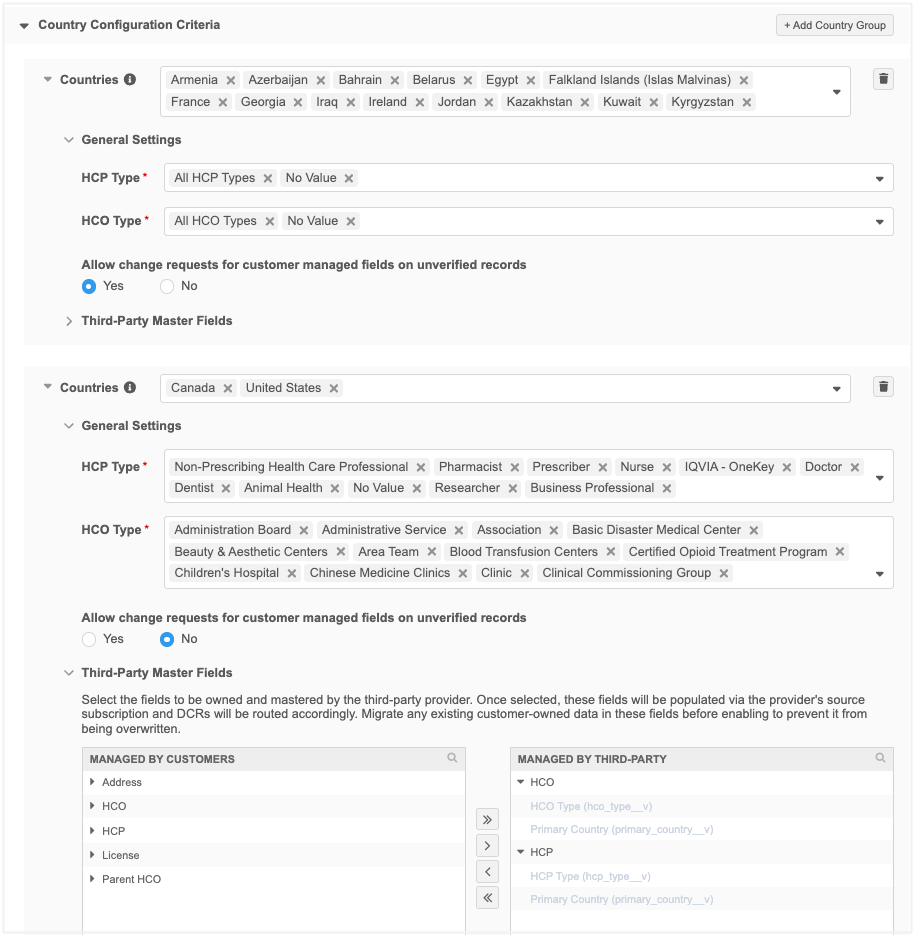
Define the records and fields that will be mastered by the third-party data provider for specific countries. DCRs for this data will be routed to the third-party data provider to process.
Multiple groups can be created to define specific criteria for countries. For example, the third-party might master emails for US HCPs, but not for HCPs in Europe. Create separate groups for the US and EU countries.
Each group can contain one or more countries.
-
Countries - Add the countries.
A country can belong to one group only.
-
HCP Type and HCO Type - Define the record types that will be mastered by the third party for the countries in this group. By default, all types are included.
Options:
- All HCO/HCP Types - All HCP/HCOs.
- None - No HCPs/HCOs.
- No Value - Any HCPs or HCOs that do not specify a type or the type doesn't map to the Network MDM standard types.
- Select individual types - Select specific HCP/HCO types to be mastered by the third-party, for example, Business Professional (HCP), Pharmacy, Retail (HCO).
- Allow change requests for customer-managed fields on unverified records - Allow users to add customer-managed data to pending third-party records. DCRs for customer-managed fields will be routed to local data stewards.
Options:
No - Automatically reject change requests for customer-managed fields.
The task is rejected with the following resolution note: R-00014 System rejected - you are trying to update an Under Review record that is currently locked. Please resubmit your change request when the record is open for changes.
Yes - Route the change requests to local data stewards.
The DCR must be processed by local data stewards unless the field is set to automatically accept change requests. You can set the Change Procedure setting to automatically accept change requests on each field configuration (Data Model).
For additional details, see Allow local change requests for unverified fields.
-
Third-Party Master Fields - Move all fields that are managed by the third-party data provider for these countries into the Managed by Third-Party pane. Changes to the fields will be routed to the third-party data provider to process.
Fields that remain in the Managed by Customers pane will be managed locally.
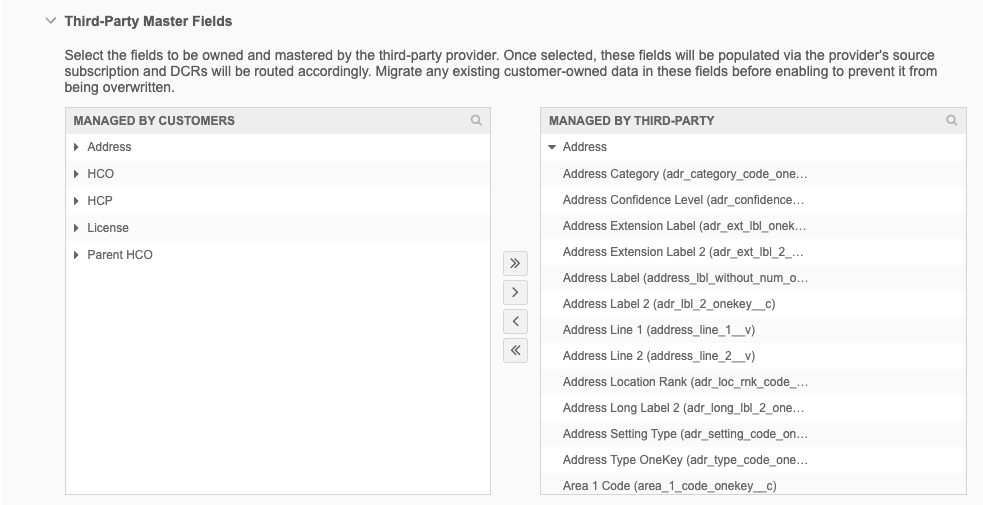
Automatically selected fields
These fields are automatically moved to the Managed by Third-Party pane when the objects are added to the country group.
-
HCO Type (
hco_type__v) -
HCP Type (
hcp_type__v) -
Primary Country (
primary_country__v) -
Parent Affiliation (
parent_hco_vid__v)This field is moved only if any Parent HCO field is moved to the Managed by Third Party pane. This field is mandatory for the Parent HCO object integration. It cannot be removed unless the other Parent HCO fields are moved back to the Managed by Customers pane.
Recommended fields
-
Formatted address (
formatted_address__v)This field contains the summarized address data for HCOs and HCPs. The field itself cannot be included in a DCR, but adding it allows a third-party data provider to have full control of the value of the field. If the field is not moved to the Managed by Third Party pane, your source subscriptions could override the formatted address of the third-party data provider.
The field should be added for all third-party systems. It is not added by default.
For more information, see Formatted addresses.
-
- Save your changes.
Next steps
When you load data from this third-party source, choose this system so the data will be identified as third-party master data. Any changes to the data must be exported using this system so it can be processed by the third-party data stewards and then loaded back into Network MDM.
For details, see Integrating with third-party masters.
Allow local change requests on unverified third-party records
The Allow change requests for customer-managed fields on unverified records option is helpful when users want to add information to a new third-party record but the record is still pending approval from the third-party data provider.
Example
If you add an email address on an unverified third-party HCP record, the DCR is rejected because the third-party data provider is still processing the add request.
When this setting is enabled, the email address can be processed and accepted by local data stewards. When the third-party record is approved, the local updates are merged to the third-party record.
Allowing change requests
When you allow the change requests, the following behavior can occur depending on the outcome of the third-party add request:
| Outcome of the third-party add request | Details |
|---|---|
| Add request is approved |
When local data stewards approve a DCR for customer-managed fields, an unverified (Under_Review) local record is created. When the add request is approved by third-party data stewards, the unverified local record is merged into the newly created third-party record. Tip: To ensure that local DCRs are processed quickly, configure the Change Procedure on the data model field to automatically Accept customer-managed field changes. When auto-accept isn't enabled, the following issues can occur:
|
| Add request is rejected |
If the add request is not approved by third-party data stewards, any pending local DCR tasks are rejected (Invalid and Merged_Into records cannot be updated). If the local DCRs have already been approved, the unverified (Under_Review) local record is invalidated and any record profile changes are removed. |
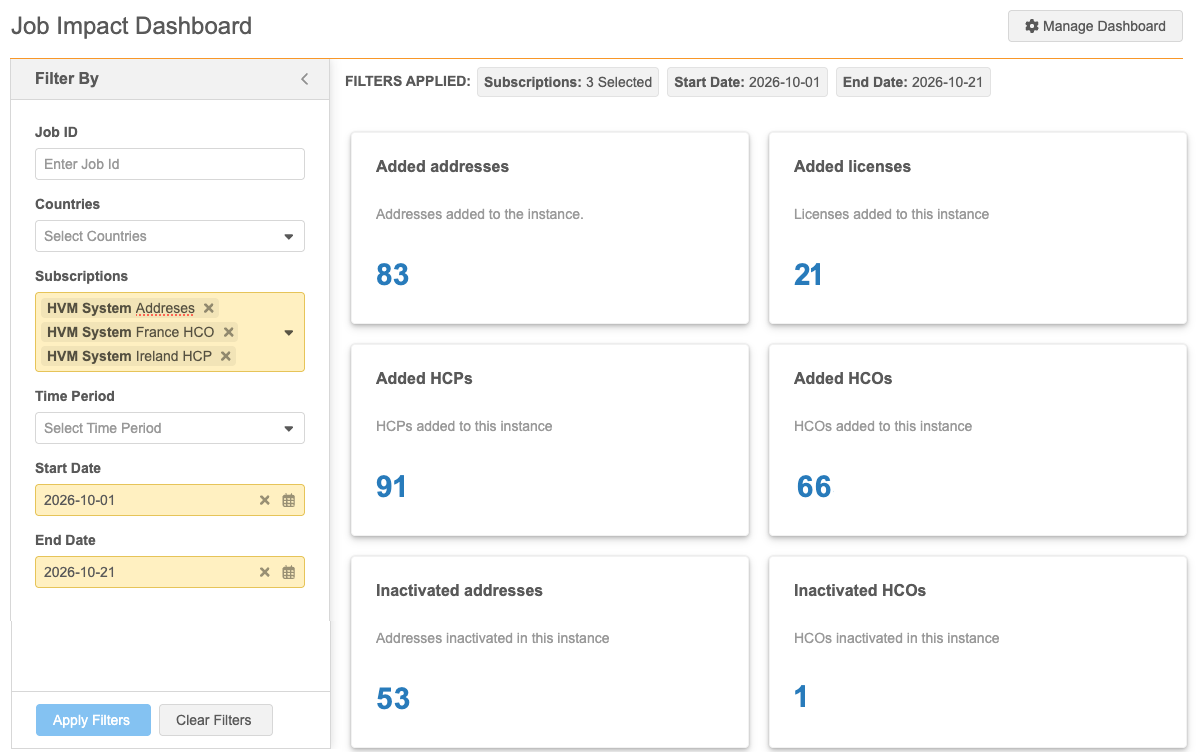
Job Impact Dashboard
After a system is created and is used to load data, you can click the Job Impact Dashboard button to understand the records that have been added or changed by subscriptions used by the system.
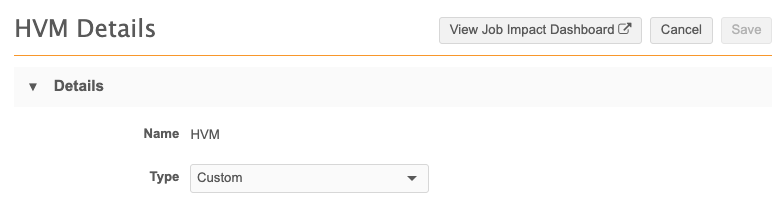
Filters
When the Job Impact Dashboard opens, the following filters are automatically applied:
-
Subscriptions - Subscriptions used by the system to load or change data.
For example, source subscriptions, data maintenance subscriptions, and Data Updater jobs.
-
Time Period - Last 7 days.
-
Start Date - The date seven days ago.
-
End Date - Today's date.
For detailed information, see Job Impact Dashboard.