Subscriptions
Job Error Log
Administrators and Data Managers can more easily troubleshoot and resolve job issues using the improved job error log, detailed event codes, and enhanced job statuses.
This enhancement is enabled by default for all new jobs.
Jobs that ran before the 25R3.1 release do not include these enhancements.
Highlights
-
Simplified Troubleshooting: Common events now include unique error codes and detailed descriptions to provide clear guidance on how to resolve issues.
-
Centralized Job Error Log: A new Job Error Log tab on the Job Details page provides a dedicated space to review all job events in more detail.
-
Enhanced Job Status: Job outcomes now provide more granular feedback, clearly distinguishing between a "Completed" status and those that have "Completed with errors/warnings."
-
Prioritized Event Severity: Events are now categorized as Fatal Error, Error, Warning, or Info. To speed up resolution, Fatal Errors are highlighted and pinned to the top of the log, while summary counts for each severity level are visible directly on the tab for a quick health check.
Supported subscriptions
-
Data Maintenance Subscriptions
-
Data Updater jobs
-
OpenData Subscriptions
-
Source Subscriptions
-
Target Subscriptions
Enhanced job error log
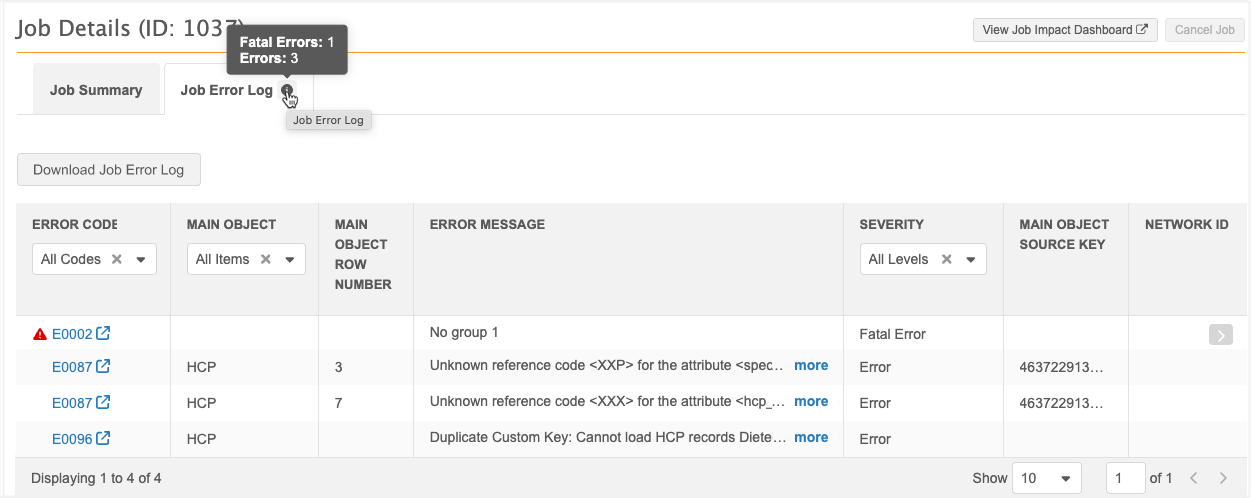
The new Job Error Log tab lists all events that occurred during the job with details to help you to troubleshoot and resolve the issues. Previously, job events displayed at the bottom of the Job Details page.
Note: If the job completed without errors, the Job Error Log tab is dimmed.
On the tab, hover over the Info  icon on the tab to display a count for each error severity to give you a quick summary of the issues.
-
Click the tab to display the job events.
Event details
Each job event is logged in the table with the following details:
| Column | Description |
|---|---|
| Error Code | A unique code assigned to common errors, warnings, and info messages.
Examples
The code displays as a link. Click the link to view more details in the Veeva Network MDM Online Help. If an error code does not display, it is not a common error. Contact Veeva Support for assistance. If the error is not documented, the Info |
| Main Object | The HCP, HCO, or custom main object of the record with issues. |
| Main Object Row Number |
The row number in the main object’s source file (for example, HCP) where the issue originated. Note: This reference always refers to the main object's file, even if the actual error occurred within a related sub-object file (for example, Address). |
| Error Message | The reason the issue occurred. |
| Severity |
Identifies each job event as one of the following: Fatal Error, Error, Warning, or Information. Fatal errors are highlighted and pinned to the top of the list so you can quickly find the issue that failed the job. Tip: Filter on the severity to quickly find errors. |
| Main Object Source Key |
The identifier from the source file.
Hover over the identifier to display the Copy icon. Copy the ID so you can quickly find the issue in the source file. |
| Network ID |
The Network ID of the main object.
Populated only if the identifier is available. |
Filter the table
The log can be filtered by the Error Code, Main Object, and Severity columns.
Expand the header field to display a count for each item in the column. The count identifies the selected number and the total number.
Example
Filter the log to display a specific error code (E0087) and main object (HCO).
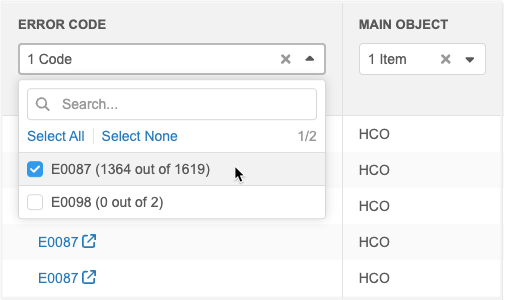
As you filter the table, the counts update to display the selected and total number that apply.
Expand columns
If the column data is truncated, hover over the column header border to temporarily resize the column.

Download Job Error Log
Click the button to download the log as a .csv file.
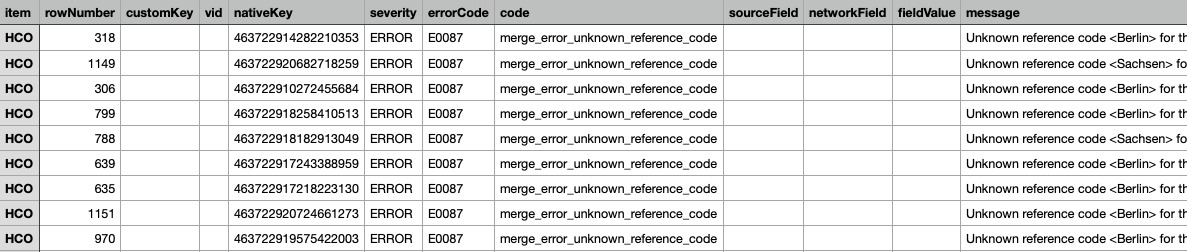
The Download Job Error Log button is now always available on the Job Error Log tab.
Note: Previously, the button was available only if the Job Error Log option was selected in the subscription configuration. Now, selecting that option exclusively saves the job error log as a .csv file in the logs root folder on your Network MDM FTP.
Error log retention
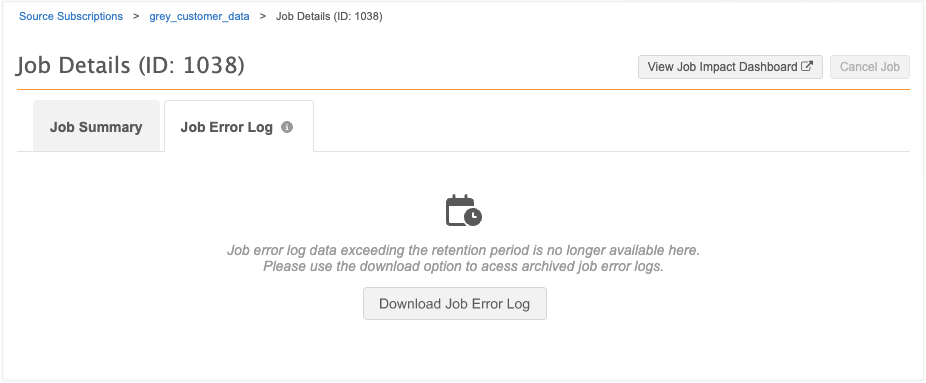
The details on the Job Error Log tab are available for at least six months.
If the time is exceeded, a message advises that the data is no longer available. Click Download Job Error Log to retrieve the archived error log.
The .csv file will be downloaded to your local computer.
Running jobs
You can access the Job Error Log tab while the job is running. It displays events as they occur. Refresh the page to view updated events.
This is helpful so you can cancel the job based on the interim results of the job.
Source subscription error logs
The Download Job Error Log button is now always available on the Job Error Log tab.
Previously, the button was available only if the Job Error Log option was selected in the subscription configuration. Now, selecting that option exclusively saves the job error log as a .csv file in the logs root folder on your Network FTP.
Updates for the downloaded log file
The source subscription error log file includes the following enhancements:
-
item - Identifies that object containing the issue.
-
rowNumber - Identifies the row number in the source file with the issue.
-
errorCode - Displays the unique code for the job event.
-
severity - Includes the FATAL_ERROR severity.
Enhanced job status
Job outcomes are updated to identify jobs that completed warnings or errors so you know when further investigation is required. Previously, the status was either Completed or Failed.
Job Details page
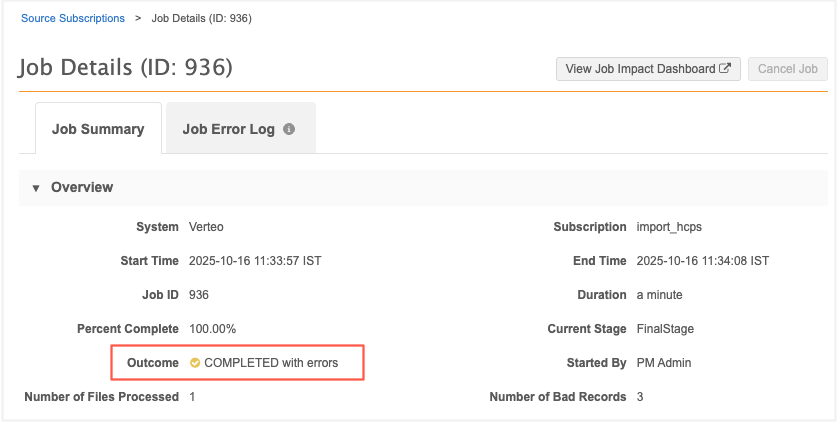
On the Job Summary tab, the Outcome field is updated to display the full job status.
-
 Completed
 -
 Completed with warnings
-
Completed with errors
-
Completed with errors and warnings
-
 Failed
Example Job Summary
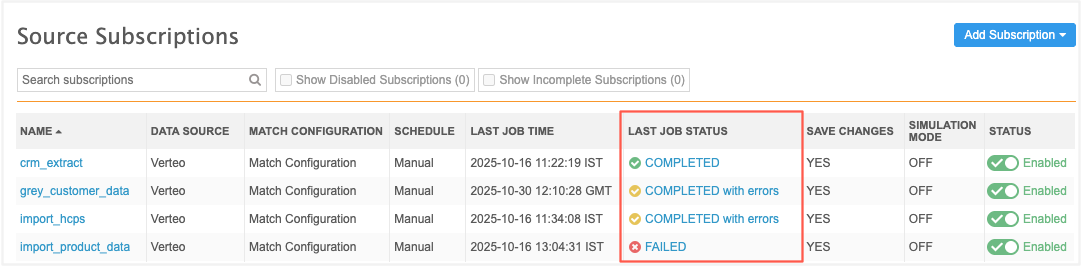
The enhanced job status also displays on the main subscription page in the Last Job Status column for each subscription.
Example - Source subscriptions
Job History
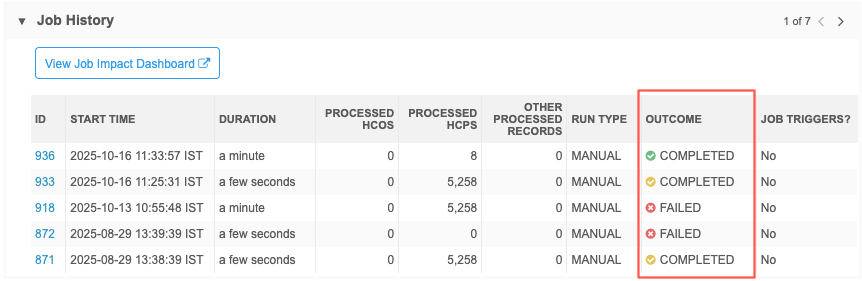
The Job History section displays at the bottom of a subscription configuration after a job runs.
The Outcome column is updated to display the job status with a colored icon to identify jobs that completed with issues.
-
Completed (green icon) - The job completed with no issues.
-
Completed (yellow icon) - The job completed with errors, warnings, or both.
-
Failed
(red icon) - The job did not complete.
Reporting on job status details
The Job Details reporting table includes the status_details field. Include the field in your advanced job queries to distinguish between jobs that completed and jobs that completed with errors or warnings.
To include the field in your query:
-
On the , click Reports > SQL Query Editor.
-
In the reporting tree view, expand the Data Loading & Matching section.
-
Expand the job (Job Details) table and scroll to the status_details (Outcome Details) field.
-
Add the field to your job report to see the detailed outcome in the results.
Job status details in Network MDM API responses
API calls that return job status in responses can now distinguish between jobs that completed and jobs that completed with errors or warnings.
This is supported in Network MDM API v37.0 and later.
New property
job_status_details
Sample response
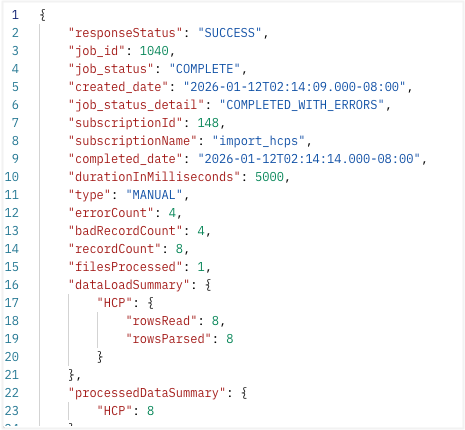
The following values can be returned:
-
COMPLETED
- COMPLETED_WITH_WARNINGS
- COMPLETED_WITH_ERRORS
- COMPLETED_WITH_ERRORS_AND_WARNINGS
- FAILED
Supported API calls
-
Retrieve a subscription job status
-
Retrieve a source subscription job status
-
Retrieve a target subscription job status
-
Retrieve a compliance subscription job status