Network Profile Widget
You can now integrate directly with Network from an internal web-based application using the profile widget.
Using the profile widget, business users can view real-time data from your internal web-based application without logging directly into the Network instance. For example, from their internal portal, field users and marketing users can view an HCP profile and confirm information such as address information or parent affiliations for event or marketing material.
The profile widget can also be configured to support edit-mode to enable users to update records and submit data change requests.
Building and maintaining all of the information about HCPs and HCOs using the Network API or target subscription is costly and time-consuming. Maintenance costs can be high, especially when managing the new fields that added to the Network data model with each release and updates to the data.
Network’s profile widget code provides all of the following development tasks that are required for integration:
- User interface for viewing profiles.
- Integration with the Network APIs for displaying Network profiles from your application.
- Ongoing maintenance to support new features and data model changes.
This feature is not enabled by default. For more information, contact Veeva Support.
How does it work?
The Network profile widget is supported for internal applications. Administrators configure the widget settings in Network and then web developers add the generated code to their internal application. Then, from that application, users can open a profile and view Network's latest data for an HCO or HCP. Only profiles that users have access to through their assigned Network data visibility profile will display.
Applications must meet the following requirements:
- The application is web-based.
-
Your Network instance uses single sign-on (SSO) authentication (every user must have a Network/SSO account).
For more information, see "Configuring single sign-on" in the Veeva Network Online Help.
Adding Network's profile widget in your internal application has three or four steps depending on whether the widget is read-only or supports edit mode:
- Configure the widget - Network administers set up the widget in their Network instance. When the configuration is saved, code snippets are generated.
- Embed the widget - Web developers embed the generated code snippets into the portal.
- Additional configuration - Web developers initialize the widget by opening records using Network entity IDs (VIDs) or custom keys.
- Define events to support edit-mode – If administrators have configured the profile widget to allow users to edit records and submit change requests, web developers must add events to the profile widget to get the latest copy of the record (including new under review records) and to retrieve the task ID or the task details.
Embed the widget
After administrators configure the widget in the Network instance and generate the code, web developers can add the code to an internal web-based application.
There are two parts required for adding the profile widget to your HTML.
Add generated code
Add the blocks of code that were generated when the administrator configured the profile widget in the Network instance.
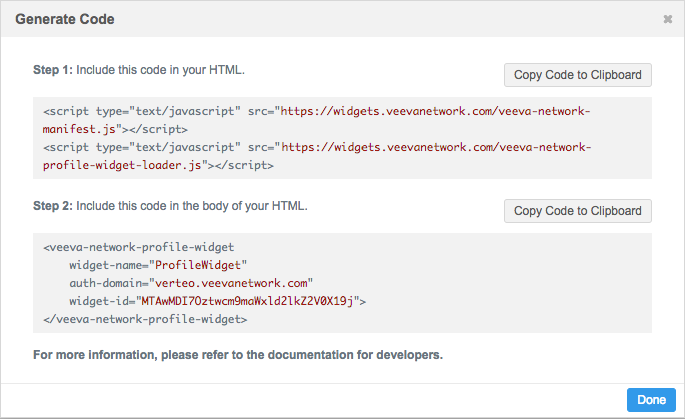
There are two blocks of code required for the profile widget:
-
Step 1 – Include this code in your HTML page ensuring that the
veeva-network-manifest.js scriptis loaded first. This part of the code loads the widget.<< add code here>>
-
Step 2 – Include this code within the
<body>of your HTML page. This part of the code initializes widget.<< add code here>>
The code reflects the settings that were defined in the search widget configuration.
Initialize the widget
Initialize the widget using the start method with the Network entity ID. For more information, see the "Methods" section and the "Implementation example" below.
When the two blocks of code and the start function (to initialize the widget) have been added to your HTML, your business users can view the latest data from your Network instance in this internal application.
Developer reference
This section includes the HTML element, attributes, and methods that can be used when you add the profile widget to your internal web-based application.
HTML Element
veeva-network-profile-widget
This is the web component for the Network API that allows you to view the record profile. To use it, simply treat it as an HTML element and add it to your HTML.
Properties
The following required properties are contained in this element:
widgetName- The name that the Network administrator defined in the Search Widget configuration in the Network instance.authDomain- The domain of your Network instance.widgetId- A code generated by Network that applies to the profile widget configuration. If you make style changes to the widget in the Profile Widget configuration in the Network instance and click Generate Code again, the widgetId does not change.
Note: Properties are written in camelCase, while corresponding attributes are written in kebab-case.
<veeva-network-profile-widget
 widget-name="your-widget-name"
 auth-domain="your-auth-domain"
 widget-id="your-generated-widget-id">
</veeva-network-profile-widget>
Attributes
The following optional attributes can also be added to the element:
-
closeable(boolean = false) - The ability to close the widget. Set this attribute to true to add a close (x) button on the top-right corner of the widget header. When the close button is clicked, an eventveeva-network:your_widget_name:close-widgetwill be invoked so you can add your owncloseevent listener.Example
<veeva-network-profile-widget
...
closable
...></veeva-network-profile-widget>
-
holdInitialization(boolean = false) - Set this attribute to true to hold the initialization of the content of this widget. This is useful if you want to prevent the authentication flow that displays a new window for single sign-on when your page is loading so it's not as disruptive to your application. You can start the intialization of the content in the widget by calling astart()function later.Example
<veeva-network-profile-widget
...
hold-initialization
...></veeva-network-profile-widget>
-
identifier (string) - The Veeva Network entity identifier (18-digit Network entity ID (VID)) or custom key.
<veeva-network-profile-widget
  widget-name="your-widget-name"
  auth-domain="your-auth-domain"
  widget-id="your-generated-widget-id"
  identifier= “your-network-vid”>
 </veeva-network-profile-widget>
-
showInDialog(boolean = false) - Set this attribute to true if you want to display the widget in a default dialog that Network provides. When this is true, it implies that bothholdInitializationandcloseableare also true. When you call astart()function, the dialog with the widget will open. You can add aclose()function to close the dialog.Note: You will need to create a button or link so users access the search widget from a dialog on the page.
Example
<veeva-network-profile-widget
...
show-in-dialog
...></veeva-network-profile-widget>
Note that on some platforms the attribute value is required:
<<<<show-in-dialog="true">>>>
Methods
Use the following methods with the appropriate attributes.
-
close()Close the dialog if
showInDialogis true.The close event,
veevanetwork:your_widget_name:close-widget, will be read regardless of the value ofshowInDialog. -
start(identifier: string)Start initialization of the content of the widget if
holdInitializationis true, and open the dialog ifshowInDialogis true. Calling this function with a Network entity ID (VID) or custom key will open the entity profile for the specified ID or key.- identifier - The Network entity identifier. This is the same as the identifier property.
Implementation example
Web developers determine how the profile widget can be accessed in their internal application; for example, the profile widget could be linked to the HCP or HCO name in a portal. When the user clicks the name, the profile widget is accessed and the record profile displays.
When a user performs the action to open the profile widget, it calls the start function.
profileWidget.start(document.getElementById('networkVid').value)
Example
In this example, a web developer is configuring the profile widget to open when a user clicks the name of an HCP or HCO in their internal portal.
// For example, you have a list of entries (yourEntryList) with entity id in your UI.
// You can add a click event listener to your list.
yourEntryList.addEventListener('click', function (ev) {
  const target = ev.target;
  // then when the click event pops up to the list, you can check if
  // the event target is the trigger element of the profile widget,
  // for example, a name or an ID
  if (isProfileWidgetTrigger(target)) {
    // If it is the profile widget trigger element, then you can
    // trigger the profile widget to open a profile by calling the start
    // function on the profile widget element with the entity id
    // you get from your target element (here we assume you
    // already have the reference of the profile widget element).
    profileWidgetElement.start(getEntityId(target));
  }
});
Defining events
The profile widget is completely functional for business users to view records when the two provided code blocks from Network have been added to your internal application. However, you can customize the behavior of the widget to meet your business needs. For example, web developers can create events so users can edit records and submit change requests from the profile widget. Editing records within their internal application enables users to use the updated data immediately.
Web developers can add custom code to create an event.
Event requirements
Events require the following information:
-
Event name - The name is in the following format:
'veeva-network:ServiceCloudA:dcr-submitted'
where:
- veeva-network is a predefined value. Do not change.
- ServiceCloudA is the name of the widget that was defined in the Network profile widget configuration for this example. Replace this with the name of your profile widget.
-
dcr-submitted is the event name.
- Event entity data - The event entity data is provided in JSON format.
Data change request events
There are three events to create to enable users to create data change requests:
- dcr-presubmit - Provides the task data.
- dcr-submitted - Provides a task ID.
- select - Provides the latest copy of the record from the Network instance (including any new sub-objects that the user added in the change request).
Event: dcr-presubmit
The dcr-presubmit event provides the task data for the submitted change request.
Example event name
'veeva-network:ServiceCloudA:dcr-presubmit'
Event entity data
The event entity data for the dcr-presubmit event uses the following value :
(ev) => {
           const { eventdetails } = ev.detail;
}
where:
- ev is the name of the event object. This value can be changed to your event object name.
-
ev.detailprovides the JSON of the changes to the record.
Network provides a JSON response that includes all of the details for the change request, including the creator, requester notes, and all of the previous and new field values for the record and the associated child objects (addresses, licenses, parent HCO affiliations).
Example JSON response
{
  "metadata": {
    "creator": "linda.burn@verteo.veevanetwork.com",
    "system": "ProfileWidget",
    "note": "John Smith is a new doctor in the Network Hospital",
    "source": "ProfileWidget-ServiceCloudProfile",
    "system": "ServiceCloud"
  },
  "entity_type": "HCP",
  "vid_key": "Network:HCP:214066274852930560",
  "entity": {
    "attribute 1": "Value 1",
    "attribute 2": "Value 2",
    " ... ": " ... ",
    "addresses__v": [
      {
        "vid_key": "Network:Address:214066274852930560",
        "attribute 1": "Value 1",
        "attribute 2": "Value 2",
        " ... ": " ... "
      }
    ],
    "licenses__v": [
      {
        "vid_key": "Network:License:340010313220883456",
        "address_vid_key": "Network:Address:260904780862325760",
        "attribute 1": "Value 1",
        "attribute 2": "Value 2",
        " ... ": " ... "
      }
    ],
    "parent_hcos__v": [
      {
        "vid_key": "Network:ParentHCO:340010217892742157",
        "parent_hco_vid_key": "Network:HCO:215249678634058752",
        "attribute 1": "Value 1",
        "attribute 2": "Value 2",
        " ... ": " ... "
      }
    ]
  }
}
Event: dcr-submitted
The dcr-submitted event provides the task ID for the submitted change request.
Example event name
'veeva-network:ServiceCloudA:dcr-submitted'
Event entity data
The event entity data for the dcr-submitted event uses the following value:
(ev) => {
           const { eventdetails } = ev.detail;
}
where:
- ev is the name of the event object. This value can be changed to your event object name.
-
ev.detailprovides the JSON for the task ID.
Network provides a JSON response that includes the task ID for the change request.
Example JSON response
{taskId: "934001685804876191"}
Event: select
Th select event provides the latest copy of the record from the Network instance (including any new sub-objects that the user added in the change request).
Example event name
'veeva-network:ServiceCloudA:select'
Event entity data
The event entity data for the select event uses the following value:
(ev) => {
           const { entity } = ev.detail.entity;
}
where:
- ev is the name of the event object. This value can be changed to your event object name.
- ev.detail.entity provides the JSON of the latest record from the Network instance.
Network provides a JSON response that includes all of the field values for the entity and the associated sub-objects (addresses, licenses, parent HCO affiliations).
Example JSON
{
		"entityId": "934001011900023167",
		"entityType": "HCP",
		"metaData": {},
		"entity": {
			"specialty_1__v": "Acute Care",
			"hcp_type__v": "P",
			"first_name__v": "David",
			"record_owner_type__v": "LOCAL",
			"grad_training__v": "N",
			"npi_num__v": "052005210521051",
			"record_delta_id__v": "934001072423731199",
			"last_name__v": "Smith",
			"record_owner_name__v": "Local",
			"fellow__v": "N",
			"kaiser__v": "N",
			"formatted_name__v": "David Smith",
			"primary_country__v": "US",
			"created_date__v": "2019-02-19T15:34:34.000Z",
			"pdrp_optout__v": "N",
			"is_veeva_master__v": false,
			"hcp_status__v": "A",
			"ama_do_not_contact__v": "N",
			"status_update_time__v": "2019-02-19T15:34:34.000Z",
			"modified_date__v": "2019-02-19T15:49:55.000Z",
			"verteo_id__c": "V-M9120V15BZ",
			"record_state__v": "UNDER_REVIEW",
			"global_target__c": 0,
			"record_version__v": 1,
			"vid__v": "934001011900023167",
			"is_externally_mastered__v": false,
			"specialty_1_rank__v": 1,
			"custom_keys__v": [{
				"custom_key_entity_id__v": "934001011900023167",
				"custom_key_item_type__v": "HCP",
				"custom_key_value__v": "934001011900023167",
				"modified_date__v": "2019-02-19T15:34:34.000Z",
				"vid__v": "934001011995181439",
				"custom_key_vid_key__v": "CUSTOMER__v/3/change_request:HCP:934001011900023167",
				"custom_key_source_type__v": "CUSTOMER__v/3/change_request",
				"created_date__v": "2019-02-19T15:34:34.000Z",
				"custom_key_entity_type__v": "HCP",
				"custom_key_status__v": "A",
				"status_update_time__v": "2019-02-19T15:34:34.000Z"
			}, {
				"custom_key_entity_id__v": "934001011900023167",
				"custom_key_item_type__v": "DCRID__v",
				"custom_key_value__v": "934001011901333919",
				"modified_date__v": "2019-02-19T15:34:34.000Z",
				"vid__v": "934001011995443583",
				"custom_key_vid_key__v": "WORKFLOW__v:DCRID__v:934001011901333919",
				"custom_key_source_type__v": "WORKFLOW__v",
				"created_date__v": "2019-02-19T15:34:34.000Z",
				"custom_key_entity_type__v": "HCP",
				"custom_key_status__v": "A",
				"status_update_time__v": "2019-02-19T15:34:34.000Z"
			}],
			"licenses__v": [],
			"addresses__v": [{
				"address_line_1__v": "30 York Street",
				"record_owner_type__v": "LOCAL",
				"record_delta_id__v": "934001072381526016",
				"record_owner_name__v": "Local",
				"locality__v": "New York",
				"country__v": "US",
				"created_date__v": "2019-02-19T15:49:55.000Z",
				"network_primary__c": "N",
				"is_veeva_master__v": false,
				"status_update_time__v": "2019-02-19T15:49:55.000Z",
				"address_type__v": "P",
				"entity_type__v": "HCP",
				"address_verification_status__v": "U",
				"address_status__v": "A",
				"modified_date__v": "2019-02-19T15:49:55.000Z",
				"record_state__v": "UNDER_REVIEW",
				"vid__v": "934001072372056448",
				"entity_vid__v": "934001011900023167",
				"postal_code__v": "1004",
				"administrative_area__v": "New York",
				"formatted_address__v": "30 York Street New York US-NY 1004",
				"address_ordinal__v": 2,
				"custom_keys__v": []
			}, {
				"address_line_1__v": "40 York Street",
				"record_owner_type__v": "LOCAL",
				"record_delta_id__v": "934001012009304064",
				"record_owner_name__v": "Local",
				"locality__v": "New York",
				"country__v": "US",
				"created_date__v": "2019-02-19T15:34:34.000Z",
				"network_primary__c": "Y",
				"is_veeva_master__v": false,
				"status_update_time__v": "2019-02-19T15:34:34.000Z",
				"address_type__v": "P",
				"entity_type__v": "HCP",
				"address_verification_status__v": "U",
				"address_status__v": "A",
				"modified_date__v": "2019-02-19T15:34:34.000Z",
				"record_state__v": "UNDER_REVIEW",
				"vid__v": "934001011986465152",
				"entity_vid__v": "934001011900023167",
				"postal_code__v": "10004",
				"administrative_area__v": "New York",
				"formatted_address__v": "40 York Street New York US-NY 10004",
				"address_ordinal__v": 1,
				"custom_keys__v": []
			}],
			"parent_hcos__v": [],
			"training_set__c": []
		}
	}