Network AI
Network MDM is introducing its first AI capabilities.
In this release, use the Data Exploration agent to ask plain-language questions about your Network MDM data and data model. If the question is about data, the agent converts your questions into SQL queries and returns the results in seconds. You can ask follow-up questions, review the SQL and sample results, and download the full result set.
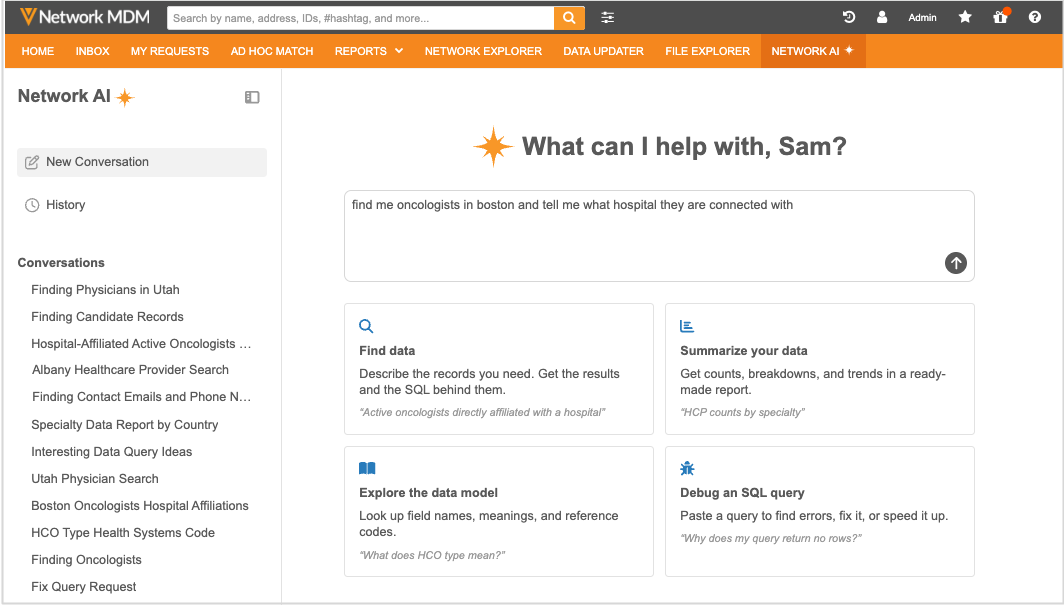
This release also includes the supporting features.
| AI Features in this Release | Details |
|---|---|
| Data Exploration agent type | A conversational AI capability that lets you explore your Network data without writing SQL yourself. |
| AI Agent Configuration | Admin configuration where administrators can define the agents and assign users and user groups access to an agent. |
| AI Usage Log |
A complete record of every Network AI interaction so you can review exactly what was asked and returned. |
| AI Usage Tokens | A consolidated view of how many tokens Network AI is consuming across the instance, grouped by user or agent type. |
| Semantic Data Model | A new data model that gives the agent the context it needs to translate your question into the correct objects, fields, and reference values. |
Enable Network AI
Network AI is not enabled by default. Network AI is available as an add-on to your Network MDM license. Contact your Veeva account representative.
These features can be enabled by Veeva Support when your license is verified.
Data exploration agent
The Data Exploration agent type is a text-to-SQL agent that you can chat with to explore your Network MDM data. Ask a question in plain language and the agent writes the SQL query for you and provides the results.
Navigating complex data models, identifying the correct fields and reference values, and troubleshooting SQL queries typically requires technical specialists and can take several days. Using the Data Exploration agent allows teams to become self-sufficient by providing on-demand data analysis, allowing users to answer ad-hoc questions immediately and proactively identify data quality issues without waiting on technical resources.
Highlights
-
Explore your data in natural language - Ask questions about HCPs, HCOs and related data without needing to know SQL.
-
Built-in data access - Results and SQL are generated and run using your data visibility profile permissions, so answers never expose data you couldn’t otherwise see.
-
Localized results - Network AI responds in your language (as long as the language is supported by Network MDM). The agent detects the language of the question and answers in the same language, including reference data labels.
-
Get SQL with the answer - Users with advanced reporting access can use the generated SQL query or use it to refine your own reporting queries.
-
Track and govern usage - Administrators get audit logs and usage tracking for every AI interaction, including tokens consumed and user feedback.
Supported objects
-
Veeva standard objects (HCPs, HCOs, Address, License, Parent HCO)
-
Custom objects
Users access
Access to the Network AI and its features is determined by the AI Agent configuration and your user permissions.
| Access | Requirements |
|---|---|
| Using Network AI | Use must be assigned to an AI Agent. |
| Downloading all results | Can Download Reports permission (Data Visibility Profile) |
| Querying fields/objects | Only fields and objects available to the user can be queried. |
| Querying country data | Assigned to the country (Data Visibility Profile) |
Open the agent
The Data Exploration agent can be accessed from two areas in the Network MDM UI.
Network MDM menu bar
All users with access to the Data Exploration agent can access it from the Network AI tab.
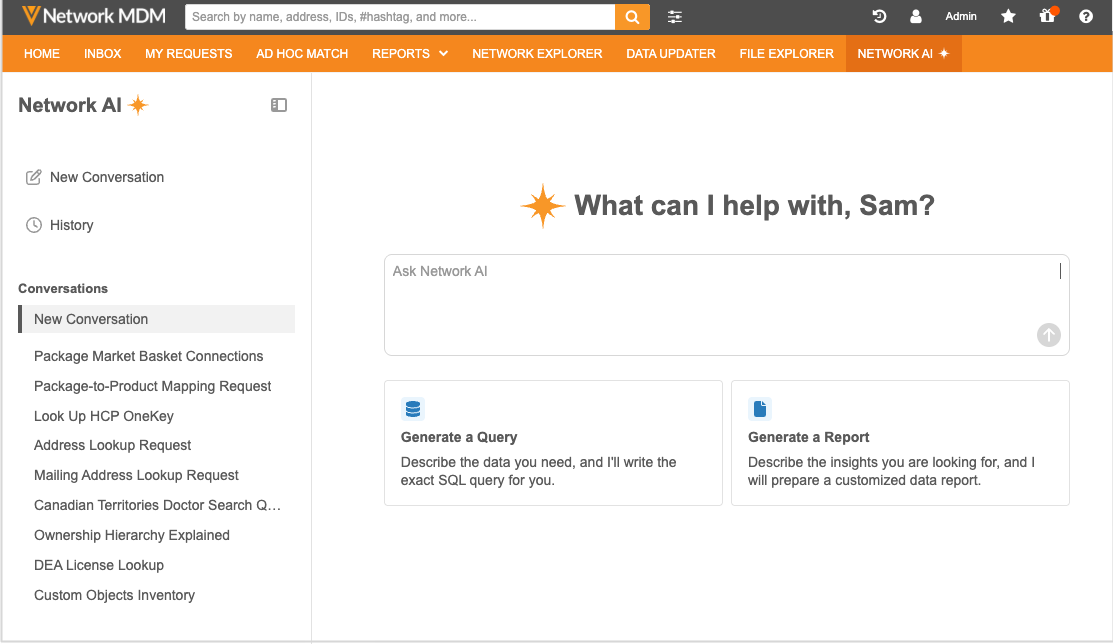
As you chat with the agent, your previous conversations display in the left pane.
SQL Query Editor
Users with advanced reporting access can use the Data Exploration agent directly within the SQL Query Editor.
Click the AI SQL Assist button in the query box to open the AI SQL Assist panel.
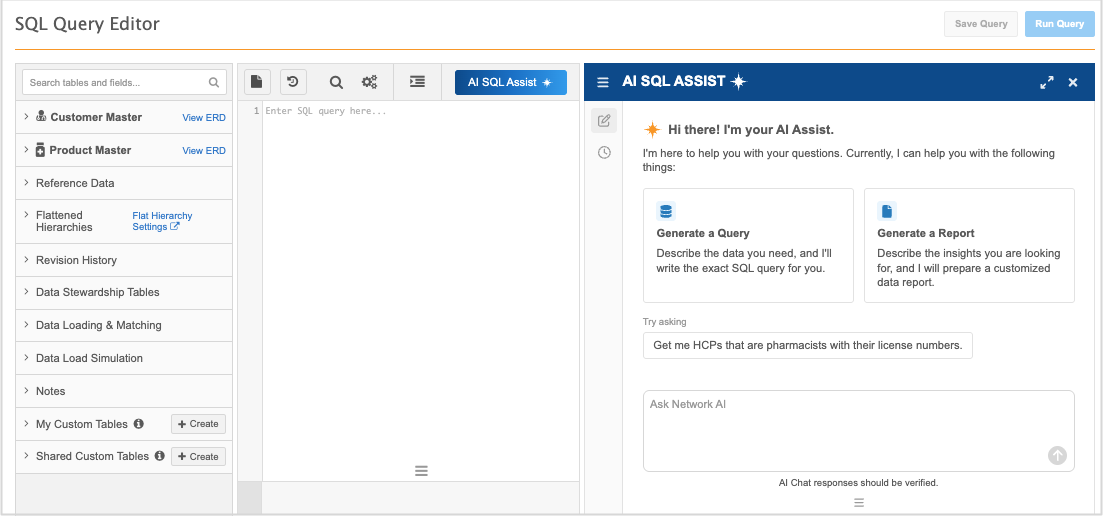
When a chat first opens in the SQL Editor, an introductory message explains what the assistant can do and offers clickable example prompts.
-
To review previous conversations, click the Options
 menu and then the History
 icon. Only chats from the AI SQL Assist will display.
Previous chats are ordered by most recent date.
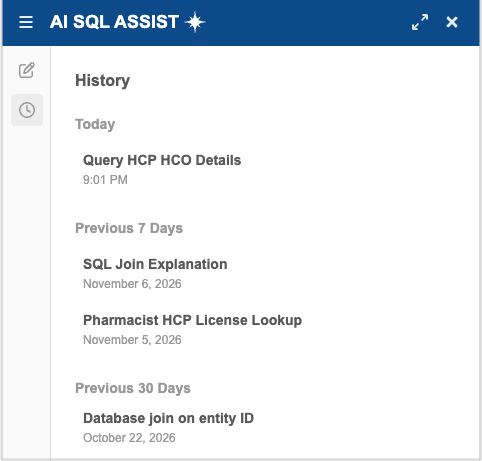
Chat examples
Prompt the Data Exploration agent to learn about your data, the data model, and SQL queries.
| Data Exploration Possibilities | Example prompts |
|---|---|
|
Generate a SQL query through the chat without writing SQL yourself. Ask questions about SQL queries and learn how to make them more efficient |
- Create a query to get detailed information about HCPs and HCOs without a custom key? (highlight part of a query) Explain this to me. |
| Ask questions about your Network MDM data. |
- What HCOs and HCPs have been unmerged in the past month? - What HCPs have retired? - Show me oncologists in Texas. - Show me neurologists in Florida and the hospitals they're affiliated with. - Show me packages that we have and the marketbaskets that they roll up to (include indirect connections). |
| Ask questions about the Network MDM data model. |
- What are the CDA fields? - What field stores the NPI number? - On the HCO Type field, what is the code for health system? |
Results returned in the chat
Depending on the prompt, the Data Exploration agent can return any combination of the following in its response:
-
Explanation - A plain-language explanation of how the agent interpreted the question, formatted for readability.
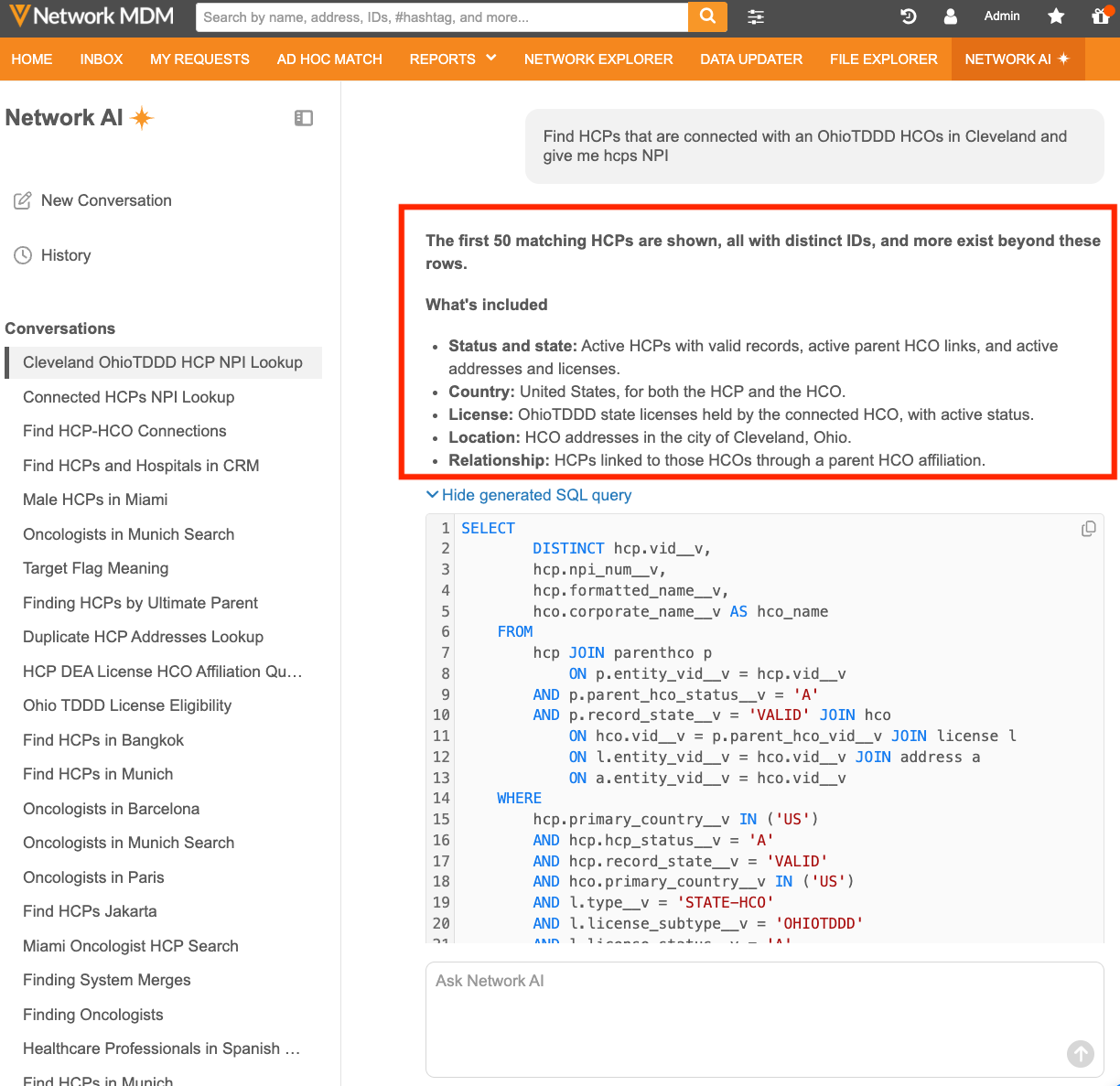
-
SQL query - Displays if you have SQL Editor access, with syntax highlighting, a line count, a copy button, and an option to copy the query directly into the main SQL Editor.
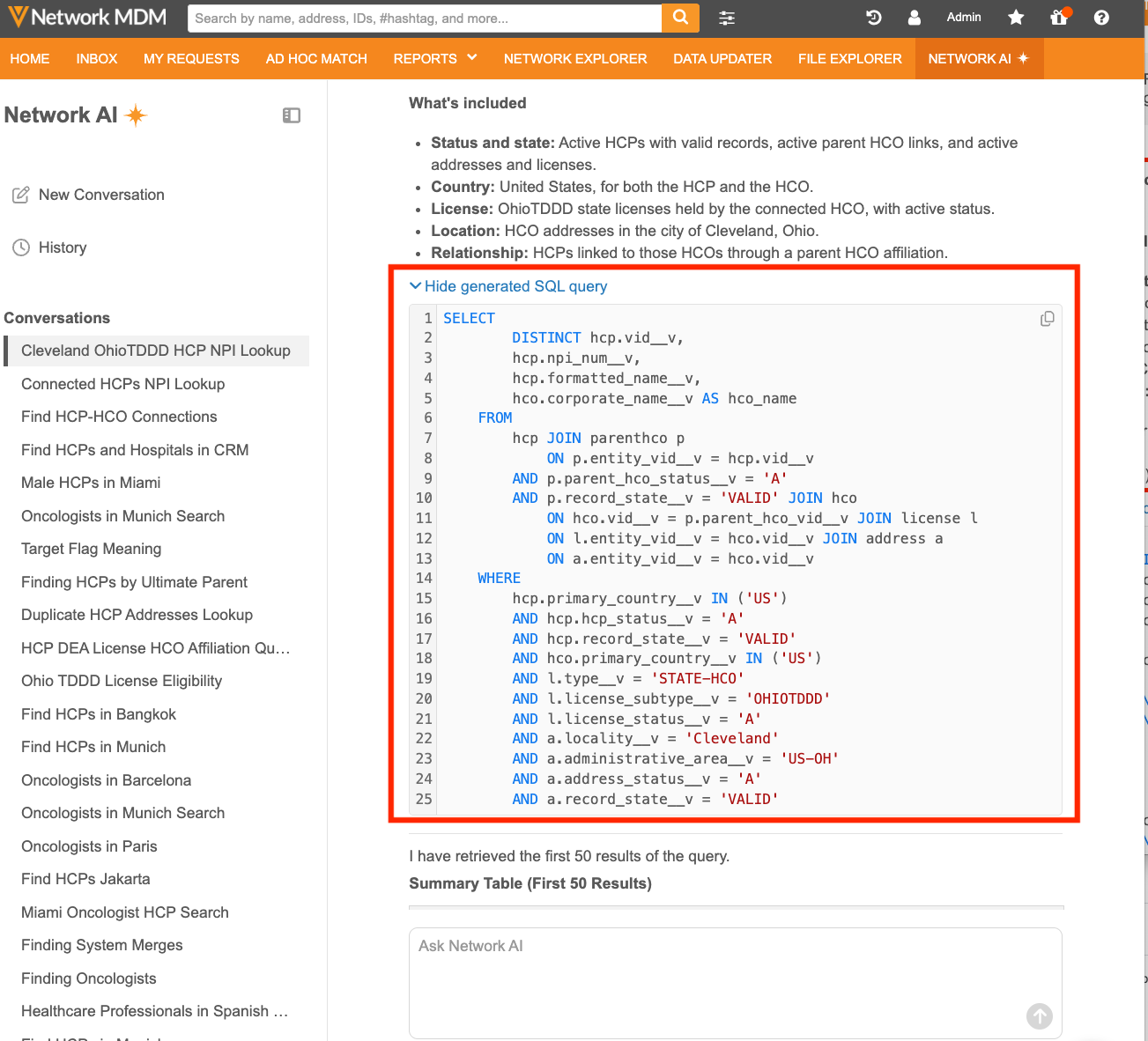
-
Sample results - Up to 50 records display in the chat. Copy the query and run it in the SQL Query Editor to see the full result set.
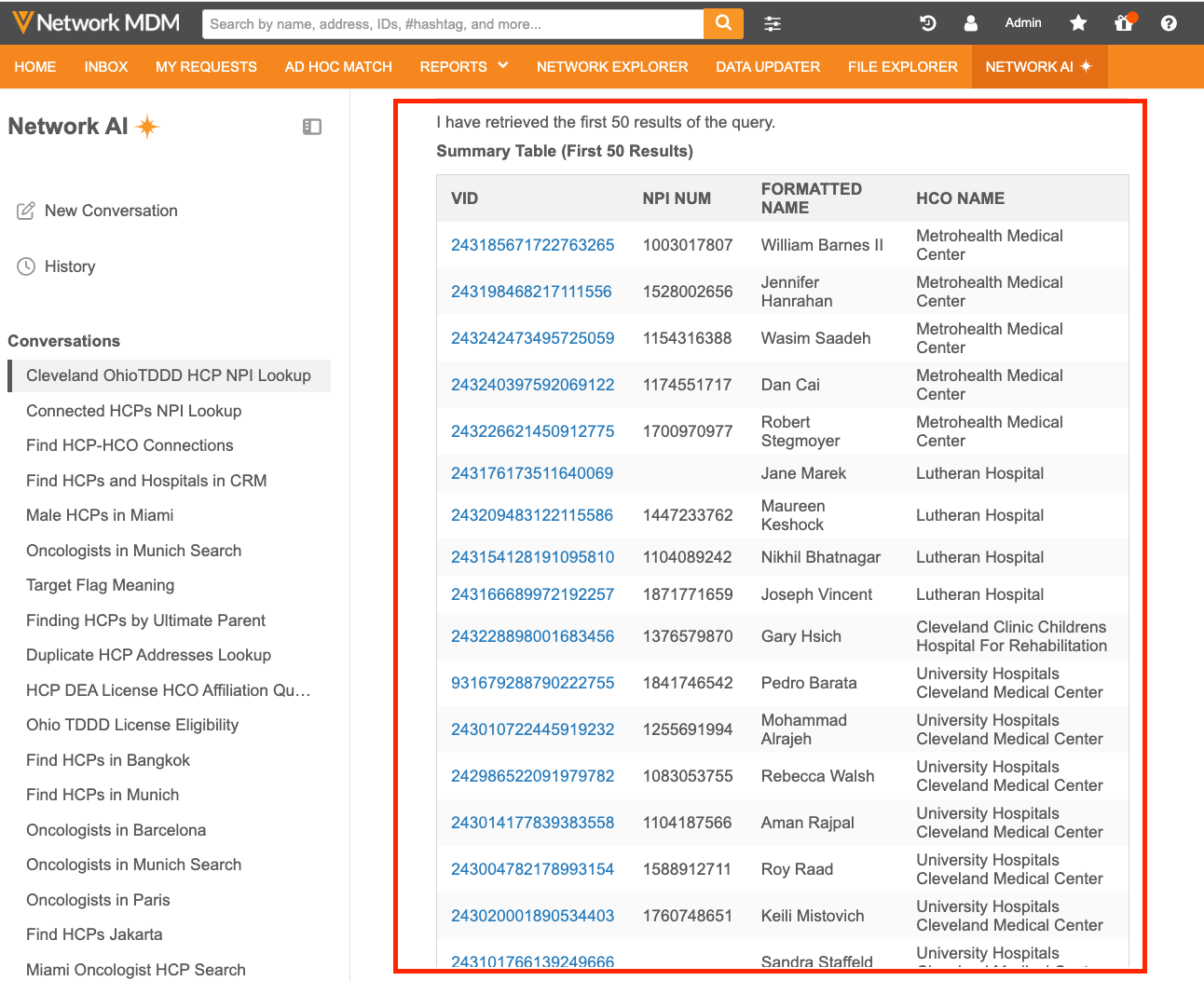
Note: Unless defined in the question, only active and valid records are returned in the response.
-
Download results - Save the complete result set as a CSV or Microsoft Excel file directly from the chat.
Tip: Provide feedback by rating the results using the Thumbs Up or Thumbs Down
 icons.
Cancel a chat
Before a response is returned, you can stop the agent using the Cancel  icon in the prompt box.
Logs
All interactions are tracked in the Reporting Audit History log.
Creating a Data Exploration AI agent
Add AI agents to define which users have access to the Data Exploration agent and the fields that are available to them. For example, you can give specific users access only to the CDA data model or access to fields used in a custom domain like Product Master.
This feature is enabled by default when Network AI is enabled in your Network MDM instance.
Add an AI agent
-
In the Admin console, click Network AI and select Add AI Agent.
-
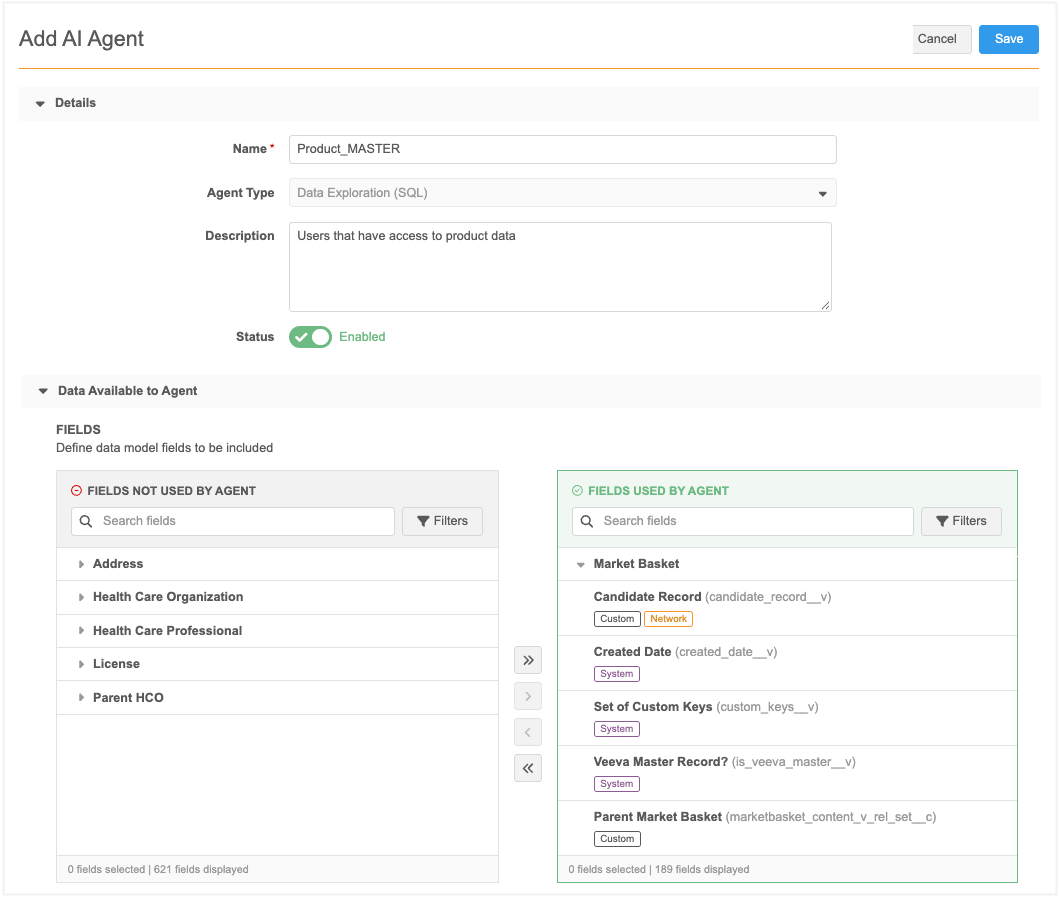
Details - Add a Name and Description.
The Agent Type is set to Data Exploration (SQL) by default.
-
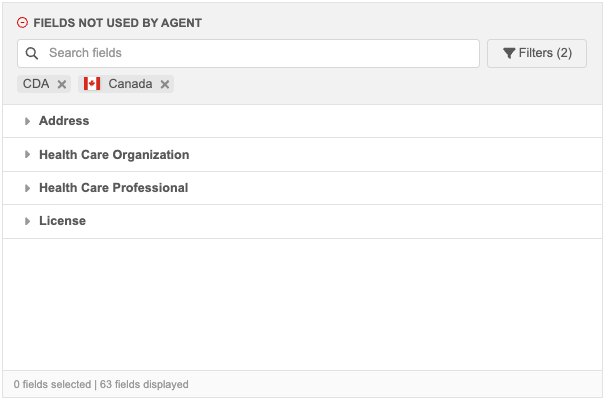
Data Available to Agent - Choose the data model fields that users assigned to this AI agent can use.
By default, all enabled fields in the semantic data model display in the Fields Used by Agent pane. Use the Arrow icons to move any fields to the Fields Not Used by Agent pane.
Note: New fields added to the Network MDM data model display in the Fields Not Used By Agent pane if they are enabled. You must manually move them to the Fields Used by Agent pane.
Tip: To get the best results follow these practices:
- Stick with one data model (for example use CDA, OpenData 1.0, or OpenData 2.0). This way the Network AI will know exactly which data model to use.
- Narrow the scope of available fields to those fields that your team uses.
Filter the fields
Click Filter to choose fields in specific data model schemas and countries. For example, limit the fields available to users in this AI agent to CDA fields for Canada. Use the Arrow (>>) icon to move the filtered fields into the Fields Used By Agent pane.
-
Users and User Groups - Assign the users that can access the Data Exploration (SQL) agent.
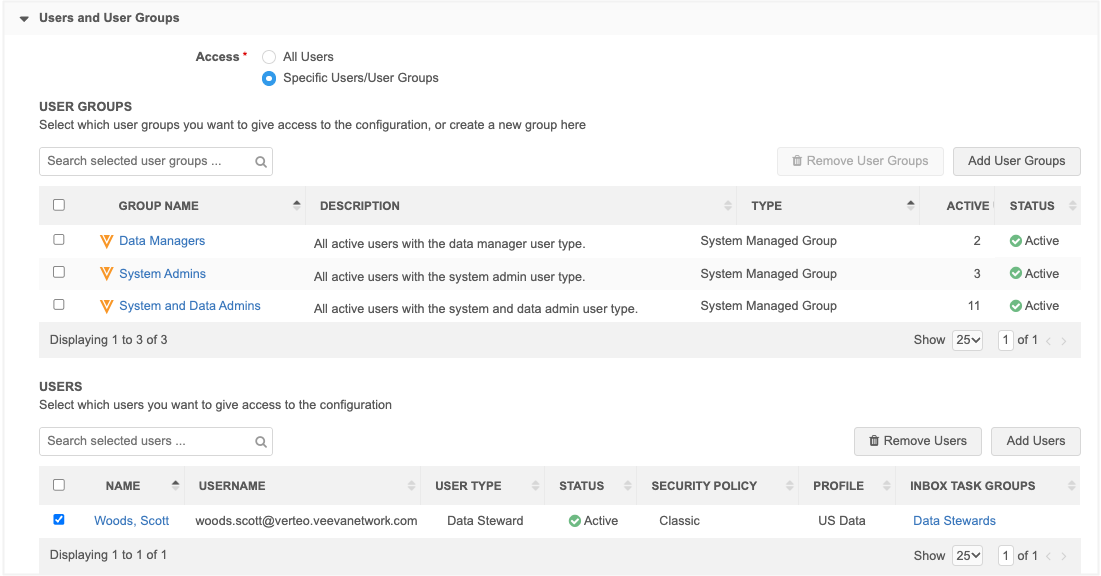
Users can be assigned to multiple AI agents. Their access to the Data Exploration agent is a union of all fields and countries assigned in those AI agents.
-
Save your changes.
The updates apply immediately.
Agent usage log
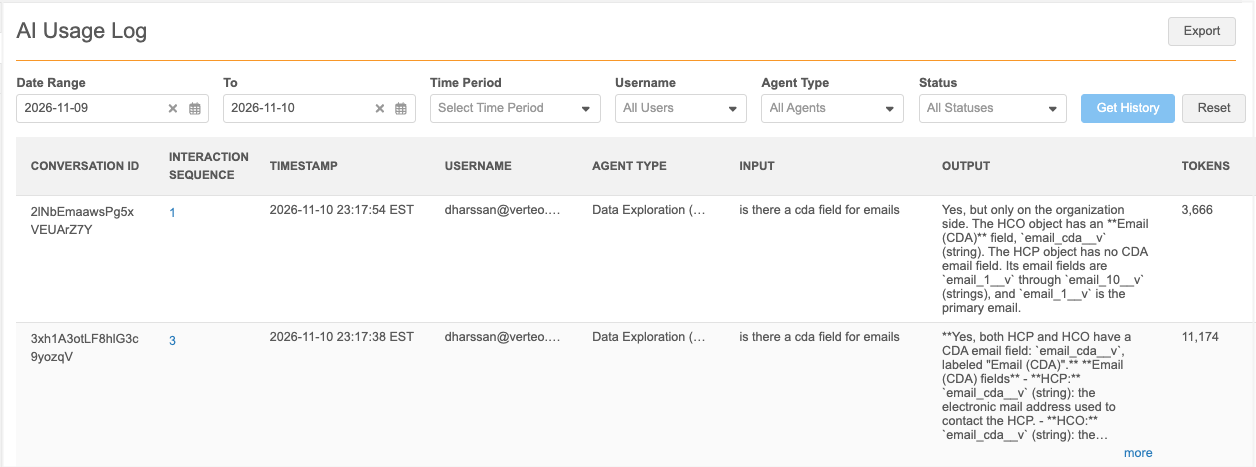
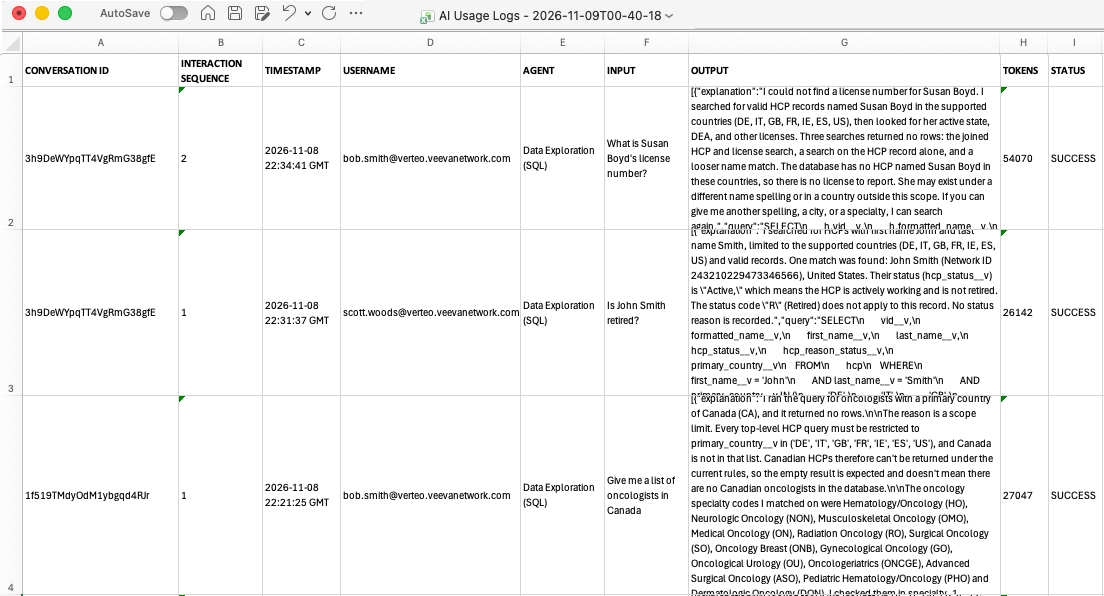
The Agent Usage Log gives administrators a complete record of every Network AI interaction. Each entry captures the conversation and interaction details so you can review exactly what was asked and returned and the token usage.
Review chat sessions
-
In the Admin console, click Network AI > AI Usage Log.
- At the top of the log, filter the sessions you want to review using the following critieria:
Date Range or Time Period - Choose specific dates or a pre-configured time.
By default, the log is includes sessions for the past day.
Username - Choose an active user.
Agent Type - By default All Agents display. The Data Exploration (SQL) agent is the only available agent.
Status - Filter by interaction status, for example Completed or Failed.
- Click Get History to filter the log.
Chat details
The log contains the following details for each session.
| Column Name | Description |
|---|---|
| Conversation ID | ID assigned to each new conversation. |
| Interaction Sequence |
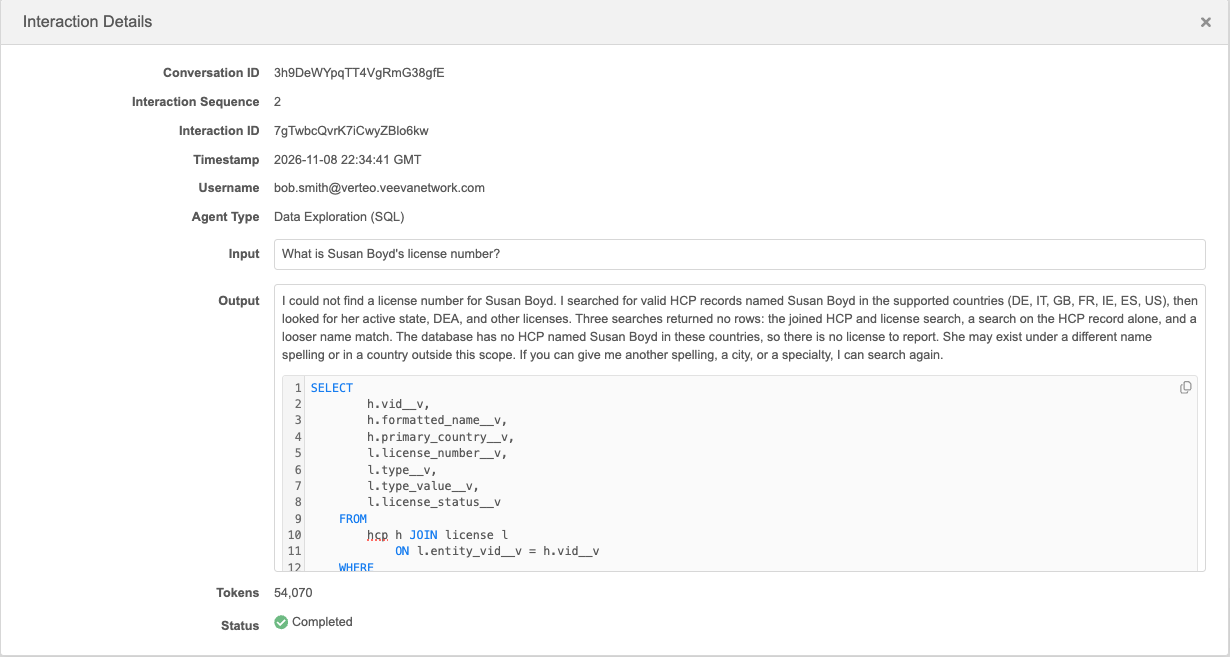
Each message in each session is assigned a number. The first message is 1 and the number increases with each message. Click the number to open a dialog to see the chat details for the interaction.
|
| Timestamp | Time the interaction began in your timezone. |
| Username | User that interacted with the agent. |
| Agent | Agent that was used. This is Data Exploration (SQL) for all interactions. |
| Input | Message the user typed in the agent. |
| Output |
Final message the user received from the agent. Click More to open the Interaction Details dialog for the complete output and SQL query. |
| Tokens | Count of total tokens used in the process to get to the final output. |
| Status |
Outcome of the interaction. Possible values: In Progress, Completed, Failed, Canceled, Error. |
Export the log
The log can be saved as a Microsoft Excel file.
-
Click Export to download the log.
It is saved to your local directory with the following naming convention: AI Usage Logs - <date_time>.xlsx.
Example: AI Usage Logs - 2026-11-09T00-40-18
Example file
AI Usage Tokens
Administrators can view a consolidated view of how many tokens Network AI is consuming across the instance. Usage can be grouped by agent or by user, displayed as a table or a graph, and aggregated daily, weekly, or monthly, so you can track consumption trends and manage costs over time.
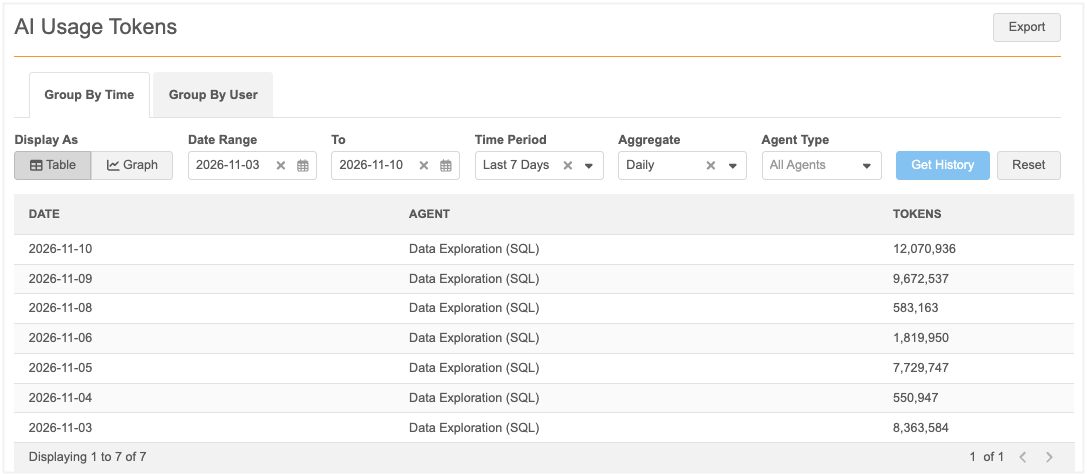
View used tokens
-
In the Admin console, click Network AI > AI Usage Tokens.
-
Choose to view tokens by agent (Group by Time) or by user (Group by User).
-
In the Display As option, choose to see the data in a Table or Graph.
-
Filter the log with the following criteria:
-
Date Range or Time Period - Choose specific dates or a pre-configured time.
By default, the log is includes sessions for the past day.
-
Aggregate (Group by Time tab only) - Choose Daily, Weekly, or Monthly.
-
Username (Group by User tab only) - Choose an active user.
-
Agent Type - By default All Agents display. The Data Exploration (SQL) agent is the only available agent.
-
Status - Filter by interaction status, for example Completed or Failed.
-
- Click Get History to filter the log.
View usage tokens by time
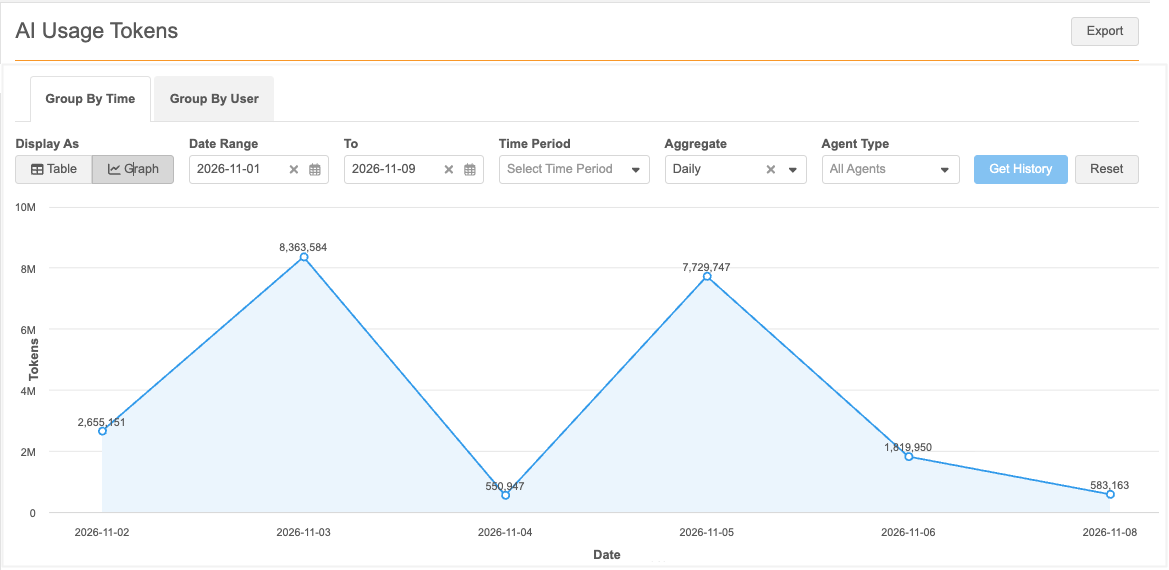
Tokens are aggregated by agent for the defined time.
Graph example
View usage tokens by user
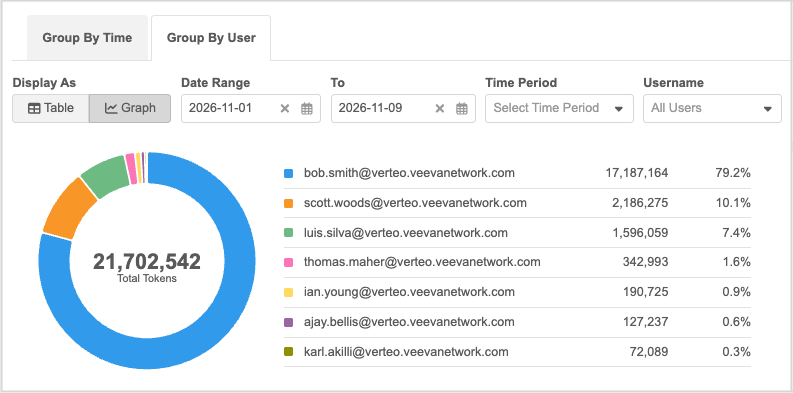
Tokens are aggregated by user for the defined time.
Graph example
Semantic Data Model
Network AI uses a semantic new data model to help the Data Exploration agent understand Network concepts and map your question to the correct objects, fields, and reference values.
It stores descriptions, instructions, and synonyms for objects and fields so the agent can identify what is relevant to a question. For example, record ownership in Network MDM is often by color (orange = Veeva, gray = local, blue = third party). These colors are added as synonyms so the agent knows that "orange HCPs" means Veeva-managed HCPs.
The semantic data model is populated with Veeva-defined descriptions, instructions, and synonyms. Administrators can add custom definitions too, for example, for custom fields and custom objects.
Benefits
-
Customizable - Define custom synonyms and instructions or override Veeva's so the agent understands your customer-specific terms.
-
Context - Allows data managers to provide context to the data attributes and concepts that are specific to your Network MDM instance.
-
Out of the box - Veeva Network MDM has defined the semantic data model for all standard objects, most fields, and reference values.
-
Works across languages without translation - Defined in English but returns correct matches when a question is asked in another language.
Access the semantic data model
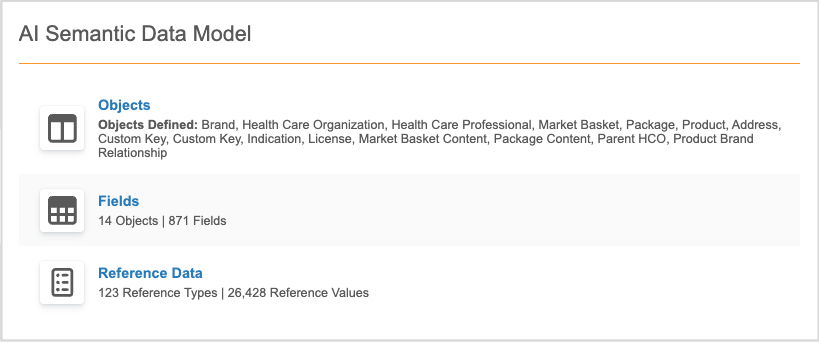
In the Admin console, click Data Model > AI Semantic Data Model.
The page summarizes the following:
-
Objects - A list of objects defined in the data model.
-
Fields - A count of objects and fields that are defined.
-
Reference data - A count of reference types and values that are defined.
Update the definitions
Administrators can view and edit the definitions for objects, fields, and reference data.
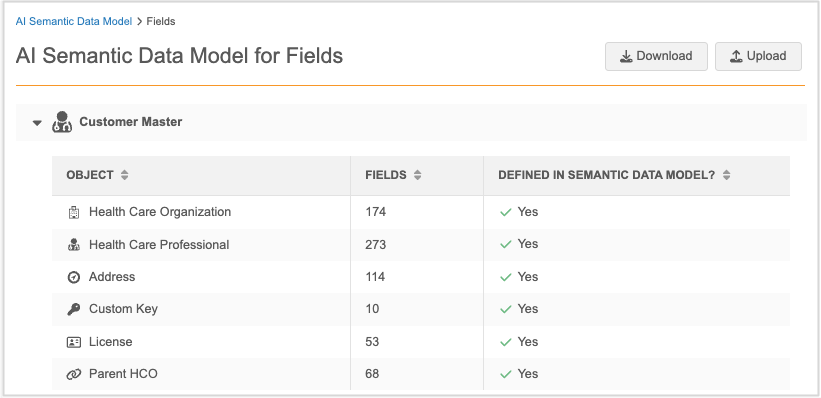
-
Click a category to see the items. For example, select Fields and then click Upload.
-
In the dialog click Download Current Semantic Data Model.
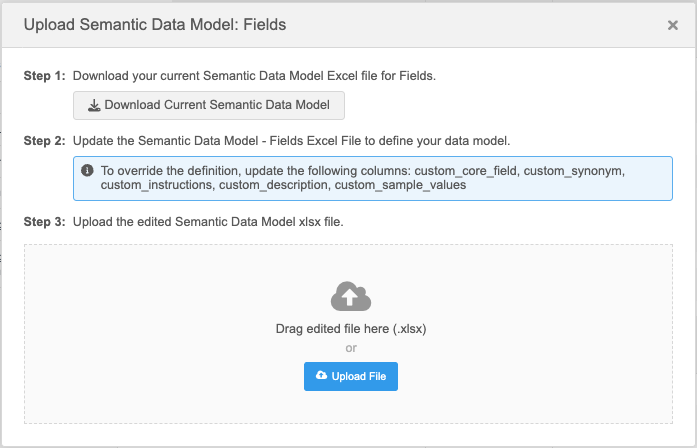
A Microsoft Excel file is saved to your local directory with the following naming convention: Semantic Data Model - <object> - <date_time>.xlsx
-
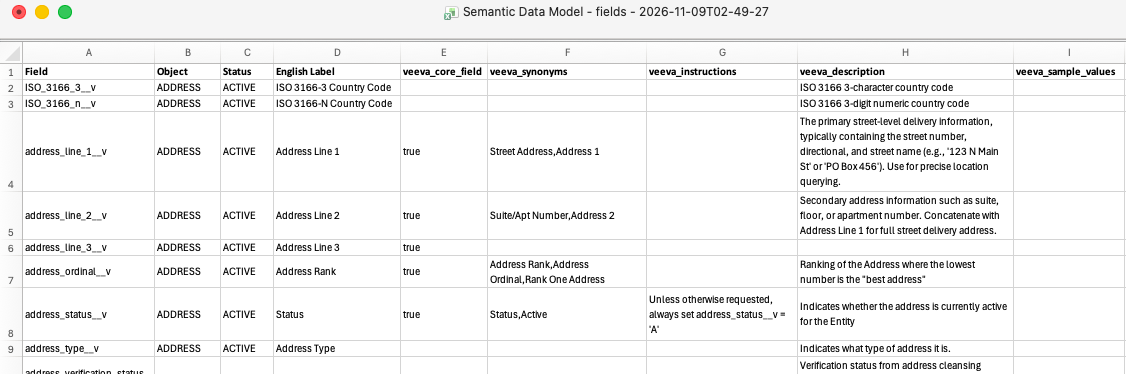
Open the file to view the predefined definitions in the veeva_ columns. You can add custom definitions in any of the columns prefixed with custom_.
Options:
-
Override a Veeva definition - Update the corresponding custom_ column. The agent will ignore the Veeva column.
-
Delete the Veeva definition - Add null__v to the customer column.
-
Revert back to a Veeva definition - Remove the definition from the custom_ column.
Tip: A definition can use a combination of Veeva and custom values. For example, use custom synonyms but keep the Veeva instruction and description.
-
-
When the updates are complete, click Upload on that item's page.
The definitions are validated. An error message displays if issues are found. Click Download Error File to review the issues so you can fix them and upload the file again.
-
When the upload is successful, a summary of the updates displays.
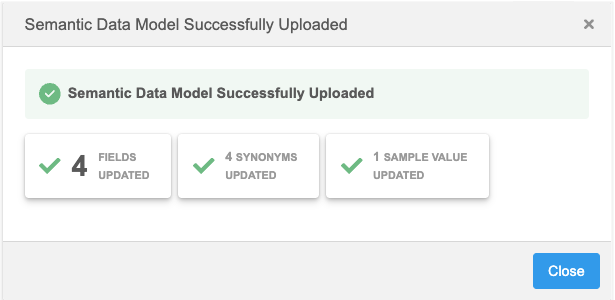
The semantic data model is now updated with those changes.
Definition details
The following definitions are supported for objects, fields, and reference data in the semantic data model.
| Definitions | Format | Supported For | ||
|---|---|---|---|---|
| Objects | Fields | Reference Data | ||
| Instructions
How the object should be used in queries. |
- 500 character limit - single language |
Yes | Yes | - |
| Descriptions
Helps the agent find relevant objects. |
- 500 character limit - single language |
Yes | Yes | Yes |
| Synonyms
Alternate terms |
- 500 character limit
- comma-separated list - single language - supported characters: Spaces, underscores (_), apostrophes('), hyphens (-). - Can include multi-word phrases. |
Yes | Yes | Yes |
| Core Fields
Important fields that should always be available to the agent. Examples: vid__v, record_state__v, address_line_1__v, and name fields should always be available to give context to the displayed results. |
- 500 character limit
- single language - Possible values: TRUE, FALSE, or empty |
- | Yes | - |
| Sample Values
Values that help the agent understand what to expect. |
- 500 character limit
- single language - supported characters: Spaces, underscores (_), apostrophes('), hyphens (-). |
- |
Yes (text fields only) |
- |
Adding definitions for custom objects
Add definitions for the custom domains in your Network MDM instance so the Data Exploration agent understand the objects, fields, and reference data to provide meaningful responses.
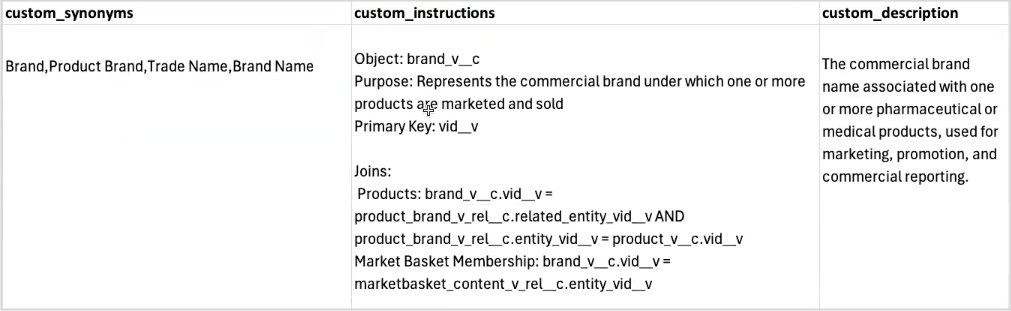
Custom objects
Define the different joins that are available for your objects so the Data Exploration agent can answer questions about the relationships.
Example definitions for Brand (Product Master)
Logs
Updates to the semantic data model are tracked in the System Audit History.