Integrations
Salesforce External Client App Credential
A new credential type, Salesforce External Client App, connects to Salesforce using an OAuth 2.0 authorization flow instead of a Salesforce username and password.
This enhancement is available by default in your Network MDM instance. Administrators can create a Salesforce External Client App credential as needed.
Why this is needed
Salesforce is retiring the SOAP-based authentication (username/password) in their Summer '27 release (May 2027).
Action required
Some Network MDM's integrations with Salesforce use the Salesforce Org credential.
-
Salesforce (not on Veeva CRM)
-
Veeva Connector (Extract and Upsert) for Salesforce
-
Salesforce data components
If you use these features, replace your existing Salesforce Org credential with the Salesforce External Client app credential. This will ensure that the integrations remain functional when Salesforce retires the SOAP authentication.
Note: Network Bridge configurations for Veeva CRM should switch to using the Veeva CRM - Org ID credential.
Benefits
-
No more password dependency - Removes reliance on Salesforce username/password login, which Salesforce is retiring in Summer 2027.
-
Credentials stay with Salesforce - Network MDM never sees your Salesforce credentials; the Salesforce admin authenticates and authorizes the connection directly with Salesforce.
-
Resolves password-only connections - Supports Salesforce orgs that are not on Veeva CRM (for example, Service Cloud) and features that currently authenticate with username/password.
Process overview
To create the credential the following task are required in your Network MDM instance and your Salesforce org.
-
Network MDM - Send the Callback URL to the Salesforce admin.
-
Salesforce - Add an External Client App and create the Consumer Key and Secret.
-
Network MDM - Create the Salesforce External Client App credential using the Consumer Key and Consumer Secret and then generate the activation link.
-
Salesforce - Use the activation link to authorize Network MDM to connect to your Salesforce org.
Retrieve the Callback URL
Network MDM admins must provide the Callback URL to the Salesforce admin for the External Client App configuration.
This is the address the Salesforce user will be sent back to after they approve the OAuth connection.
-
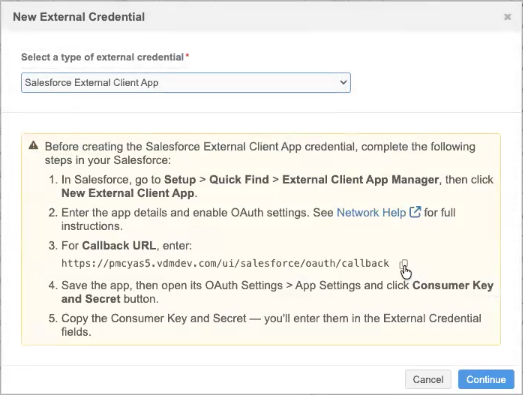
In the Admin console, click Settings > External Credentials and choose Salesforce External Client App.
-
On the dialog, click the Copy icon beside Callback URL.
-
Send the URL with the Salesforce admin.
Salesforce configuration
Before creating the credential in Network MDM, the Salesforce admin must complete the following tasks:
-
Create the External Client App.
-
Generate a key and secret.
Follow these steps in your Salesforce org:
-
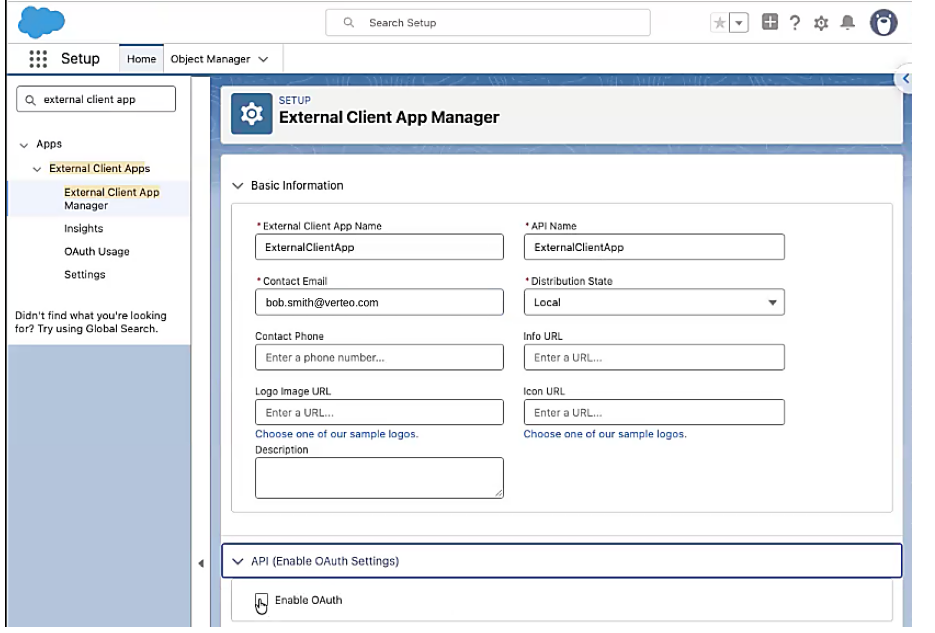
Go to Setup > Quick Find > External Client App Manager, then click New External Client App.
-
In the Basic Information section, add the required details.
-
Expand API (Enable OAuth Settings) and click Enable OAuth.
-
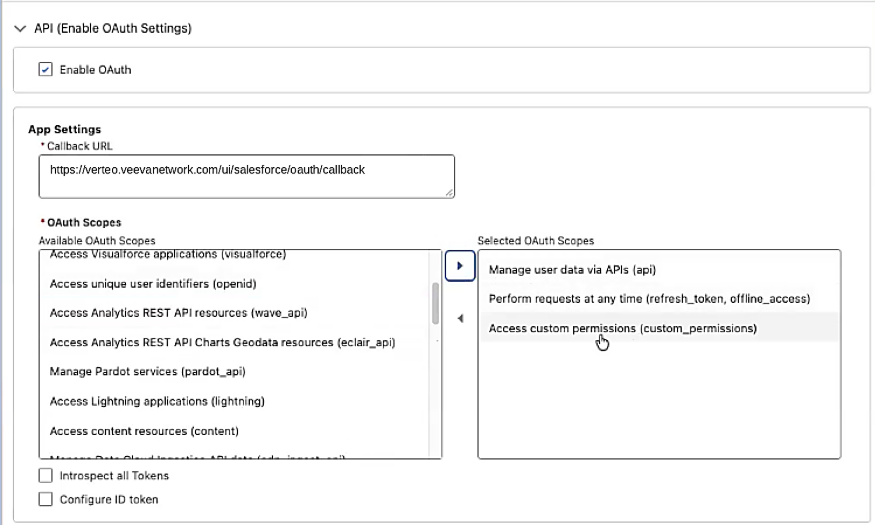
App Settings - Add the Callback URL.
Use the URL provided by the Network MDM admin.
-
OAuth Scopes - Move the following permissions from the Available OAuth Scopes pane to the Selected OAuth Scopes pane.
-
Manage user data via APIs (api)
-
Perform requests at any time (refresh_taken, offline_access)
-
Access custom permissions (custom_permissions)
-
-
Click Create to add the External Client App.
-
In the new app, on the Policies tab, click Edit.
-
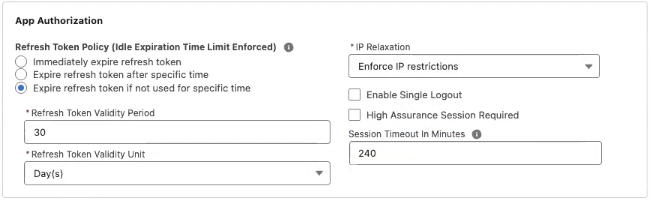
Expand OAuth Policies and define the App Authorization settings.
Setting Value Refresh Token Policy Expire refresh token if not used for specific time Refresh Token Validity Period 30 Refresh Token Validity Unit Day(s) IP Relaxation Enforce IP restrictions Session Timeout in Minutes 240 Example
-
Save your changes.
-
On the Settings tab, expand OAuth Settings. In the App Settings section, click Consumer Key and Secret.
-
Login again with your username and password. You will be redirected to the External Client App.
-
In the Consumer Details section, copy the Consumer Key and Consumer Secret. You need these to create the External Credential in Network MDM.
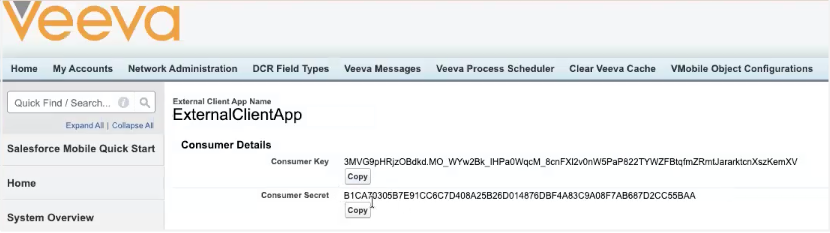
Share the Consumer Key and Consumer Secret with the Network MDM admin to store in the external credential.
Create the Salesforce External Client App credential
Use the Consumer Key and Secret to create the credential in your Network MDM instance.
-
In the Admin console, click Settings > External Credentials.
-
Click Add Credential and choose Salesforce External Client App.
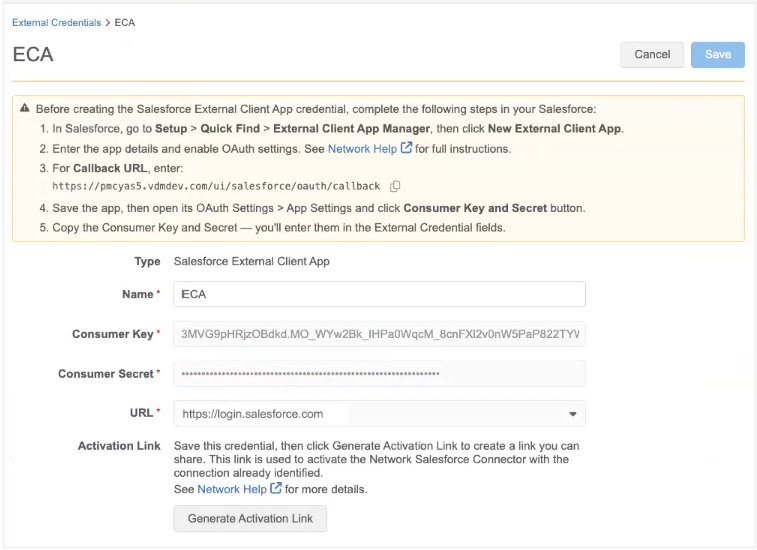
-
Define the following settings:
-
Name - A meaningful name to identify the credential.
-
Consumer Key and Consumer Secret - Add the values provided by the Salesforce admin.
-
URL - Choose the URL to your Salesforce org.
-
-
Save the credential.
-
Click Generate Activation Link. There might be a short delay waiting for the button to become active.
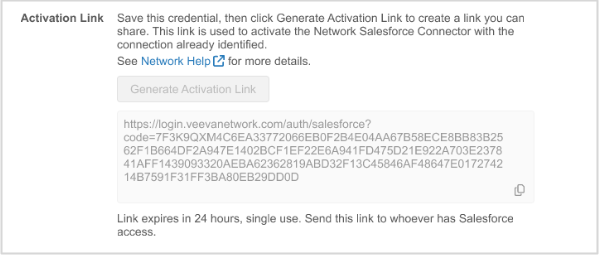
-
Copy the link and send it to the Salesforce admin.
For security, the activation link is valid for 24 hours.
Activate the Network Salesforce Connector
The Salesforce admin can now activate their connection to the Network MDM instance using the link from the new Salesforce External Client App credential.
-
Open the link in a browser. If they are not already logged in, the Salesforce login page displays.
-
Log in and when prompted, click Allow to authorize the connection.
-
The Salesforce admin is redirected to a Network MDM page that confirms the successful connection between their Salesforce account and the Network MDM instance.
Their Salesforce org and user account displays.
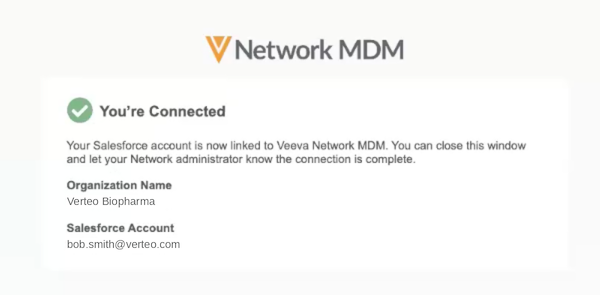
Advise the Network MDM admin that the connection is complete.
Verify and test the connection
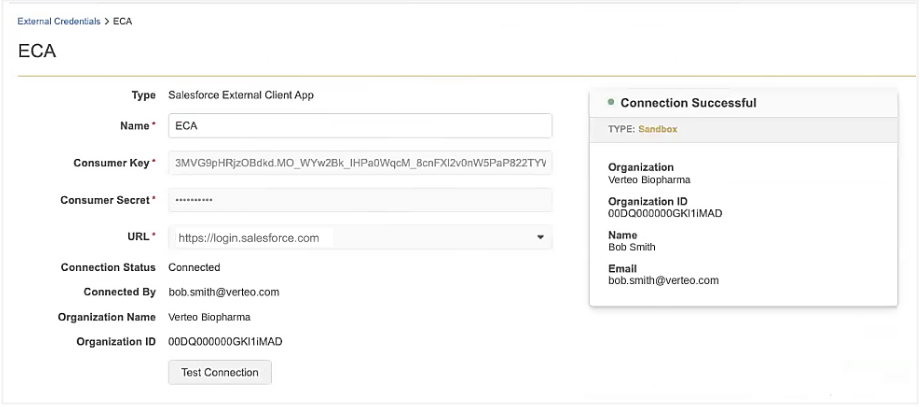
After the Salesforce admin has approved the connection, the Network Admin can verify that the correct account is connected.
-
Open or refresh the Sales External Client App credential.
You can see that the Generate Activation Link button is removed and the following details display:
-
Connection Status
-
Connected By
-
Org Name
-
Org ID
-
-
Click Test Connection to verify the connection is still valid.
The supported integrations (Salesforce Veeva Connectors and data components) can now be updated to use the Salesforce External Client App credential.
Important: These steps must be done for each of your Network MDM instances; Production and Sandbox. After a Sandbox is refreshed, the steps must be completed again to connect to your Salesforce org.