Search
Customize search results display
Administrators can customize the fields to display in search results for different objects and countries. Replacing the default search result layout with country-specific details can help your users find and identify records faster.
Example
In this example, the search result for the US HCP uses a custom layout. The UK HCP result uses Network MDM's default search layout.
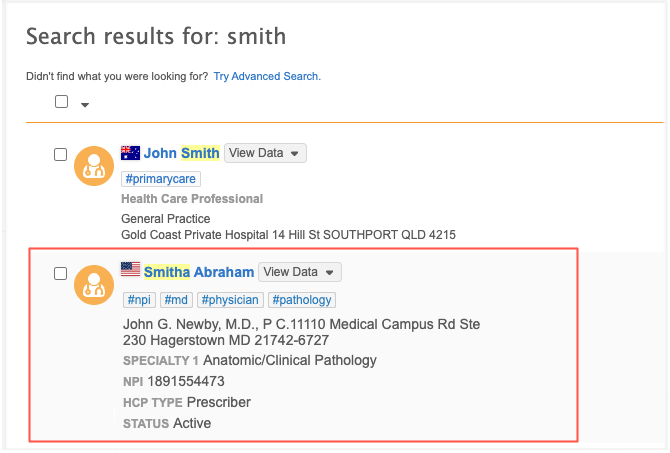
This feature is available by default in your Network instance. Administrators and Data Managers can define custom search result layouts.
Highlights
-
Administrators can customize how search results display for each object.
-
Search layouts are customized by country by assigning the layout to data visibility profiles (DVPs). Multiple countries can be defined for each layout.
-
A maximum of 10 fields can be added to the layout.
-
The display order of the fields can be customized.
-
All users using the same DVPs will see the same layout for each object/country combination.
Supported objects
-
Veeva standard objects (HCO, HCP)
-
Custom objects
Supported fields
All fields related to the object can be added to the search result layout.
-
Main object fields
-
Sub-object and relationship object fields
Note: The field does not display in the search result if the field value is empty on the record.
Supported search displays
-
Network Search - Quick search results
-
Network Search - Search results page
-
Parent HCO search on profiles and DCRs
Impact to existing search results
There is no impact to existing search results. The default layout displays until you customize it for an object.
Customizing the search result display does not impact the Network MDM search functionality; it changes only the way the results are displayed to users in the supported pages.
Default search layout
If no search display is configured, the default search layout displays.
The Search Results Layouts feature contains a standard template for HCOs and HCOs. These layouts are read-only, but they can be cloned to give you a starting point for your custom layout.
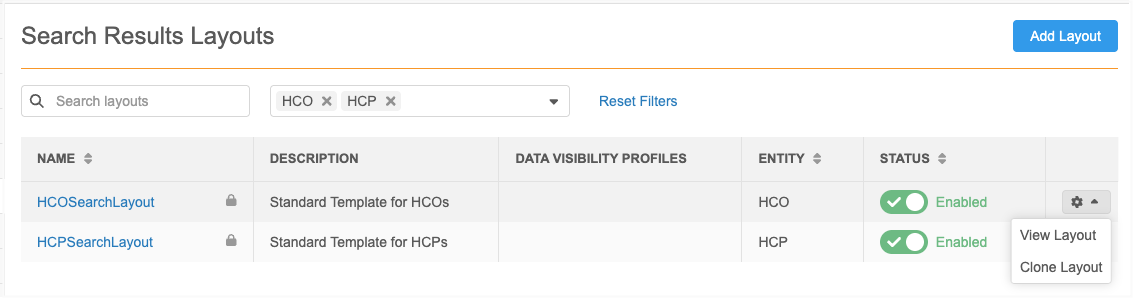
Default fields and display order for objects
HCO, HCP, and custom objects have the following default display for search results.
Note: Country (flag icon) and object type (HCP/HCO/custom object icon) are always defined for each object.
| Standard Template | Default Fields | Example |
|---|---|---|
| HCOs |
|
|
| HCPs |
|
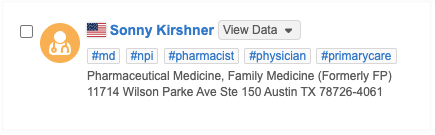
|
| Custom Objects (no template) |
|

|
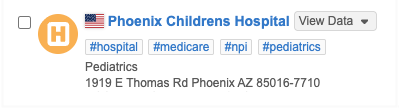
The standard layouts apply to all countries.
Example - Standard template for HCPs
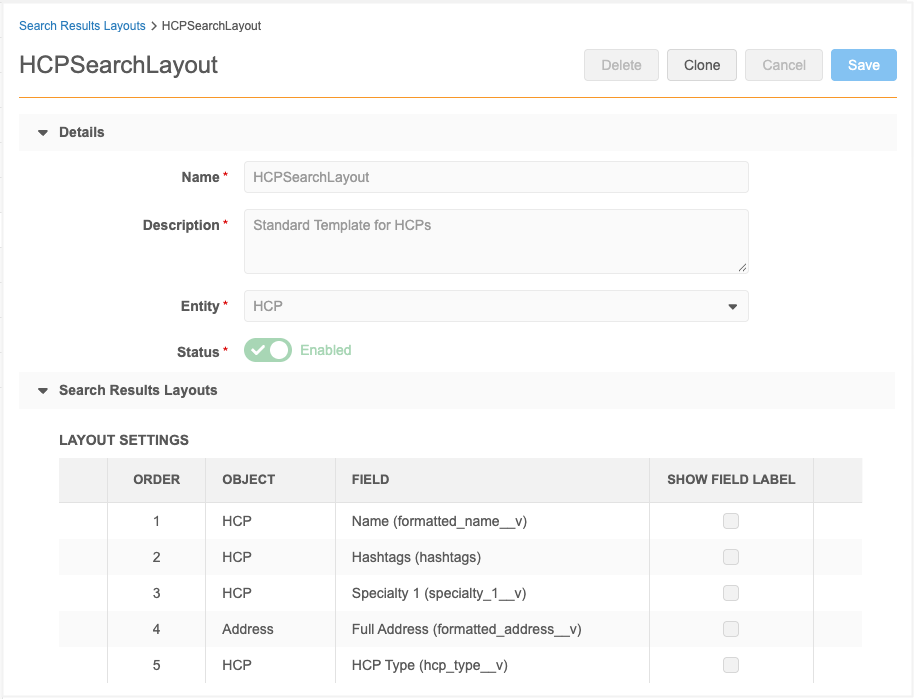
To customize the results by including different fields, defining the order in which the fields display, and applying it to objects for specific countries, create a custom search result layout.
Process for adding a search result layout
-
Create a Search Result Layout for an object.
-
Assign the layout to a data visibility profile (DVP) so it applies to specific countries.
-
Assign users to the DVP.
Configure a search result layout
-
In the Admin console, click Data Model > Search Results Layouts.
-
Click Add Layout.
-
Details section - Define the following:
-
Name and Description
-
Entity - Choose the object that the layout applies to.
-
Status - The layout is enabled by default.
-
-
Search Results Layout - Choose the fields and the order that they should display.
-
Object - Choose the object that the field belongs to.
-
Field - Choose the field. The list is filtered for the defined object.
Fields for all countries display.
-
Show Field Label - Select to add the field label to the search result. For example, HCP Type, Specialty.
-
Reorder - Use the Handle
 to move the fields into the desired position.
-
-
Save the layout.
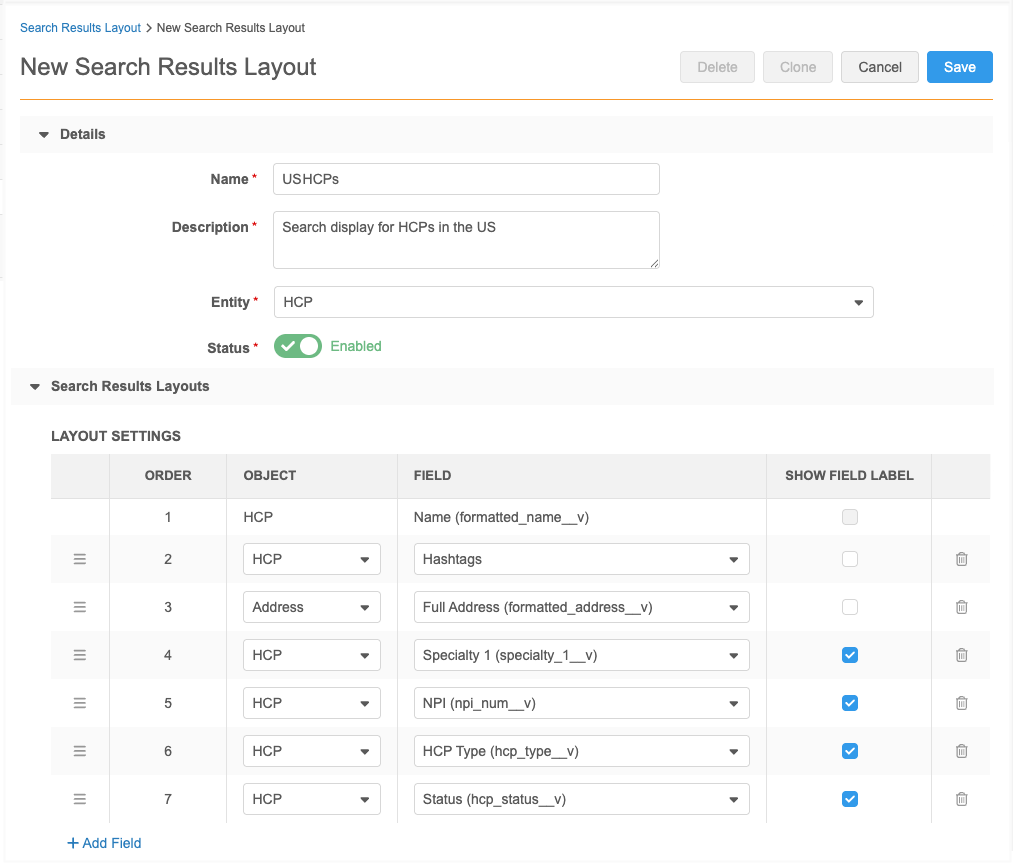
When the layout is ready, assign it to a data visibility profile. A search result layout can be assigned to multiple countries.
Assign the search result layout to a DVP
Data visibility profiles determine the records that users can access. Assign the layout to the data visibility profiles that should use the layout so users will see the customized display for that country.
Note: An object can have only one layout for each country.
-
In the Admin console, click Users & Permissions > Data Visibility Profile.
-
Open a DVP.
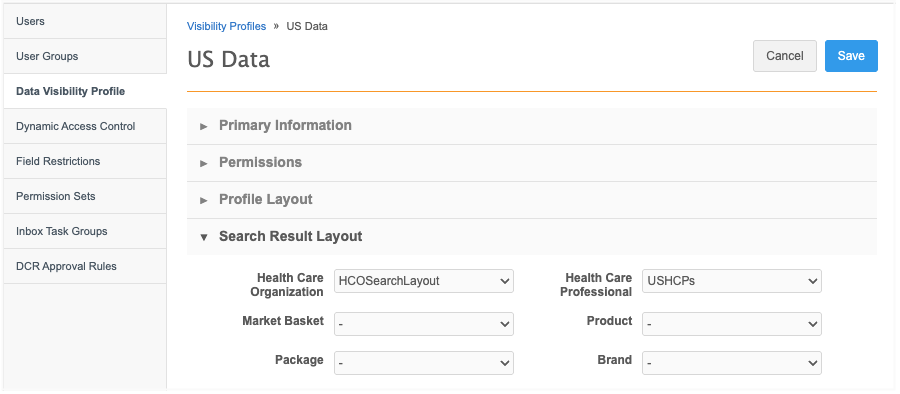
A new section called Search Result Layout section is added to all DVPs.
It includes all enabled objects in your Network MDM instance.
For HCPs and HCOs, the default layouts are defined, HCOSearchLayout, HCPSearchLayout.
-
Expand the object and choose the custom layout.
-
Save your changes.
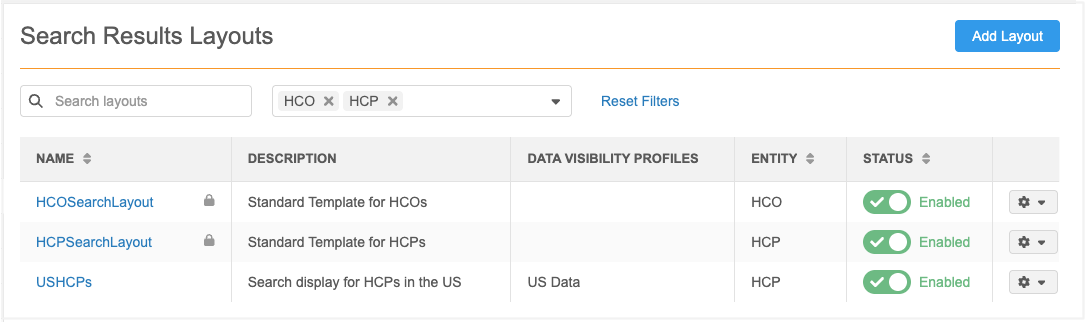
The Search Results Layouts page is updated to identify the DVPs assigned to the custom layout.
Assign users to the DVP
Each user account contains a Data Visibility Profile section. Assign the DVP to the user so they will see the search result layout display for that country.
Clone layouts
Any search layout can be cloned so you don't have to start over each time.
For example, if you want to create a layout similar to the Standard Template for HCOs, clone the layout.
-
On any layout configuration, click Clone.
-
In the Clone Layout pop-up, change the default Name and Description so it is meaningful for the new layout.
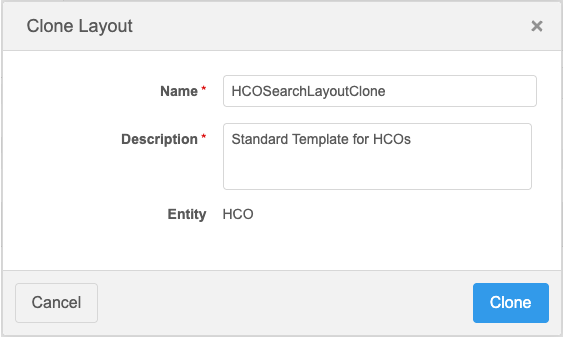
-
Click Clone.
-
In the Layout Settings section, make the changes to customize it.
-
Save your changes.
Logs
The System Audit Log tracks all new layouts and changes to existing layouts.