Security
Dynamic user provisioning for Single Sign-On (SSO)
Administrators have more flexibility for defining new users that are created using SSO. You can now use your SSO provider groups and countries to map to Network MDM settings and automatically set up new users with the correct access the first time they log in. This eliminates manual profile updates and ensures global users instantly receive the correct access and permissions.
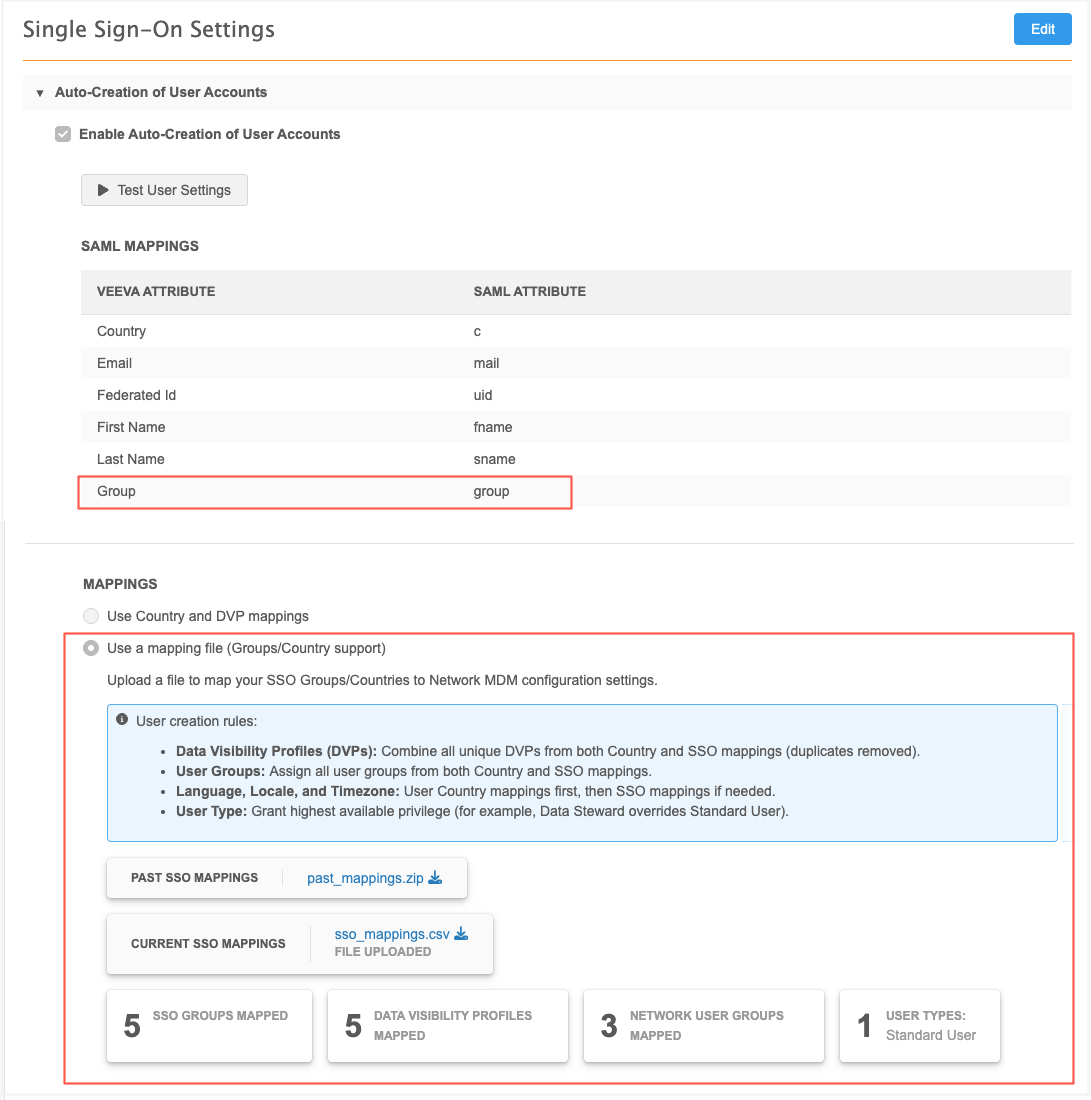
This enhancement is enabled by default.
Important: This feature will be fully supported starting with the 26R2.0.1 Production release (August 21, 2026). User authentication is not supported when SSO is configured with groups for the Sandbox release.
Highlights
-
User group management - Administrators can now map their existing identity provider groups (like Okta® or Microsoft ® Azure AD) directly within the Network SSO configuration. This eliminates the need to manually add users to Network MDM groups after they are auto-created.
-
User type provisioning - New users can now be automatically created as a Portal User, Standard User, or Data Steward. Previously, all new users defaulted to Standard Users and required manual updates.
-
Data access - Users are automatically assigned to specific Data Visibility Profiles (DVPs), Network Portal applications, and permission sets based on their SSO groups.
-
Localization settings - Key user preferences—including time zone, locale, and language settings—are now defined automatically using group rules, ensuring global users can work immediately without manual setup.
Updates for SAML mappings
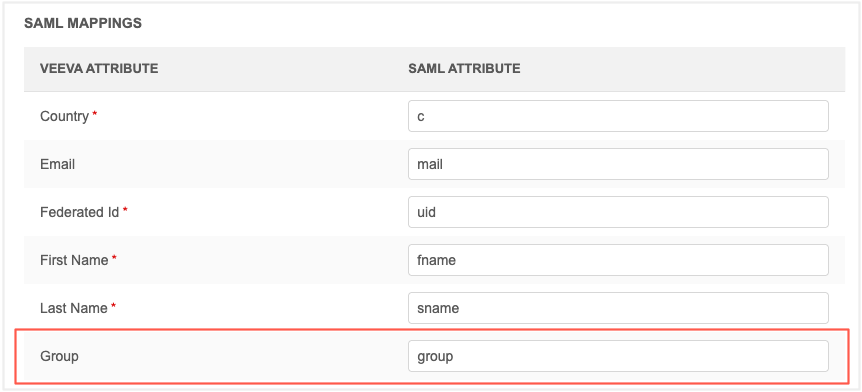
A Group field is added to the SAML mappings so you can automatically assign a user to all of the groups that you have defined for that user in your SSO provider. This is an optional field.
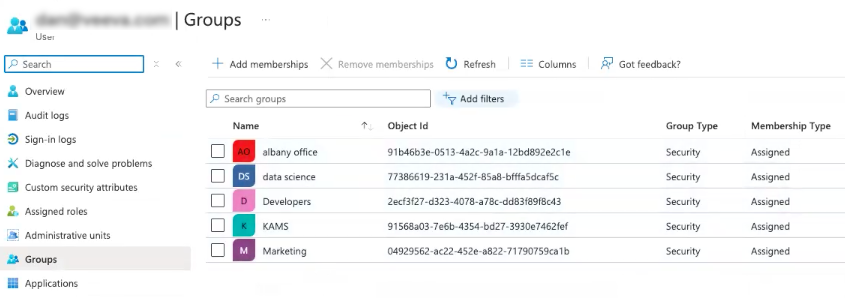
Example for Microsoft Azure AD (Entra ID)
A user is assigned to the following groups.
In your Azure AD SSO settings, copy the group property value, for example group.
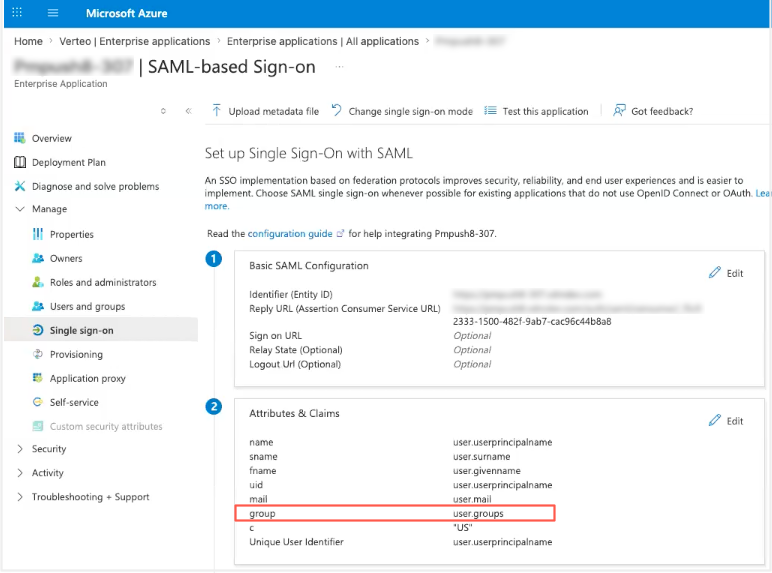
Okta example
In your Okta SSO settings, copy the attribute name for your SSO groups. In this example, the name is "group".
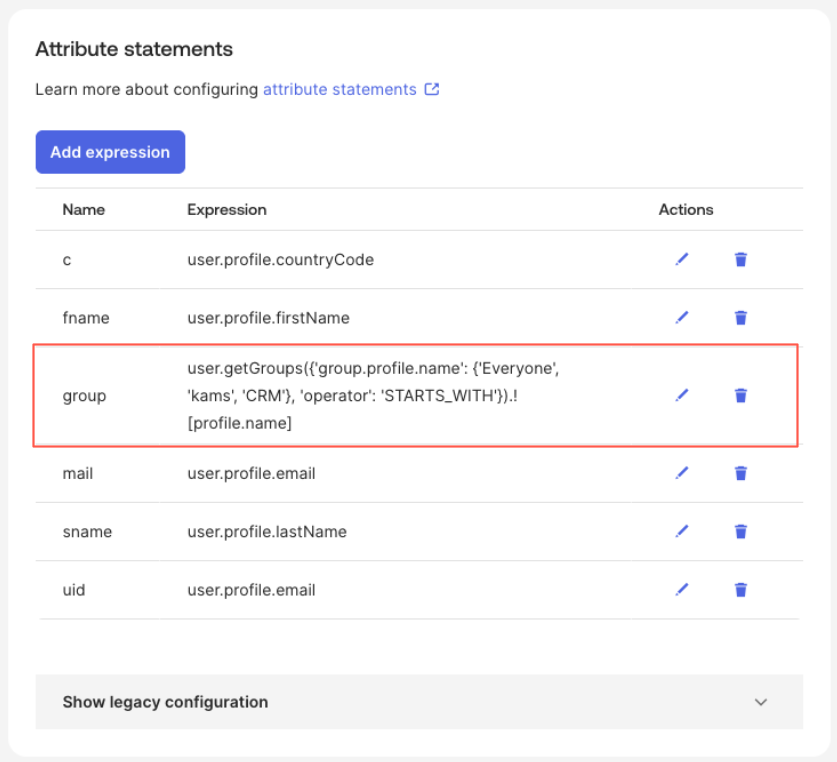
In the Network MDM SAML Mappings, add the SSO group attribute value to the Group field.
This will provide all your SSO group data to Network MDM. When users are created in Network MDM using SSO, the groups will be assigned to them.
Upload a file of your group mappings
There are now two options for defining the mappings between countries and data visibility profiles (DVPs) for automatically created users.
| Mapping Option | Method | Details |
|---|---|---|
| Use Country and DVP mappings |
Define the mappings between countries and DVPs. This is the default option that has not changed. |
Recommended for use: Limited number of users in just one or a few regions. Supported user types: Standard Users only Maintenance: Administrators might need to manually update user permissions and modify user types. |
| Use a mapping file | Use the provided templates to upload a .csv file to map your SSO groups and countries to Network MDM settings. |
Recommended for use: Many users that are located in global regions. Supported user types: Standard Users, Portal Users, and Data Stewards. Maintenance: User creation rules will automatically configure the country, DVP, and user types as defined in the uploaded file. |
Define group mappings
To use the new option to upload a file of mappings, complete the following steps.
-
On the Single Sign-On page, click Edit.
-
In the Mappings section, select Use a mapping file (Groups/Country Support).
-
Click Upload Group Mappings.
-
In the dialog, click Download Template.
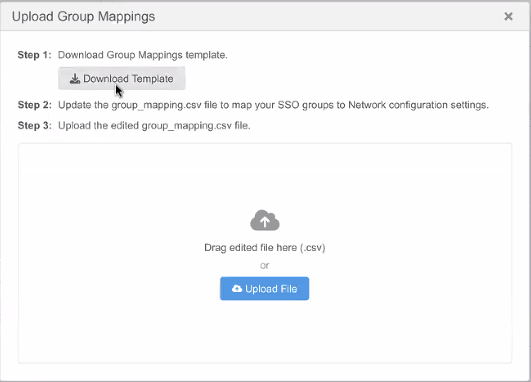
A compressed file called SSO Mapping Template.zip is downloaded to your local computer.
It contains three files:
File Name Description Group Mapping Instructions.txt A plain text document that provides the instructions for defining your mappings. network_configurations.xlsx An inventory of the available configurations in your Network MDM instance (DVPs, User Groups, User Types, Timezones, Locales, and Languages).
Use these values to populate the sso_mapping.csv file.
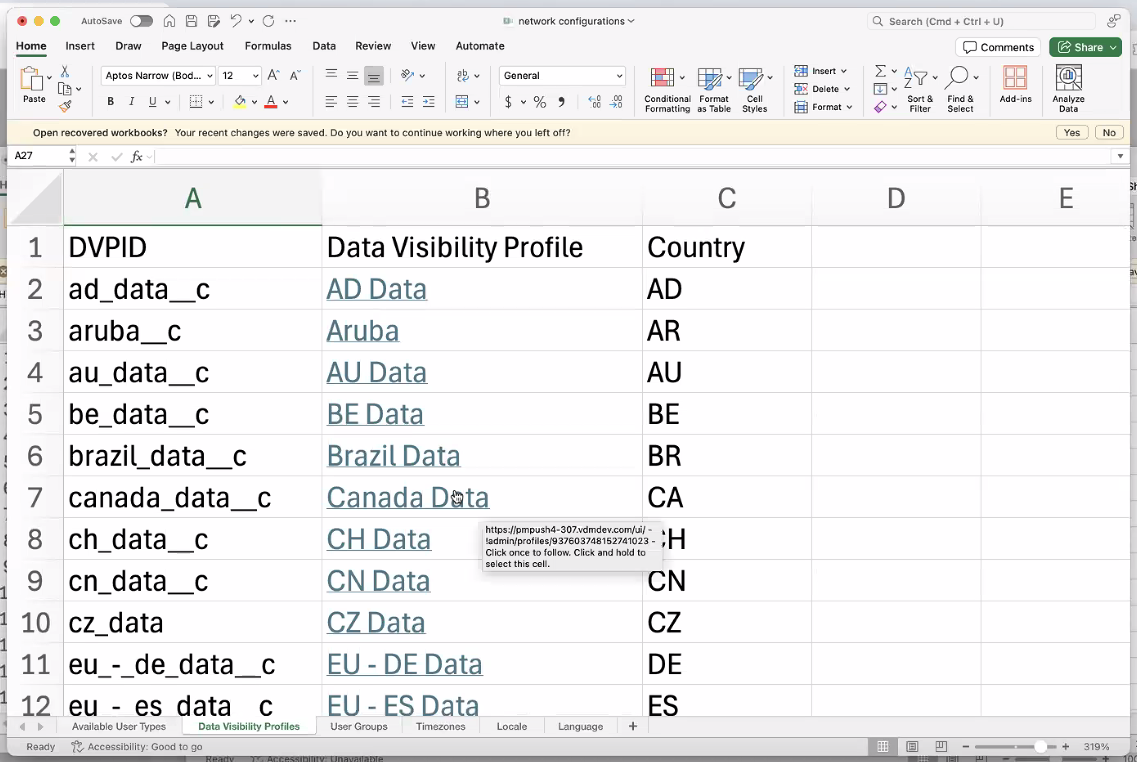
Click the links to navigate directly to the configuration in Network MDM.
sso_mapping.csv An empty file containing the column headers for the mappings.
Define the mappings in this file and then upload to Network MDM
-
Open the sso_mappings.csv to define the mappings that Network MDM will use to automatically create users.
Add values for the following columns.
Column Value Details Example SSO_GROUP Group name from your SSO provider. Required if SSO_COUNTRY is empty. 91568a03-7e6b-4354-bd27-3930e7462fef SSO_COUNTRY Country (ISO 2-digit code) from your SSO provider. Required if SSO_GROUP is empty.
The value must match a country value in Network MDM.
FR NETWORK_USER_TYPE User type that will be set for these users.
Available options: DS (Data Steward), SU (Standard User), PU (Portal User)
Optional
Use the UserTypeID column from the network_configurations.xlsx file.
PU NETWORK_DVPS Data Visibility Profile (DVP) that users will be mapped to. Required
Use the DVPID column from the network_configurations.xlsx file. It includes all DVPs defined in your Network MDM instance.
Multiple values are supported. Use double semi-colons (;;) to separate each value.
canada_data__c NETWORK_USER_GROUPS Custom Network MDM user groups to assign to users. Optional
Use the UserGroupID column from the network_configurations.xlsx file. It includes all custom groups that have been created in your instance.
Multiple values are supported. Use double semi-colons (;;) to separate each value.
Marketing_Users__c;;KAM_Group__c NETWORK_LOCALE Network MDM locale to assign to users. Optional
Use the LocaleID column from the network_configurations.xlsx file. It includes all locales available in Network MDM.
en_CA NETWORK_TIMEZONE Timezone to assign to users. Optional
Use the TimeZoneID column from the network_configurations.xlsx file. It includes all timezones available in Network MDM.
America/Toronto NETWORK_LANGUAGE Language to assign to users. Required
Use the LanguageID column from the network_configurations.xlsx file. It includes all languages available in Network MDM.
en APPLY_TO_EXISTING_USERS Indicate the configurations to apply to existing SSO users when they log into Network MDM. Applies only to NETWORK_DVPS and NETWORK_USER_GROUPS.
Use double semi-colons (;;) to separate each value.
NETWORK_USER_GROUPS;;NETWORK_DVPS Example sso_mapping.csv file

Tip: Additional columns can be included in the file. In this example the Group_info column is added to help describe the SSO group.
-
When the mapping is complete, click Upload File to add the mappings in the .csv file to your SSO configuration.
The file is validated to ensure it contains the required information and it is in the expected format.
-
File format - .csv
-
Required columns - SSO_GROUP or SSO_COUNTRY, NETWORK_DVPS, and NETWORK_LANGUAGE.
-
Values - Values in the SSO_COUNTRY and NETWORK_ columns must match to the values defined in Network MDM. Use the network_configurations.xlsx file for all accepted values.
If you see validation errors, click Download Error File to view the issues. Make the changes and upload the updated file.
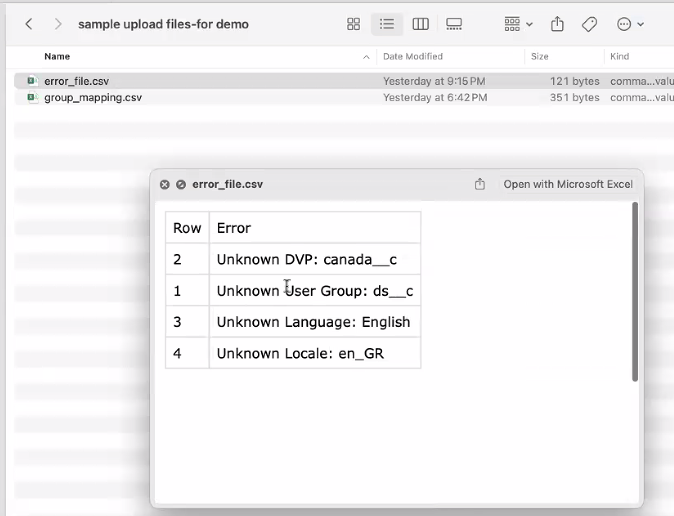
-
-
When the file is uploaded successfully, the mapping results display a count of each mapped setting: SSO Groups, DVPs, User Groups, and User Types.
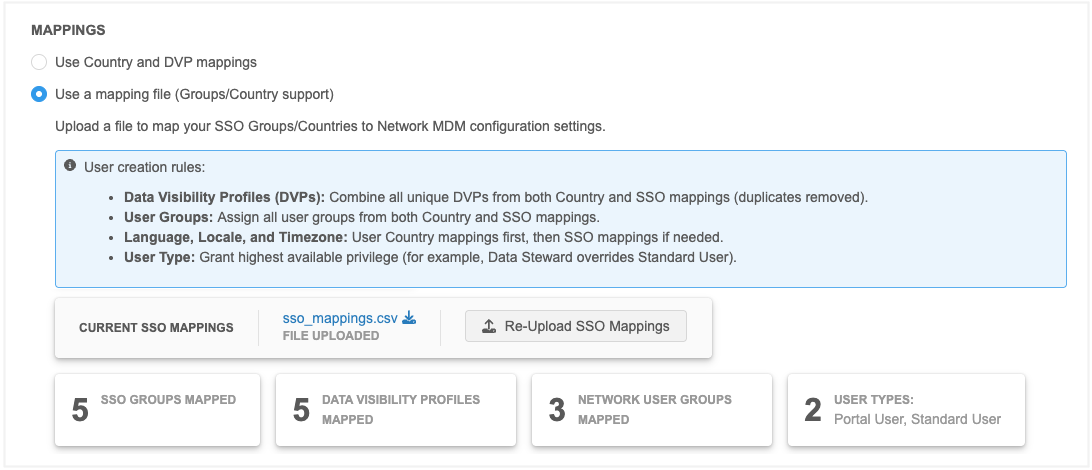
The mapping file that you uploaded displays in the Current SSO Mappings section. The file can be downloaded any time by clicking the sso_mappings.csv file name.
-
Save your changes. The uploaded file will not be applied until the SSO configuration is saved.
Mapping rules
If the file includes Country and Group mappings, there are rules to understand which configuration will be applied when users are automatically created.
-
DVPs - A combination of all unique DVPs from the SSO_Country and SSO_Group mapping columns are applied.
-
User Groups - All user groups are applied.
-
Language, Locale, and Timezone - Apply the first matching settings found in the mappings. If none are defined, apply the default settings in the SSO configuration.
-
User Type - The user type with the highest privilege wins (for example, Data Steward overrides Standard User, Standard User overrides Portal User). If no user type is defined, the user will be created as a Standard User.
Additional rules
-
If a row contains SSO_Group and SSO_Country values, the settings will apply only to users that have both. to both.
-
If a row contains SSO_Group only, its settings will apply to any user matching that group, regardless of the country.
-
If a row contains SSO_Country only, its settings will apply to any user matching that country regardless of their SSO group.
Updating the mappings
The mapping file can be updated at any time.
-
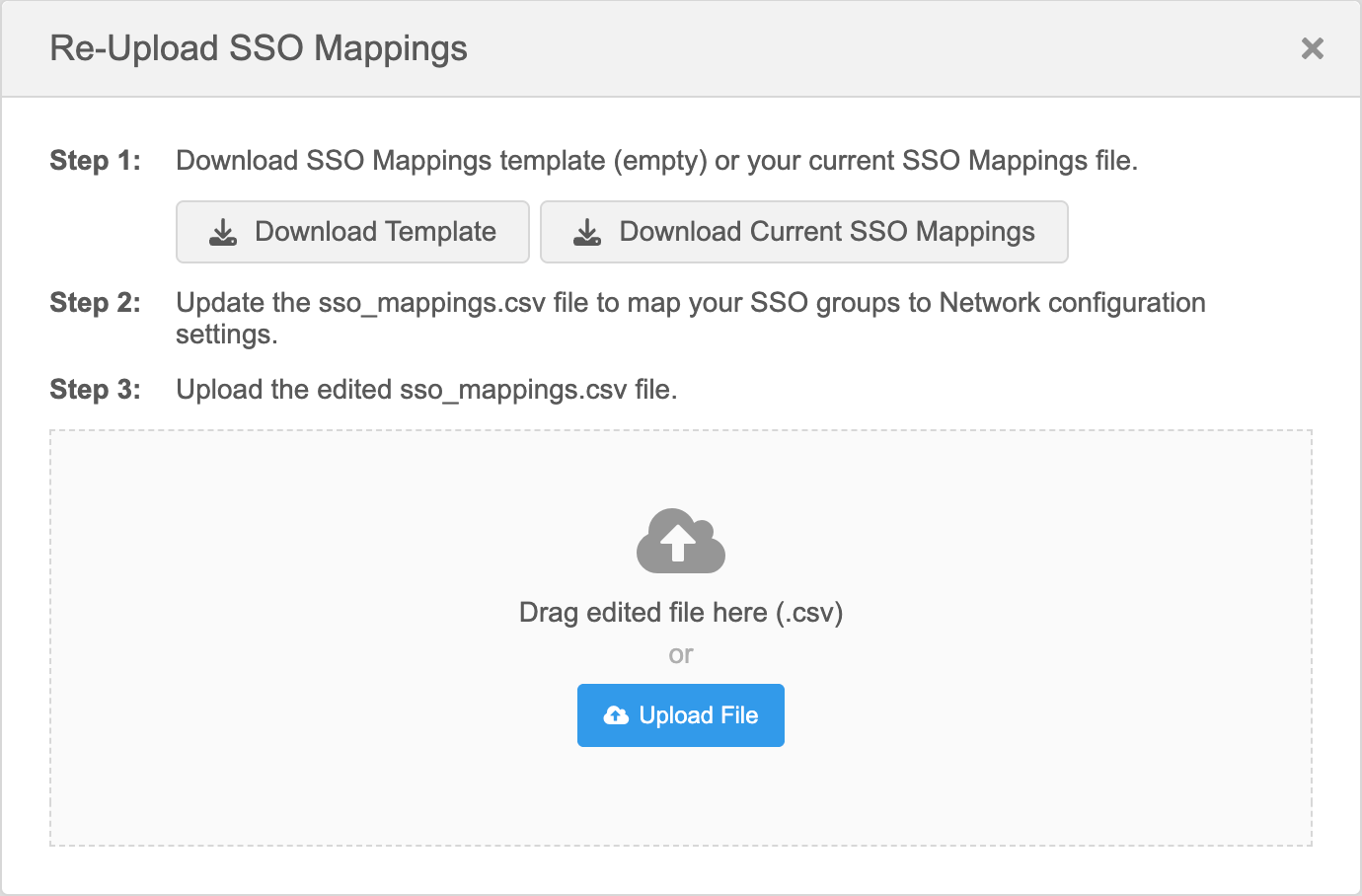
Click Re-Upload SSO Mappings.
-
In the dialog, choose to download the template or to download and edit your existing mapping file.
-
Upload the new or updated mapping file.
-
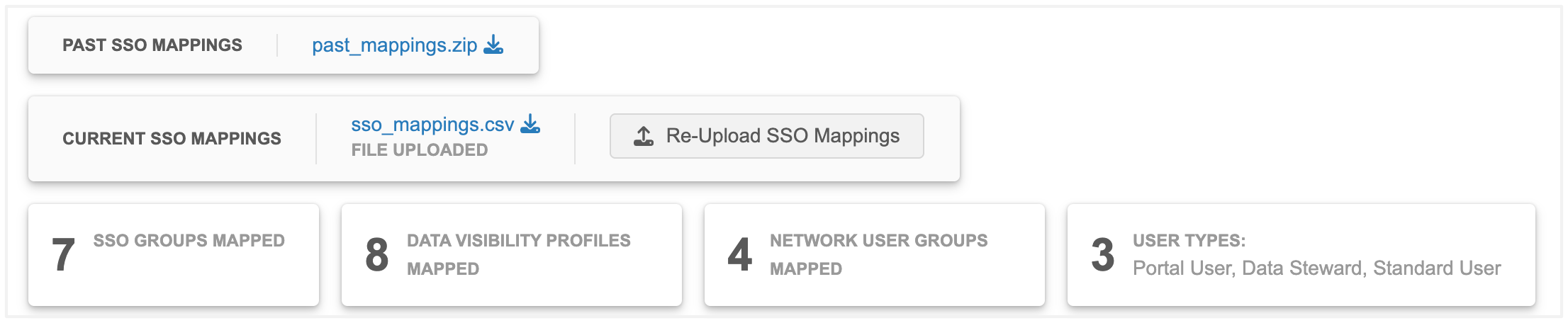
When the validated file is successfully uploaded, the displayed mappings reflect the new mappings.
-
Your previous mapping file can be downloaded in the Past SSO Mappings section.
-
Save your changes.
Test the SSO configuration
After you have uploaded the mappings, you can test the SSO configuration to understand the Network MDM settings that will be applied to a user.
-
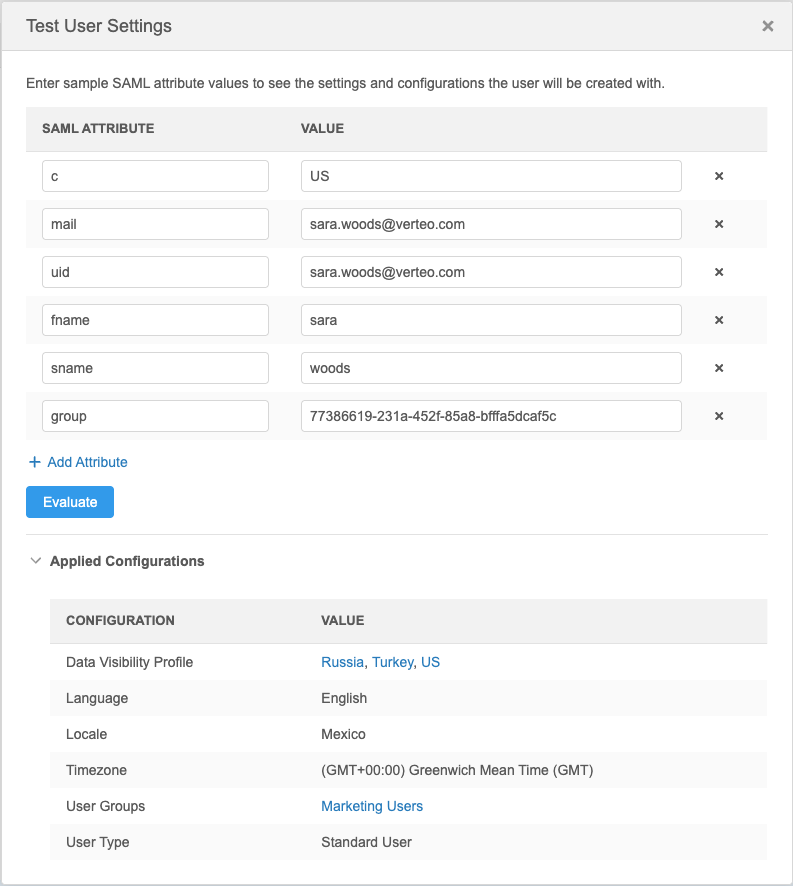
When the Single Sign-On Settings page is in read-only mode, click Test User Settings.
-
In the dialog, add the SAML attribute mappings. For the group field, add a group from your uploaded mappings file.
Click Add Attribute to include multiple groups.
-
Click Evaluate.
-
The Applied Configurations section displays the settings that will be applied to the user:
-
Data Visibility Profile
-
Language
-
Locale
-
Timezone
-
User Groups
-
User Type
-
Logs
Administrators can track the SSO mapping changes in the System Audit Log.
Updates to Transport Security Layer ciphers
To ensure the highest security standards, the following TLS ciphers will be removed from publicly accessible Network FTP servers.
-
TLS_DHE_RSA_WITH_AES_128_CCM_8
-
TLS_DHE_RSA_WITH_SEED_CBC_SHA
-
TLS_RSA_WITH_SEED_CBC_SHA
While Network already enforces TLS 1.2, retiring these ciphers eliminates known vulnerabilities and strengthens your data protection.
This change will be made by default.
Impact to existing customers
No disruption is expected. Standard FTP clients will automatically negotiate stronger, supported ciphers with no action required.
If you connect using older FTP clients or custom automation scripts, you might need to update your software to maintain connectivity.
SSL certificate update
All Veeva certificates have been re-issued by the certificate authority. The SSL certificate for veevanetwork.com will be updated on Friday, August 21 when version 26R2.0.1 is deployed to all Sandbox and Production PODs.
Impacted customers
Only customers who explicitly download and install certificates on any site caches or proxy servers must update their certificates.
If you are impacted, you must update your certificates for Friday, August 21.
Certificate expiry
This new certificate expires in six months (February 2027). Certificate authorities are shortening validity periods to align with updated security standards.
veevanetwork.com certificate
Installing this certificate covers all Sandbox and Production Network MDM instances and login.veevanetwork.com.
-----BEGIN CERTIFICATE-----
MIIG9zCCBd+gAwIBAgIQBgEtiTQzy8Y1U4x338u41DANBgkqhkiG9w0BAQsFADBZ
MQswCQYDVQQGEwJVUzEVMBMGA1UEChMMRGlnaUNlcnQgSW5jMTMwMQYDVQQDEypE
aWdpQ2VydCBHbG9iYWwgRzIgVExTIFJTQSBTSEEyNTYgMjAyMCBDQTEwHhcNMjYw
NzIyMDAwMDAwWhcNMjcwMjA1MjM1OTU5WjBxMQswCQYDVQQGEwJVUzETMBEGA1UE
CBMKQ2FsaWZvcm5pYTETMBEGA1UEBxMKUGxlYXNhbnRvbjEbMBkGA1UEChMSVmVl
dmEgU3lzdGVtcyBJbmMuMRswGQYDVQQDDBIqLnZlZXZhbmV0d29yay5jb20wggEi
MA0GCSqGSIb3DQEBAQUAA4IBDwAwggEKAoIBAQC2bzIVidM4AZ6JxlUdal+BtzXe
fmkly1rBQlESrindQcH51CinJT6cnQMQbmziq1yQN2mZScucSeVndZasaG33kvNG
u57Ve3mB8mTP3MpGt6J4CiBCMWlOEHlXbRjZyhSai8HrAvB9ClWcSblIcqath/T5
1FN0toVkIh4Jm2+qsjS1eriZ6CD3vTdFWpEMea1h1qNVetEGWv9oSm/Qo51PMXHh
36GMojuoJhmBR1fMqoC0i6VTwpyQfPlUp+C1liVpzmewlQ3MHJYr/vrJE7/Q4EVg
3swDdMXDZiC+6/NhYmcktOvDEcrue4i7ZGOvAckUNsadm3ewJozXeI15yzVNAgMB
AAGjggOhMIIDnTAfBgNVHSMEGDAWgBR0hYDAZsffN97PvSk3qgMdvu3NFzAdBgNV
HQ4EFgQU8R3ti8/dxisdcCtnn4FemZWqLh4wLwYDVR0RBCgwJoISKi52ZWV2YW5l
dHdvcmsuY29tghB2ZWV2YW5ldHdvcmsuY29tMD4GA1UdIAQ3MDUwMwYGZ4EMAQIC
MCkwJwYIKwYBBQUHAgEWG2h0dHA6Ly93d3cuZGlnaWNlcnQuY29tL0NQUzAOBgNV
HQ8BAf8EBAMCBaAwHQYDVR0lBBYwFAYIKwYBBQUHAwEGCCsGAQUFBwMCMIGfBgNV
HR8EgZcwgZQwSKBGoESGQmh0dHA6Ly9jcmwzLmRpZ2ljZXJ0LmNvbS9EaWdpQ2Vy
dEdsb2JhbEcyVExTUlNBU0hBMjU2MjAyMENBMS0xLmNybDBIoEagRIZCaHR0cDov
L2NybDQuZGlnaWNlcnQuY29tL0RpZ2lDZXJ0R2xvYmFsRzJUTFNSU0FTSEEyNTYy
MDIwQ0ExLTEuY3JsMIGHBggrBgEFBQcBAQR7MHkwJAYIKwYBBQUHMAGGGGh0dHA6
Ly9vY3NwLmRpZ2ljZXJ0LmNvbTBRBggrBgEFBQcwAoZFaHR0cDovL2NhY2VydHMu
ZGlnaWNlcnQuY29tL0RpZ2lDZXJ0R2xvYmFsRzJUTFNSU0FTSEEyNTYyMDIwQ0Ex
LTEuY3J0MAwGA1UdEwEB/wQCMAAwggF/BgorBgEEAdZ5AgQCBIIBbwSCAWsBaQB3
AExj3JjlnB2riPYeij3ero+rRKM3e1+blMP7oZz8wb4mAAABn4uBpycAAAQDAEgw
RgIhANvmv/DGXW7XqfMlKGHvO+lerA+Pj5aV16my43qMqAvYAiEAhD2WixJIlVZe
a6X9U2nKt7ONcyFjdTnmpd3FKOb46SQAdgDW1Y2p0BdT82pKoMdXSQKv68fcLNOM
2fdkyAyJGR6fAgAAAZ+Lgac8AAAEAwBHMEUCIQCOtWGR77ymA9Lm0SfookdK91w3
JV/VN8mFO/xiZi7TWQIgUzptoClQdVOPZLIUDW4OZYTsivJWOE09lxYSAd/qfJQA
dgBEwr0M6RQOZKXJSgGTClqhuzWXDgDuERaJaCocRNe1ZgAAAZ+LgaddAAAEAwBH
MEUCICtYcTbHjAHhr4LFyZhqKlz+e+TJydWPaEMGotAZXMKTAiEAlv9QfUs9r51o
XuYIam5tTZXeaviIA+Lp/pZtoFjwNu0wDQYJKoZIhvcNAQELBQADggEBAJxfcyuB
au3mnKXc2Pag6ekn5npqgU0El01Ylx5Il4/c/BtD3Re9XTURoRP8AYcFsrLaohz+
S3dDQHznVzrjc5YMvpi6t7x97aPRYVvC983Opnme0W0UO7wd+UkUomxhUV63GVb9
Sc/6Lkv8UXgYmvK7Lpdo1dGKRufAyLc2yc67No8oowNG1/2f2sVrrQFou8QRinap
NJN1vmqAULvVhc2Wh/73RDfuZasyG5G5e0z0zf0tVladc9wCczbuViAFQUbu5b1C
pkr8oC4oJsuhTqysJrfRebDkYyjF3vrGH0Ccaqt5uZJJtpU005i5AFoyj6vr/BFk
tJzMCEiaJMQcxps=
-----END CERTIFICATE-----
Intermediate CA certificate cert
Install this CA certificate to ensure that the SSL certificate is fully trusted by the supported browsers and client computers.
-----BEGIN CERTIFICATE-----
MIIEyDCCA7CgAwIBAgIQDPW9BitWAvR6uFAsI8zwZjANBgkqhkiG9w0BAQsFADBh
MQswCQYDVQQGEwJVUzEVMBMGA1UEChMMRGlnaUNlcnQgSW5jMRkwFwYDVQQLExB3
d3cuZGlnaWNlcnQuY29tMSAwHgYDVQQDExdEaWdpQ2VydCBHbG9iYWwgUm9vdCBH
MjAeFw0yMTAzMzAwMDAwMDBaFw0zMTAzMjkyMzU5NTlaMFkxCzAJBgNVBAYTAlVT
MRUwEwYDVQQKEwxEaWdpQ2VydCBJbmMxMzAxBgNVBAMTKkRpZ2lDZXJ0IEdsb2Jh
bCBHMiBUTFMgUlNBIFNIQTI1NiAyMDIwIENBMTCCASIwDQYJKoZIhvcNAQEBBQAD
ggEPADCCAQoCggEBAMz3EGJPprtjb+2QUlbFbSd7ehJWivH0+dbn4Y+9lavyYEEV
cNsSAPonCrVXOFt9slGTcZUOakGUWzUb+nv6u8W+JDD+Vu/E832X4xT1FE3LpxDy
FuqrIvAxIhFhaZAmunjZlx/jfWardUSVc8is/+9dCopZQ+GssjoP80j812s3wWPc
3kbW20X+fSP9kOhRBx5Ro1/tSUZUfyyIxfQTnJcVPAPooTncaQwywa8WV0yUR0J8
osicfebUTVSvQpmowQTCd5zWSOTOEeAqgJnwQ3DPP3Zr0UxJqyRewg2C/Uaoq2yT
zGJSQnWS+Jr6Xl6ysGHlHx+5fwmY6D36g39HaaECAwEAAaOCAYIwggF+MBIGA1Ud
EwEB/wQIMAYBAf8CAQAwHQYDVR0OBBYEFHSFgMBmx9833s+9KTeqAx2+7c0XMB8G
A1UdIwQYMBaAFE4iVCAYlebjbuYP+vq5Eu0GF485MA4GA1UdDwEB/wQEAwIBhjAd
BgNVHSUEFjAUBggrBgEFBQcDAQYIKwYBBQUHAwIwdgYIKwYBBQUHAQEEajBoMCQG
CCsGAQUFBzABhhhodHRwOi8vb2NzcC5kaWdpY2VydC5jb20wQAYIKwYBBQUHMAKG
NGh0dHA6Ly9jYWNlcnRzLmRpZ2ljZXJ0LmNvbS9EaWdpQ2VydEdsb2JhbFJvb3RH
Mi5jcnQwQgYDVR0fBDswOTA3oDWgM4YxaHR0cDovL2NybDMuZGlnaWNlcnQuY29t
L0RpZ2lDZXJ0R2xvYmFsUm9vdEcyLmNybDA9BgNVHSAENjA0MAsGCWCGSAGG/WwC
ATAHBgVngQwBATAIBgZngQwBAgEwCAYGZ4EMAQICMAgGBmeBDAECAzANBgkqhkiG
9w0BAQsFAAOCAQEAkPFwyyiXaZd8dP3A+iZ7U6utzWX9upwGnIrXWkOH7U1MVl+t
wcW1BSAuWdH/SvWgKtiwla3JLko716f2b4gp/DA/JIS7w7d7kwcsr4drdjPtAFVS
slme5LnQ89/nD/7d+MS5EHKBCQRfz5eeLjJ1js+aWNJXMX43AYGyZm0pGrFmCW3R
bpD0ufovARTFXFZkAdl9h6g4U5+LXUZtXMYnhIHUfoyMo5tS58aI7Dd8KvvwVVo4
chDYABPPTHPbqjc1qCmBaZx2vN4Ye5DUys/vZwP9BFohFrH/6j/f3IL16/RZkiMN
JCqVJUzKoZHm1Lesh3Sz8W2jmdv51b2EQJ8HmA==
-----END CERTIFICATE-----
View or download the updated certificates
After the certificates are updated, they can be viewed and downloaded by running the following command:
openssl s_client -connect login.veevanetwork.com:443 -showcerts