Profiles
Profile Inspector
The Profile Inspector is a tool that you can use to see all of a record’s fields, including fields not on the profile, on a single, easy-to-search screen. Data Stewards can use the view to quickly find fields without digging into the different sections on the Profile page.
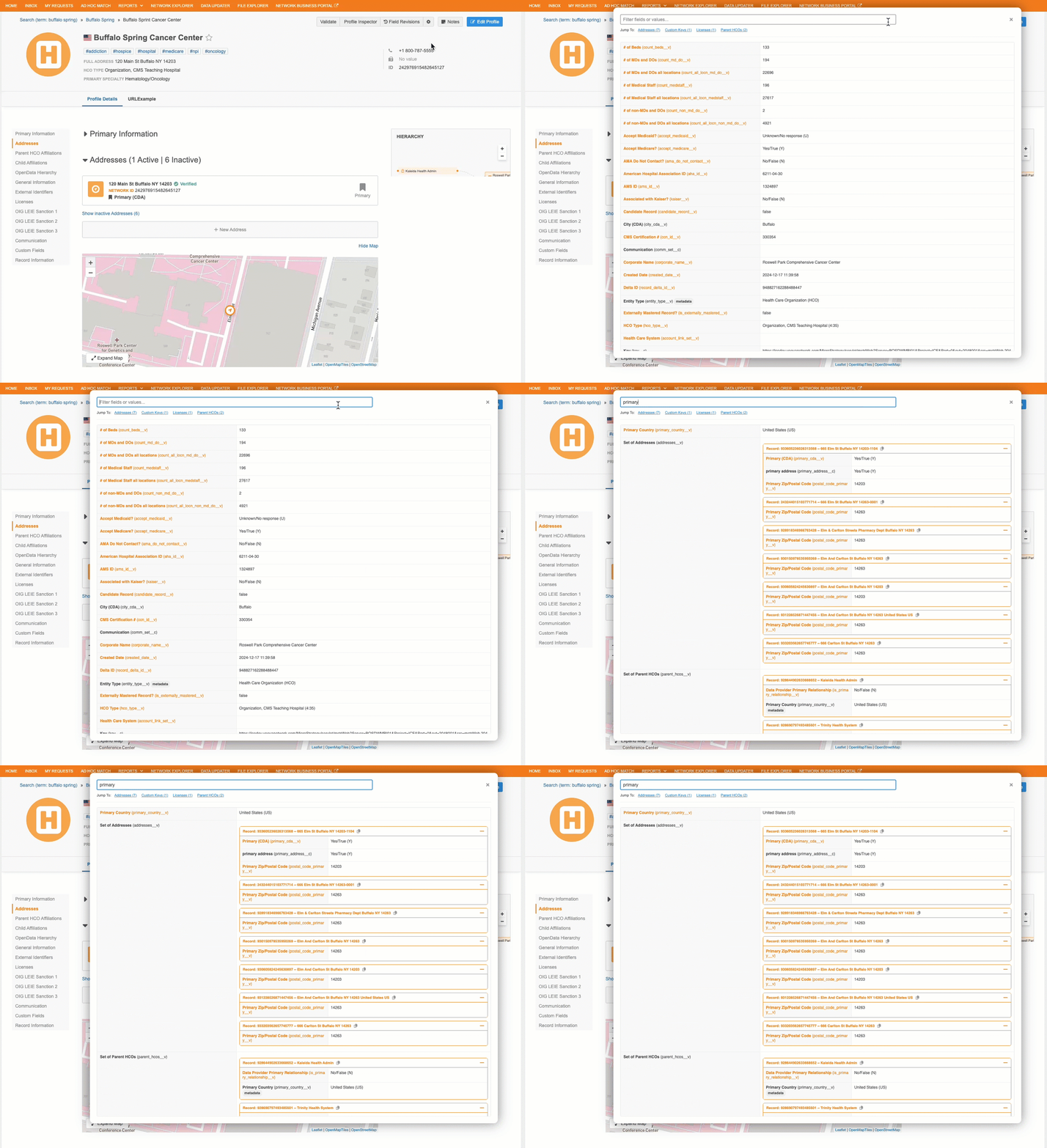
This feature is enabled by default for your Network MDM instance.
Supported users
-
Data Stewards
-
Data Managers
-
System Administrators
-
System and Data Admins
Supported records
-
Type - HCPs, HCO, custom objects
-
Ownership - Locally managed, Veeva-managed, and third-party managed records.
Profile Inspector can also be used on records not yet downloaded from OpenData.
Display on profiles
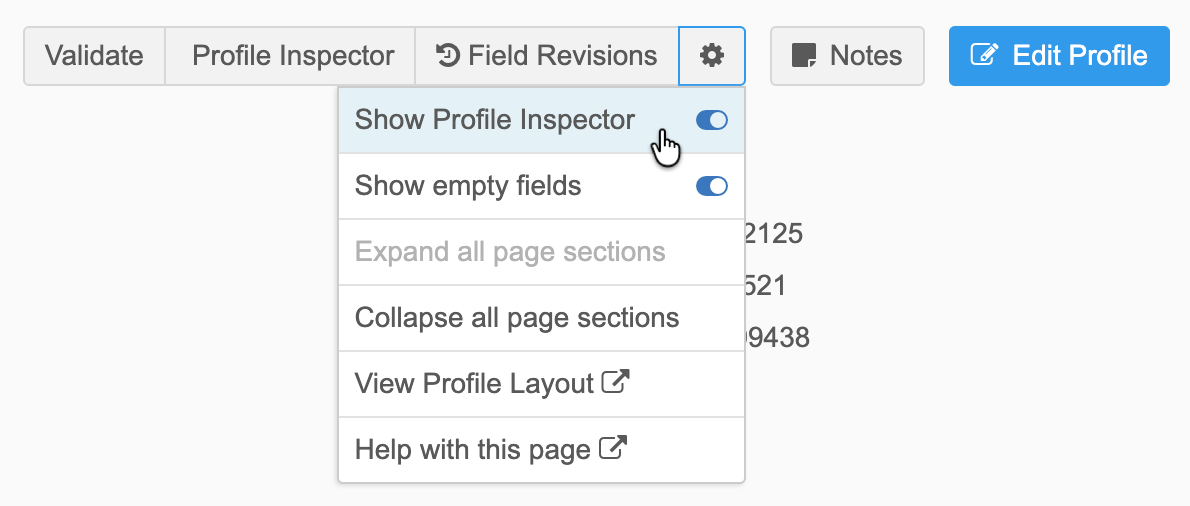
The Profile Inspector button does not display by default on record profiles. Users can choose to display the button.
-
Expand the More Options menu and toggle the Show Profile Inspector option to On. Your preference is remembered the next time you visit a record profile.
Using Profile Inspector
On any record, click Profile Inspector to open the tool.
Available fields
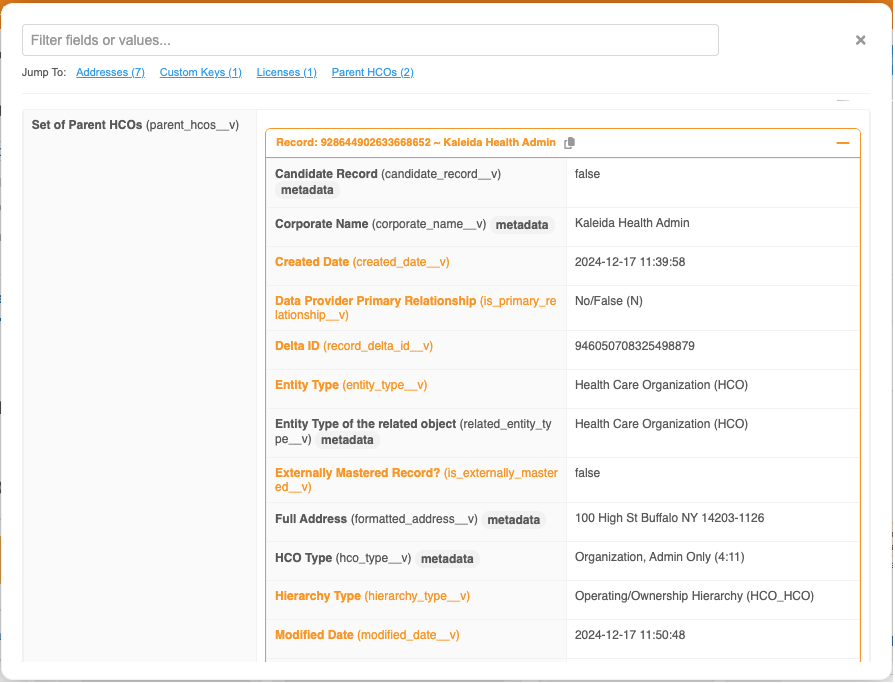
Profile Inspector includes all fields and values for that record, including fields that do not display on the Profile page.
A Metadata tag is added beside fields that are not part of the data model but are added to help users understand the record; for example, the corporate_name__v field is added to parentHCO records.
-
Display order - The fields display in alphabetical order.
-
Field color - The color indicates field management if you have the Field Ownership option selected (More Options menu).
-
Multivalued fields - Fields with multiple values display as comma-separated lists.
-
Copy - A Copy icon displays beside each field.
Sections
Separate sections display for sub-objects. Click the section name, for example Addresses or ParentHCOs, to jump to that section in the tool.
Each section can be expanded or collapsed.
Search for fields
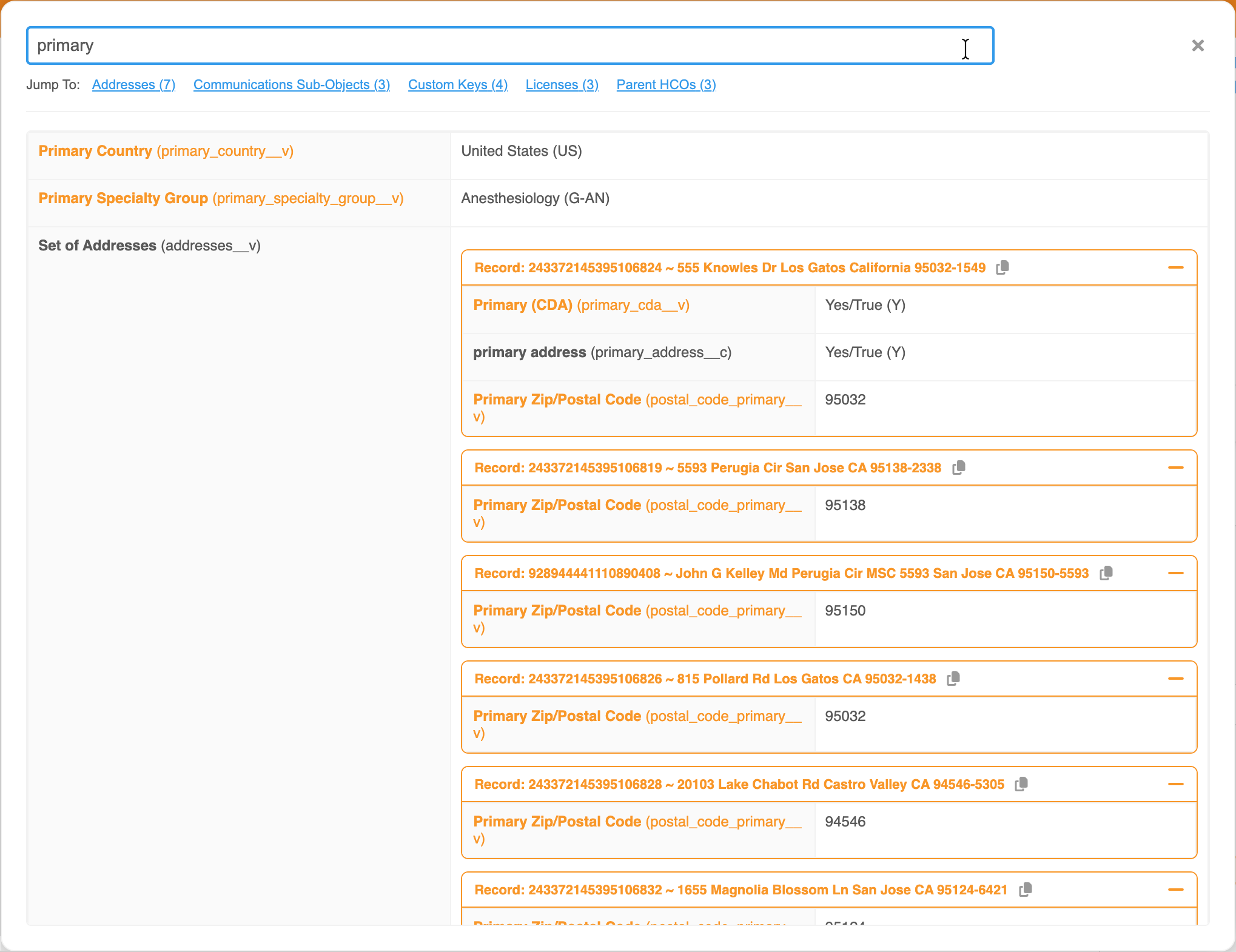
Use the Search bar to quickly find specific data points, for example, field labels and names, reference labels and values.
If you filter the record for a specific search term, your preference is remembered the next time you open Profile Inspector on any record.
Example
Search for "primary" to see all fields on the record that are set to primary.
Parent HCO enhancements
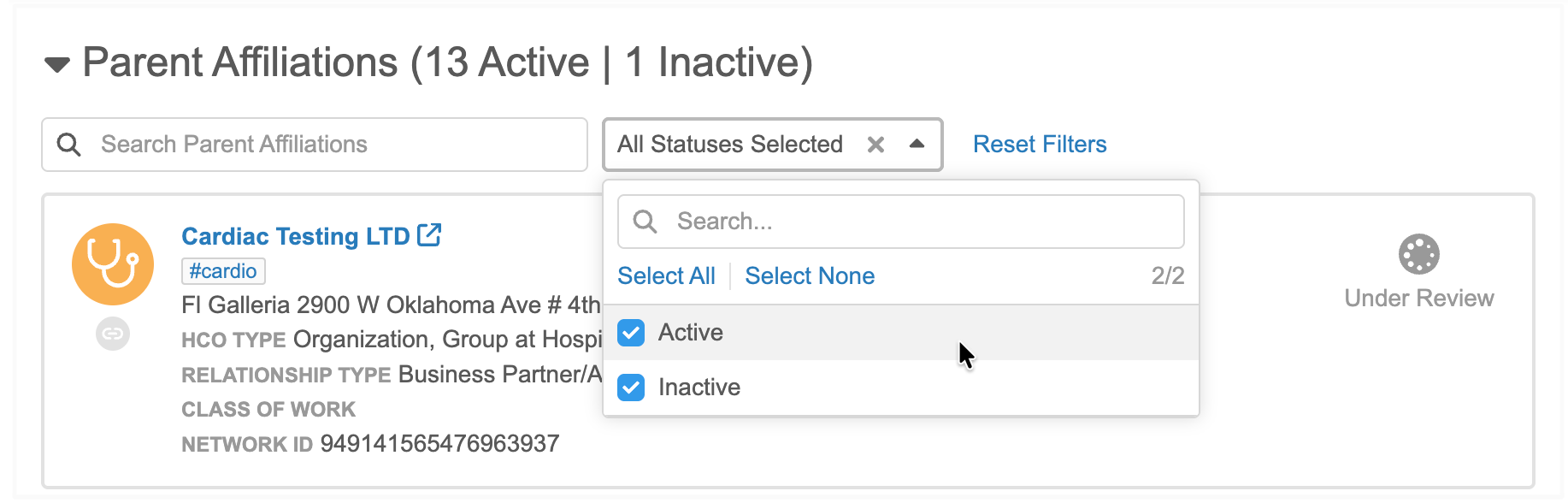
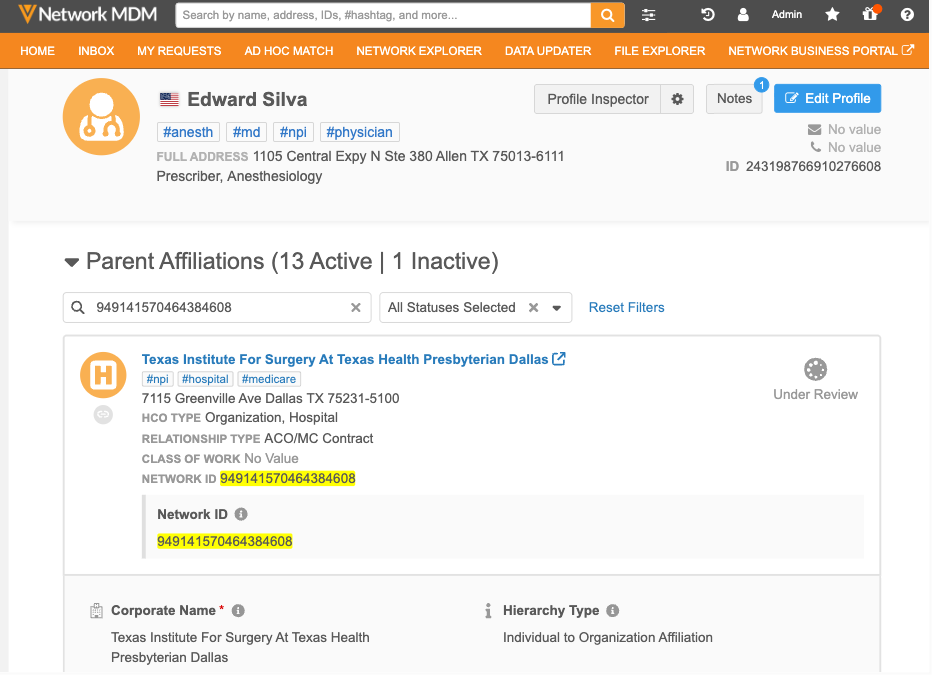
To help you find affiliations faster on records with high volumes of parent HCOs, the Parent Affiliation section is enhanced. You can now navigate large lists effortlessly using pagination or quickly locate affiliations using specific keywords. For example, search for the Network ID of a hospital to find it in any affiliation card on the record.
This enhancement is enabled by default.
Key details
| Detail | Explanation |
|---|---|
| Limit of records |
A maximum of 500 affiliations can display for each record. This is an existing limit that has not changed with this enhancement. |
| Default number of records per page |
Five records display by default. Use the Show option to change your preference to display 10 records. Your preference will be remembered the next time you visit a record profile. |
| Page display order |
Affiliations are listed in the following order:
When new affiliations are added on the Profile page, they are added to the bottom of the active affiliations. If it is marked as a primary record, it will display at the top of the list. |
Available actions
-
Search - Use the Search bar to find an affiliation on any page in the section.
-
Filter - Use the Status filter to display All Statuses, Active, or Inactive affiliations.
The filter is remembered as you visit other records or return to the Profile page.