Hierarchy management
Data Provider Primary Hierarchy
A new hierarchy definition to manage roll-ups is created for primary hierarchies. It can be used in the Hierarchy Explorer widget as a hierarchy view or in hierarchy reports to define how hierarchies display. For example, use the definition in the flat hierarchy table to understand the data you have from Veeva OpenData or IQVIA®.
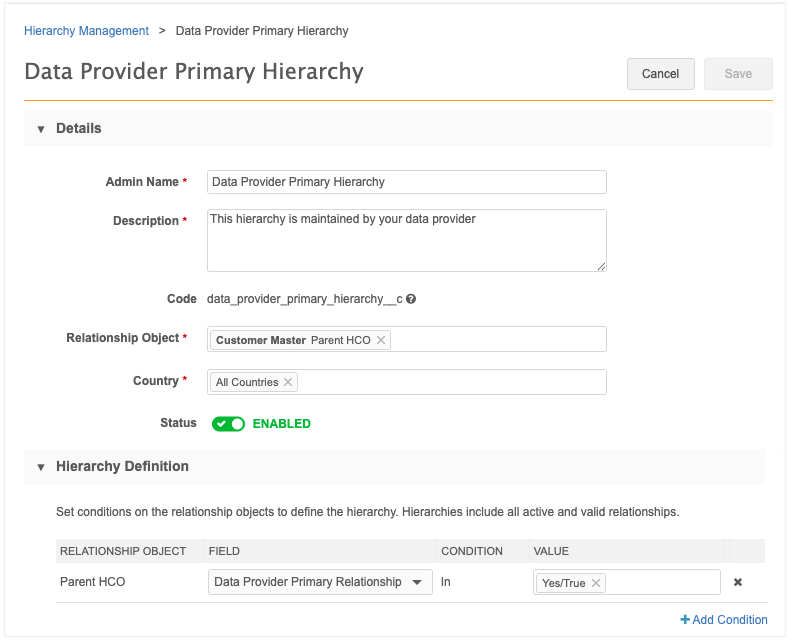
The hierarchy definition is enabled by default in your Network instance.
Supported objects
The hierarchy definition is based on the Parent HCO object.
Supported countries
All countries
Hierarchy configuration
Default values are defined, but you can configure it for your own business-specific uses.
-
On the Admin console, click Data Model > Hierarchy Management.
-
Click the Data Provider Primary Hierarchy.
-
On the configuration page, define the following details.
-
Details section - Define the basic settings for the hierarchy.
Setting Definition Default Value Admin Name The name of the hierarchy definition. Data Provider Primary Hierarchy Description A meaningful description of the hierarchy definition. This hierarchy is maintained by your data provider. Relationship Objects The relationship objects to this hierarchy definition. Parent HCO Country The countries that apply to this hierarchy rollup definition. All Countries -
Hierarchy Definition section - Choose the fields on the relationship objects that define the hierarchy.
Setting Definition Default Value Relationship Object The object defined in the Details section. Parent HCO Field The field that determines which relationships will be included in the hierarchy. Data Provider Primary Relationship Condition The requirement that must be met. In (cannot be changed) Value The field value that must be set for the relationship to be included in the hierarchy. Yes/True. -
Hierarchy Explorer section - Choose to add the hierarchy as a view on your Hierarchy Explorer widget.
-
Enable hierarchy on Hierarchy Explorer widgets - Choose to add this hierarchy as a view.
-
Include on - If you selected the previous setting, choose the widget from the list. Multiple widgets are supported.
-
Display Name and Tooltip - Define the hierarchy label and tooltip that displays in the widget.
Setting Definition Default Value Language The language to display. English Display Name The label of the hierarchy in the widget. Data Provider Hierarchy Tooltip The text that displays when users hover on the view in the widget. Visualize your data provider hierarchy
-
-
Editing options - Choose to enable users to edit the view in the selected Hierarchy Explorer widgets.
-
Flattened Hierarchy Reporting section - Define the options to make the hierarchy available as a reporting table in the SQL Query Editor (Reports).
-
Enable flattened hierarchies in reporting - Choose to make the table available in reporting. This is enabled by default.
-
Table Name and Location in Reporting - Define where the tables display and how users will identify them.
Setting Definition Default Value Reporting Tree View Location The category in the reporting tree view in the SQL Query Editor. Customer Master Table Name The name of the reporting table. flat_data_provider_primary_hierarchy Table Label - Language The language the table name displays in your instance. English Table Label The localized label that displays. Flat Data Provider Primary Hierarchy -
Extend Flat Hierarchy Table - Include fields from the entity and ancestor to minimize additional joins in the flattened hierarchy table.
-
Entity and Ancestor Name - Select to include the entity and ancestor names.
Setting Definition Default Value Entity Fields - HCO HCO fields included in the table. HCO Type, Primary Country Entity Fields - HCP HCP fields included in the table. HCP Type, Primary Country Ancestor Fields - HCO Ancestor fields included in the table. HCO Type, Primary Country -
-
-
Schedule
The definition is scheduled by default to run at a specific time. You can change the existing schedule or add a new schedule.
Flattened Hierarchy Update History
This section displays after the hierarchy is saved and the flattened hierarchy table data is updated for the first time. It identifies the date and time, the user that triggered the update and the total rows of data in the table. Any errors that occur will also display.
-
Update Flattened Hierarchy Table - Click to manually update the table.