Track Data Update API jobs
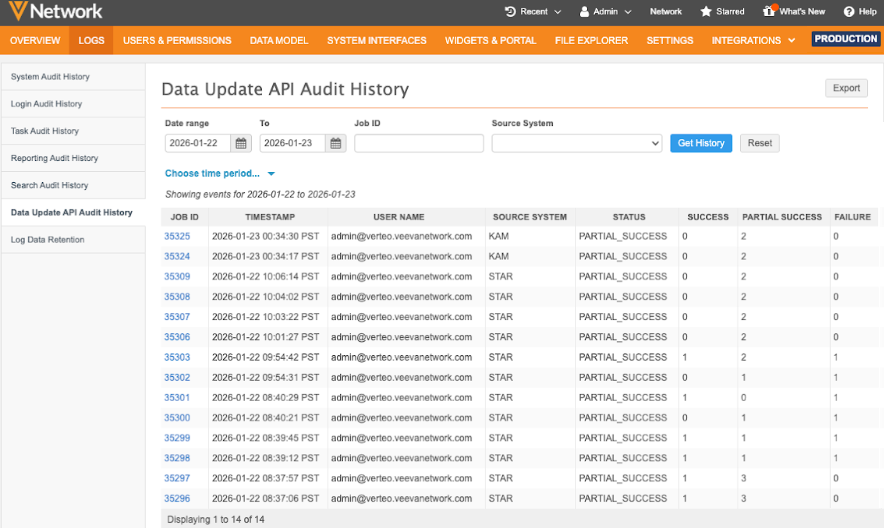
Administrators can access a complete history of Data Update API calls directly within Network MDM. Use the Data Update API Audit History log to track how and when records were updated and to troubleshoot issues.
About the Data Update API
Users with API access can use the Data Update API to perform efficient, small-batch record changes without requiring a full source subscription.
Unlike the Change Request API—which defaults all updates to the change_request source—you can define a specific source for each update. This ensures that changes are accurately reflected in the record's data lineage and that Network’s source rankings are correctly applied to the data.
For details, see Developer's Guide: Data Update.
Access the log
Administrators can access the log in the Admin console. Click Logs > Data Update API Audit History.
Event details
Each event includes the following information:
-
Job ID - A unique ID for each data update job.
Click the ID to open the Job Details page.
-
Timestamp - The date of the event.
-
User Name - The user that ran the Data Update API call.
-
Source System - The system defined for the updates.
-
Status - The overall status of the job.
-
SUCCESS - All records return with SUCESS.
-
PARTIAL_SUCCESS - At least one record returns with SUCCESS or PARTIAL_SUCCESS.
-
FAILURE - No records return with SUCCESS or WARNING.
-
-
Success - A count of records that returned with SUCCESS.
-
Partial Success - A count of records that returned with PARTIAL_SUCCESS.
-
Failure - A count of records that returned with FAILURE.
Filter by date
To view results for a specific time period, perform one of the following actions:
-
Date range - Define a date in the Date range and To fields.
-
Time period - Expand the time period list and select a predefined period, for example, Last 7 days.
The Last day option can display up to two days of results, including the data from the previous day through to the current time.
Click the Get History button to view the results.
Filter by job ID
To find a specific job, type the unique ID in the Job ID field.
Filter by source system
To find job updates for a specific system, type the system name in the Source System field.
Export the audit history
To download the refined audit history to your local file system, click Export.
The log is downloaded as a .csv file that you can open using a spreadsheet application.